Authenticator app
The second step of every sign-in, at the console and at the gate of a service, is a 6-digit code. Besides the code sent by email, Neti accepts the code of an authenticator app on the user's phone (TOTP, the standard of RFC 6238). The app makes a new code every 30 seconds, also offline, and nothing is sent by email. It is part of the Free edition and needs no account at Google, Microsoft or any other service.
Where: for console users, Settings → Users, field Authentication (second step); for gate users, the Access column of the users of a service in Routing (or in Users → Gate users). Each console user sees their own state in My access, at the bottom of the side menu.
Methods of a user
A console user has one of three choices in Authentication (second step):
- Code by email
- The default, as before: the code arrives by email.
- Code by email or authenticator app
- Both codes are accepted. Once the app is set up, no email is sent at sign-in; Get a code by email is still there when the phone is not at hand.
- Authenticator app only
- Only the app code (or a recovery code) is accepted. No code is ever emailed to this user, and a valid email code is refused.
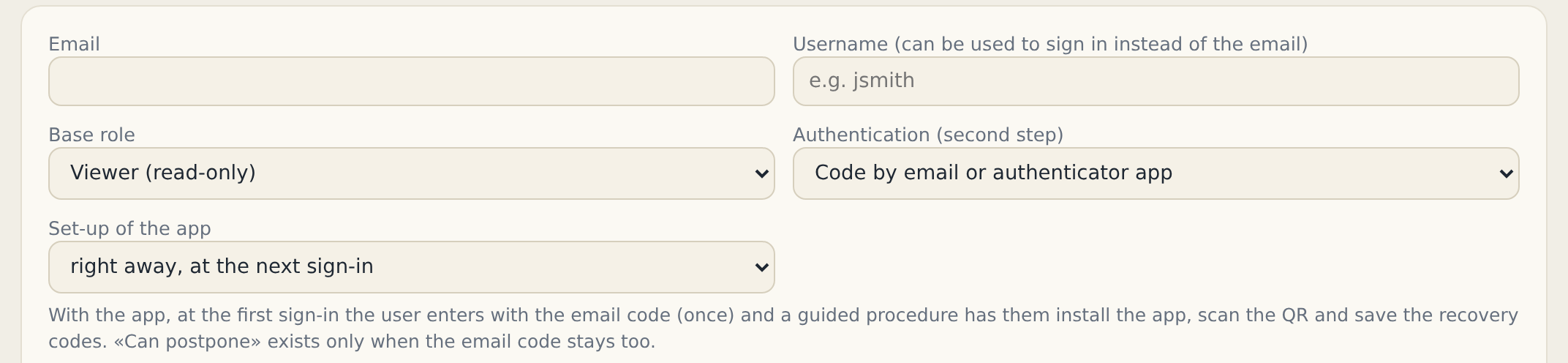
A gate user has two ticks, Email and App, and at least one must stay on. The gate uses one app per email address for all the services on which that address is enabled. Console and gate are kept apart: the app set up for the gate is never valid for the console, and the reverse.
Postponing the set-up
When the email code stays available too, the administrator chooses in Set-up of the app when the user must set up the app:
- right away, at the next sign-in: the guided set-up starts after the email code and cannot be skipped;
- the user can postpone: the set-up is offered at every sign-in with Later: for now I sign in with the email code;
- can postpone, within 14 days / within 30 days: as above, until that date; after it the set-up is required.
With Authenticator app only there is nothing to postpone: the first sign-in uses the email code once, only to reach the set-up.
The first sign-in of a new user
- The administrator creates the user (or enables them on a service) and chooses the method. With the app, the notice says that the user enters with the email code at the first sign-in and sets up the app.
- The user signs in as usual: name, email code, and for the console the password.
- The guided set-up opens, in four steps:
- Protect your sign-in: what is going to happen; Set up now (or Later when postponing is allowed).
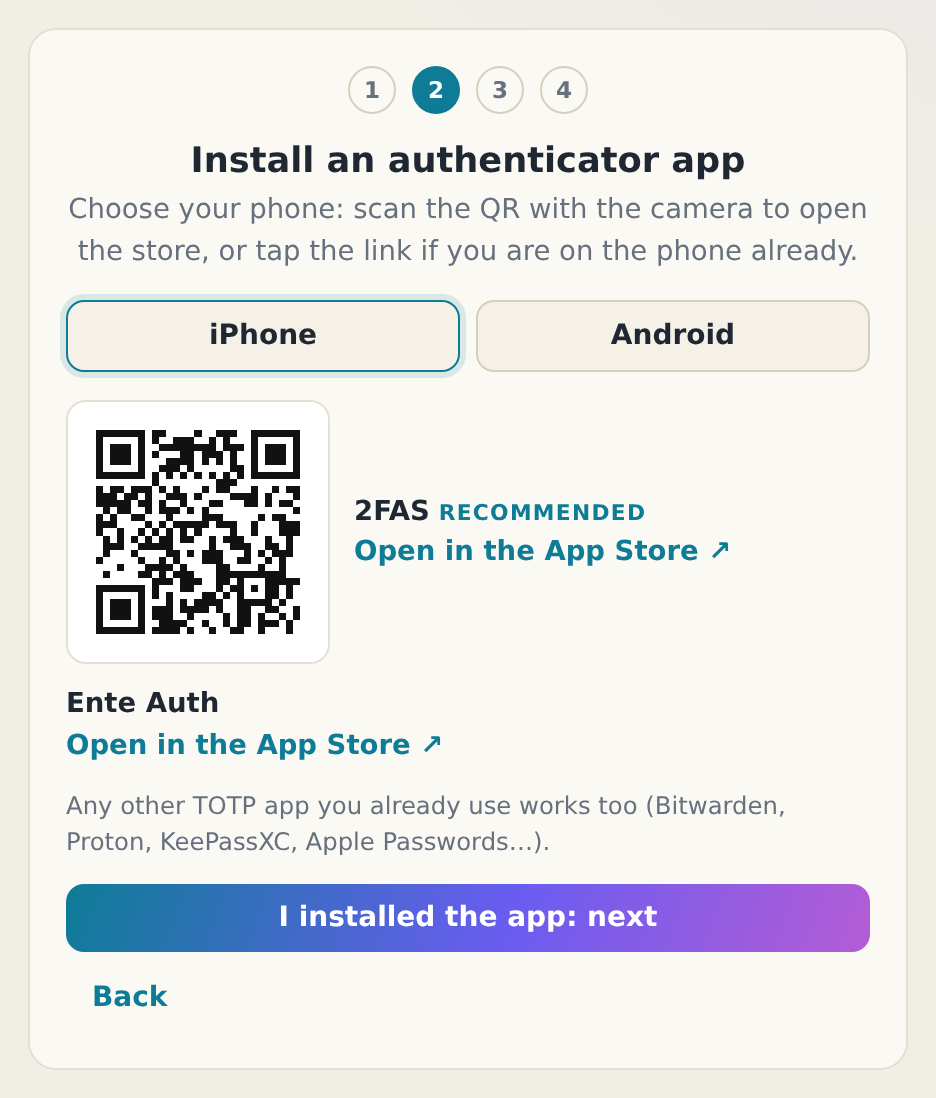
- Install an authenticator app: choose iPhone or Android. For each app there is a QR code to scan with the camera and the link to the App Store or Google Play. Suggested apps are free and need no account: 2FAS (iPhone and Android, recommended), Ente Auth (iPhone and Android) and Aegis (Android). Any other TOTP app already in use works too (Bitwarden, Proton, KeePassXC, Apple Passwords…). I already have an app: next skips this step.
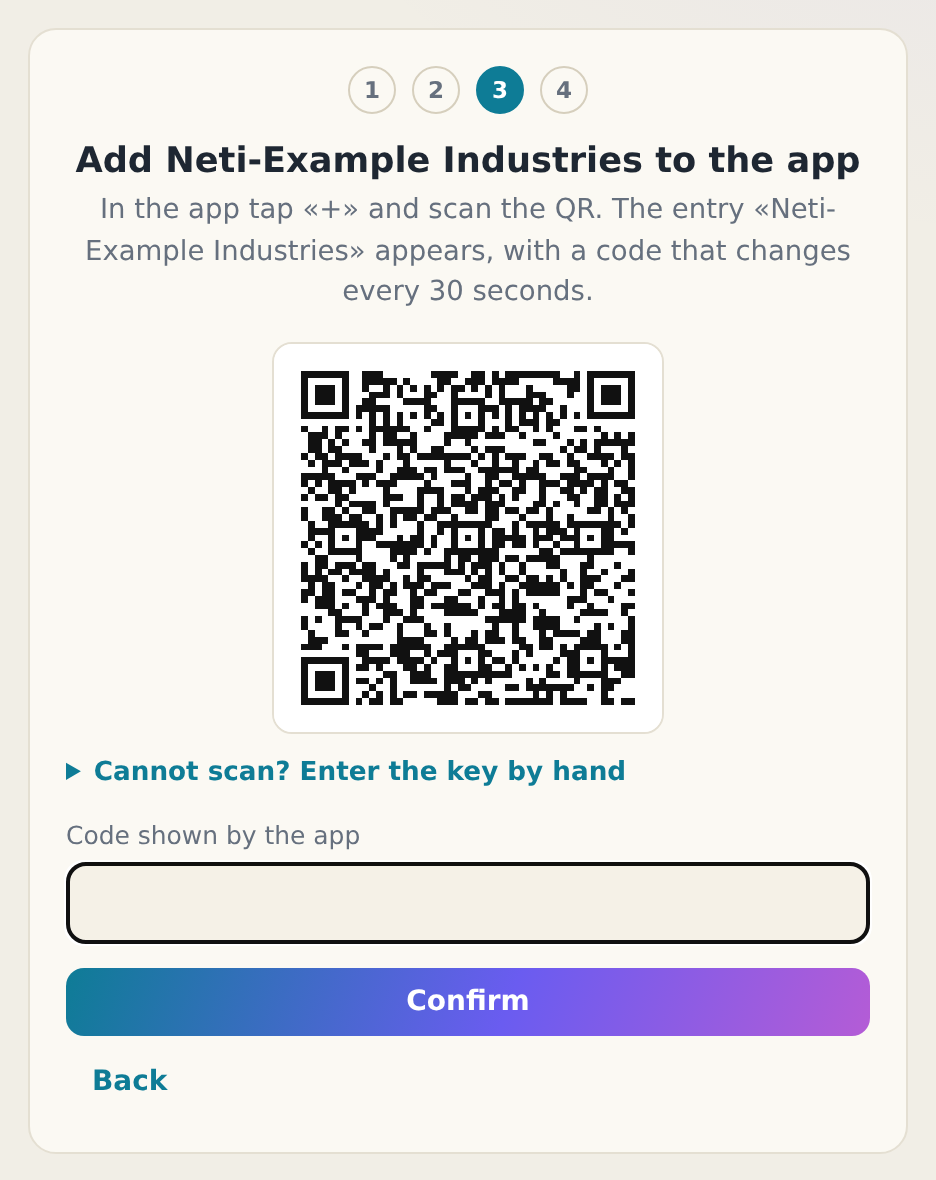
- Add … to the app: in the app tap «+» and scan the QR. The entry appears with the name Brand-Instance, made of the fields Brand and Instance of Settings → General, so that several Neti servers in the same app are easy to tell apart; the account is the email, followed by (console) for the console. Cannot scan? Enter the key by hand shows the key with a Copy button. The user types the code shown by the app to confirm.
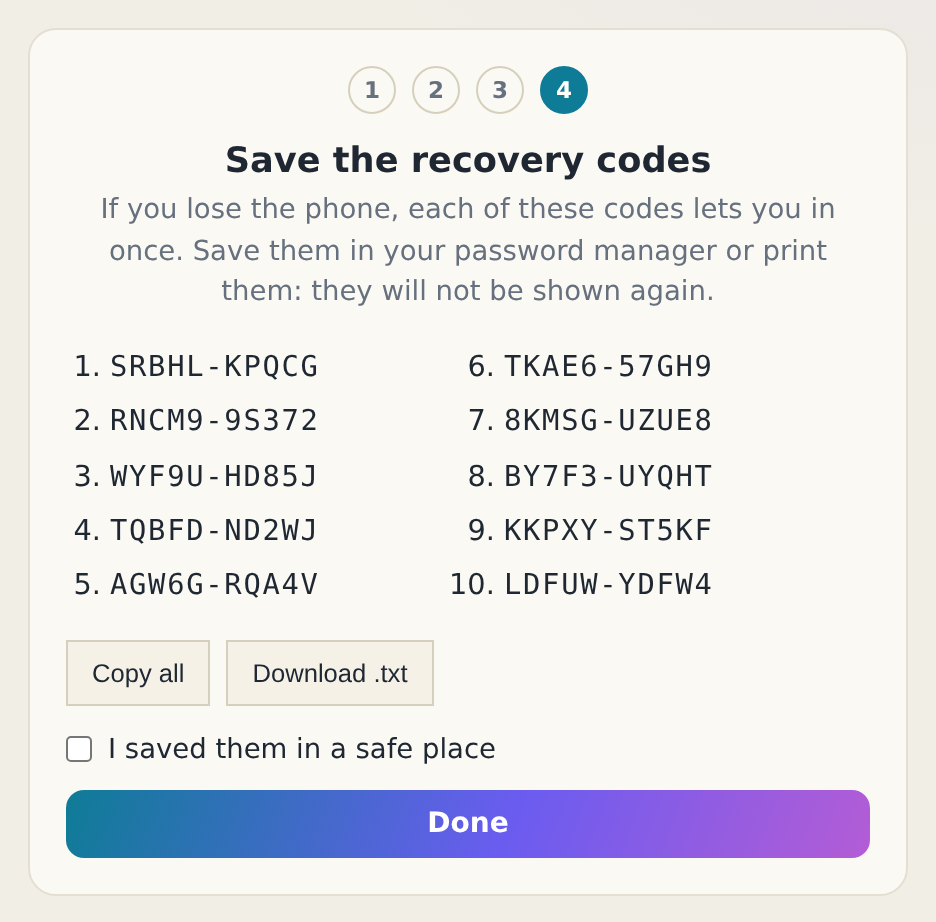
- Save the recovery codes: 10 codes in the form
ABCDE-23456, with Copy all and Download .txt. The set-up ends only after ticking I saved them in a safe place.
- The user receives an email that the app was set up. From the next sign-in the app code is used.
The key is shown only during the set-up and never again. The set-up expires after 15 minutes: start again from the sign-in. Until it is confirmed nothing changes for the user.
Signing in with the app
At the code step the user types the code currently shown by the app. Each code works once: the same code typed again is refused, even within its 30 seconds. A code from 30 seconds earlier or later is still accepted, to allow for a phone clock slightly off. The page looks the same whatever the user's method, so it tells nobody whether an account exists or which method it uses.
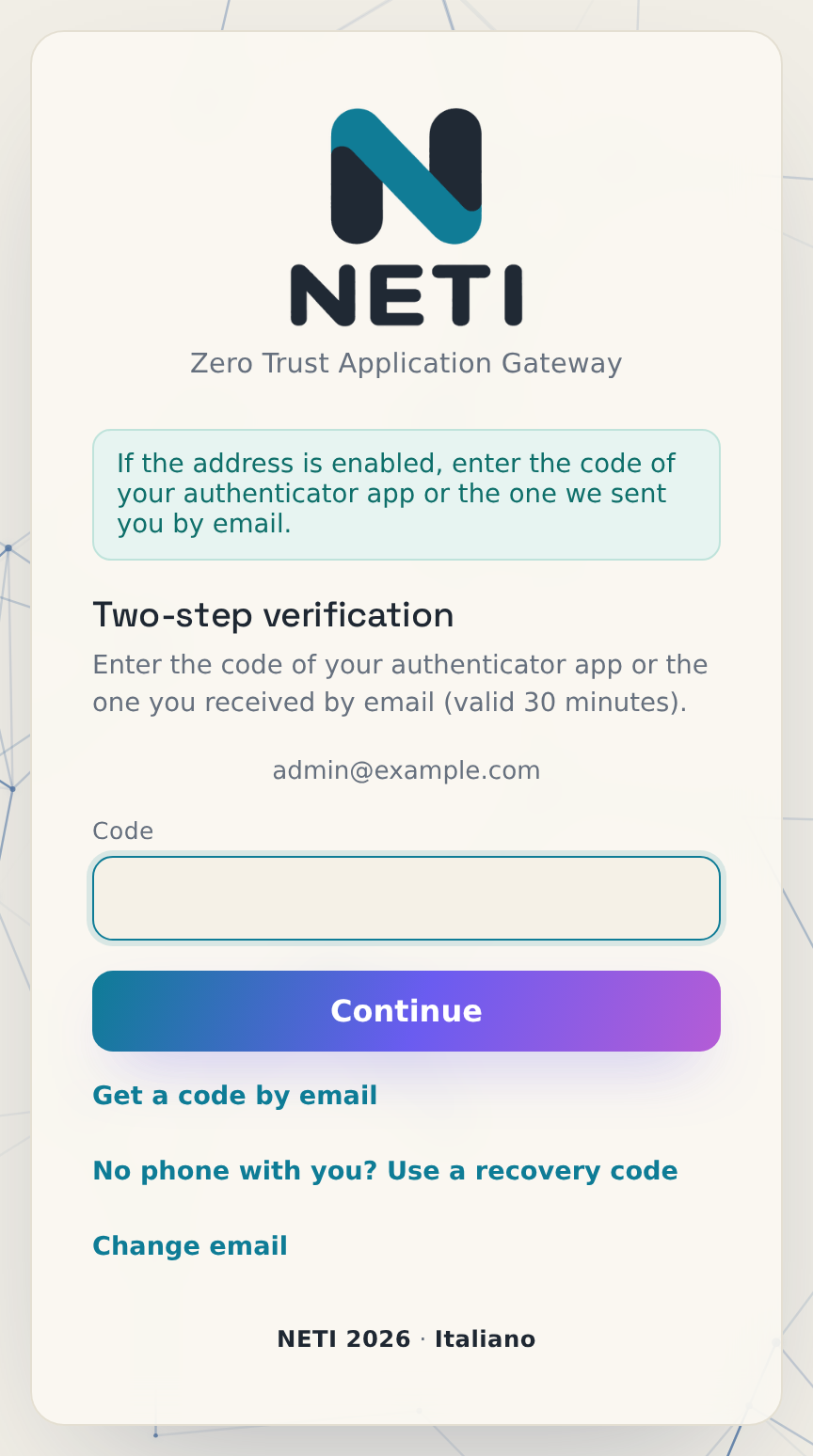
- No phone with you? Use a recovery code
- Asks for one of the recovery codes. Each code works once; the user is emailed when one is used. After a recovery code Neti offers to set up the app on a new phone (Cancel keeps the current one). When only 3 or fewer are left, the page says so.
- Get a code by email
- Only for users who have the email code too.
My access
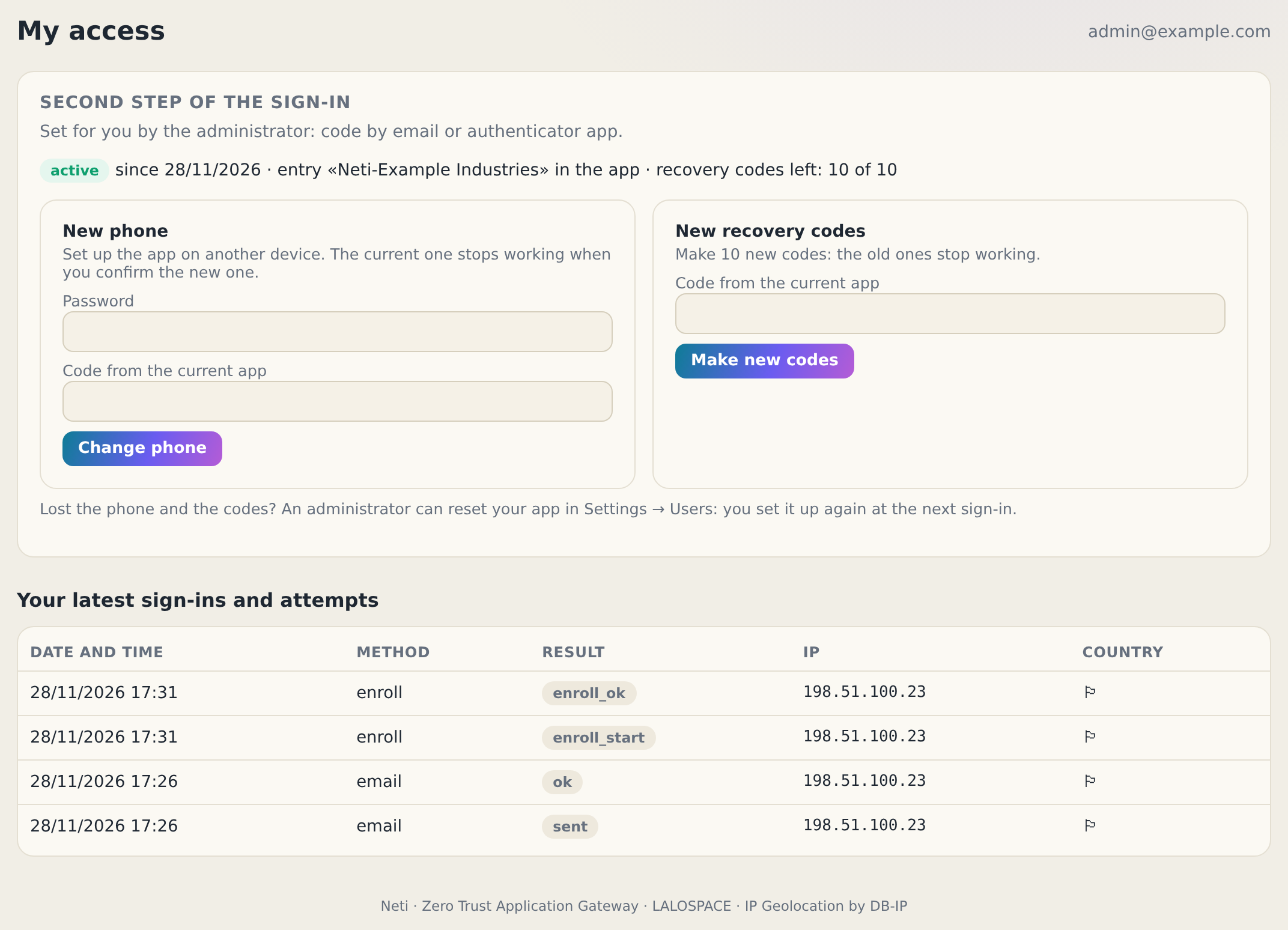
The console page My access (bottom of the side menu) shows to each user their method, since when the app is set up, how many recovery codes are left and their latest sign-ins and attempts. From there:
- Set up the app, when the administrator enabled it and it is not set up yet (confirm with your password);
- Change phone: sets up the app on another device, with your password and a code from the current app; the old phone stops working only when the new one is confirmed;
- Make new codes: 10 new recovery codes, with a code from the app; the old ones stop working.
Too many wrong codes
- 3 wrong codes in the same sign-in send the user back to the start: Too many wrong codes: for safety, start again from the beginning.
- Every wrong code is written to the sign-in log, and fail2ban bans the address that keeps trying (console: 5 failures in 10 minutes; gate: the burst rules of Security).
- 10 wrong codes in 15 minutes on the same account, from any address, suspend the codes of that account for 15 minutes, also the right ones and the recovery codes, and the user is emailed. Addresses of the trusted networks do not suspend the account.
The Email and App markers
Each user has a marker for each method: in the Access column of the console users (Settings → Users), and in the Status column of the gate users (Routing and Users), next to the Email and App ticks.
- Green
- Active, nothing to report.
- Blue
- App to be set up (at the next sign-in, or the user can postpone).
- Orange
- Something to look at: wrong codes in the last 24 hours, an email not delivered, a deadline close.
- Red
- Codes suspended, a code reused, a recovery code used from an address never seen before, set-up failed several times, the deadline passed, or an address that typed wrong codes and is now banned.
- Grey
- Method not enabled.
A click on a marker opens a window with what happened: date and time, address (with country and the filtering score at that moment), result and what Neti did (sent back, account suspended, email to the user, address banned). A click on an address opens its window with rating, activity and unban. Buttons in the window:
- Unlock account: ends a suspension;
- Mark as seen: the marker goes back to green until something new happens;
- Deadline +7 days / Remove the deadline: for a postponed set-up;
- Reset app: deletes the app and the recovery codes of that user (lost phone); they set it up again at the next sign-in and receive an email. Nobody can reset their own app here: they use Change phone in My access.
Console users are managed with manage.users; gate users with manage.users or
manage.routing. Sign-in events are kept 90 days.
Troubleshooting
- The code does not match. during the set-up
- The phone clock is probably off: set date and time to automatic and type the code you see now.
- Lost phone and recovery codes
- An administrator opens the App marker of the user and presses Reset app.
- Codes suspended until …
- Someone typed many wrong codes on the account. Wait, or ask an administrator for Unlock account; check the addresses in the window of the marker.
- The key app_key is missing in /etc/neti/secrets.php
- The secrets file of the installation is incomplete: the app cannot be set up until it is fixed. Run
neti diagnoseand contact support.
Good to know
- The keys of the apps are stored encrypted with the key of the installation; recovery codes only as a fingerprint. A backup copies them together with the rest of the database.
- The QR codes are drawn by the server itself: neither the key nor the store links go to any outside service.
- The app replaces only the second step: the console still asks for the password.