Firewall
The Neti server uses ufw as its firewall: everything that is not explicitly allowed is refused. This section shows the rules in force and lets you decide who can reach the two administration doors of the server, SSH and the console: everyone, or only your trusted networks. Every change is shown before it is applied and is undone automatically if you do not confirm it within 3 minutes, so a wrong rule cannot lock you out for good.
Where: menu Firewall. Permission view.network to see the page (Viewer, Operator and Admin by default). Applying and confirming a change needs manage.system (Admin only by default): without it you can still use Preview, but the buttons Apply and Confirm are not shown.
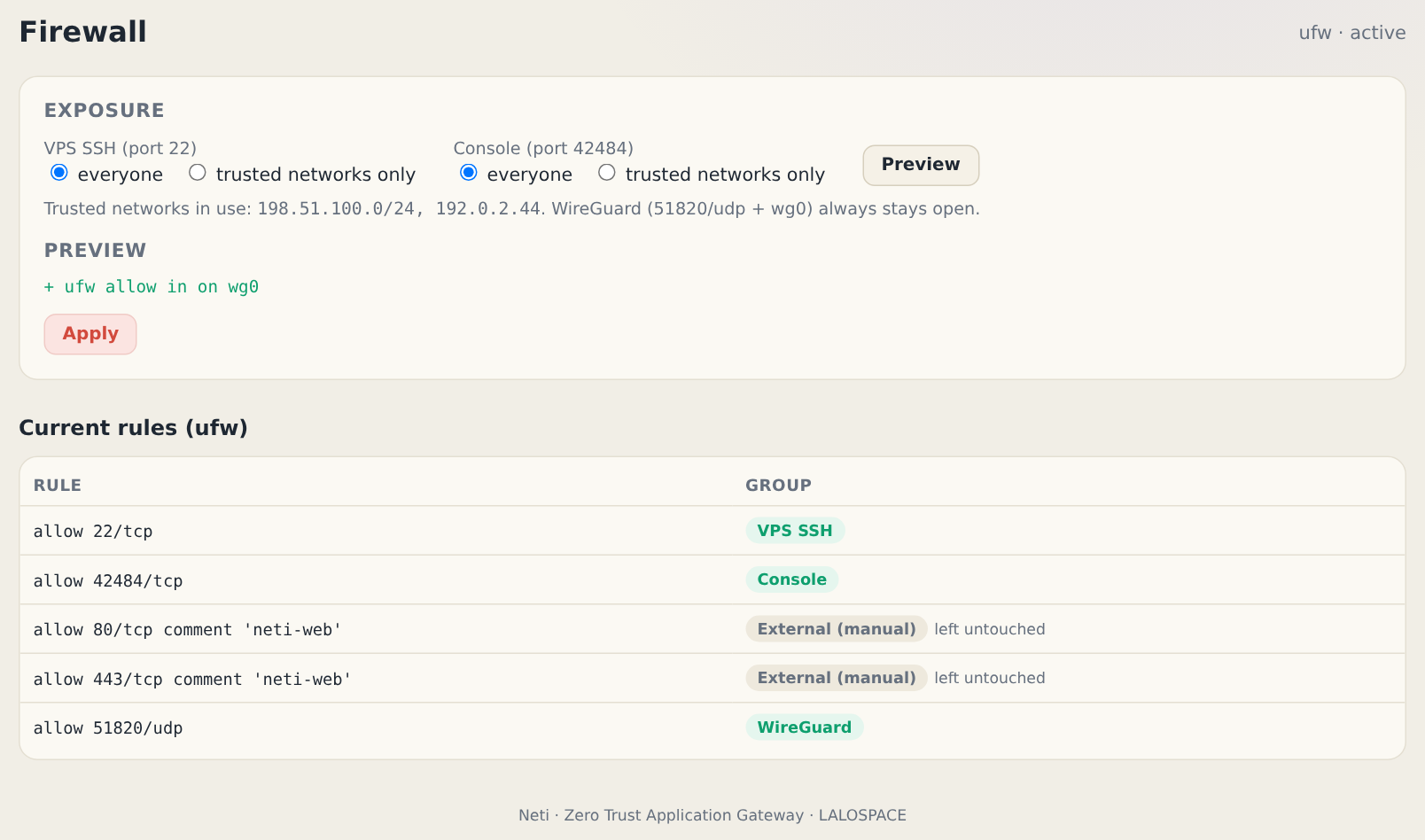
Firewall status
Next to the title the page shows ufw · active or ufw · NOT active.
- active
- The firewall is on: only the connections allowed by the rules listed in the page reach the server.
- NOT active
- ufw is installed but switched off: the rules exist but are not enforced, and every port on which a program listens is reachable. The firewall is normally switched on by the first-time setup of the server (see First activation).
- Firewall status not available: …
- Shown instead of the whole page when the state cannot be read, for example ufw missing (the package is not installed) or the system agent does not answer.
What Neti manages and what it leaves alone
From this page Neti manages only three groups of rules:
| Group | Rules | Exposure |
|---|---|---|
| VPS SSH | TCP port 22, the SSH access to the Neti server itself. | everyone or trusted networks only |
| Console | The TCP port of the management console (the port is shown in the page; it is changed in Settings → General). | everyone or trusted networks only |
| WireGuard | The UDP port of the WireGuard hub and all traffic arriving from the
tunnel interface wg0 (see Network & Tunnels). |
always open |
All the other rules are shown in the table Current rules (ufw) but are never
touched by this page: the web ports 80 and 443 (Neti keeps them aligned by itself, see
Web ports), the temporary ports of Remote access and any
rule added by hand on the server with the ufw command.
The page manages SSH on port 22. If the SSH service of your server listens on a different port, its rule is listed as External (manual) and is not changed from here.
Change waiting for confirmation
After Apply, a yellow banner appears at the top of the page: Change waiting for confirmation (+N −M), with the number of rules added and removed and the time left (minutes:seconds). The new rules are already in force; the old ones are remembered.
- Confirm
- Makes the change permanent and cancels the automatic return (Firewall confirmed). Press it only after you have verified that everything still answers: this page reloads, and, if you changed SSH, a new SSH session opens (a session that was already open proves nothing, because existing connections are not cut).
- No confirmation
- When the time runs out the server puts the rules back exactly as they were, on its own, even if the console is no longer reachable. Nothing has to be done. The return is written in the system log of the server.
While a change is waiting, Apply is not available: confirm it or let it expire first.
Exposure
The box where you choose who can reach SSH and the console.
- VPS SSH (port 22)
- everyone (default): the port accepts connections from any address; access is still protected by the SSH keys or passwords. trusted networks only: the port accepts connections only from the trusted networks; for everyone else it does not exist.
- Console (port …)
- everyone (default) or trusted networks only, with the same meaning, for the port of the management console. With trusted networks only the sign-in page of the console is not even reachable from other addresses.
- Preview (button)
- Recalculates the section Preview below for the choice you made. It changes nothing on the server: you can try every combination safely.
- Trusted networks in use: …
- The addresses and networks that trusted networks only would allow: the entries of
Trusted networks plus the office addresses, if any are set in the
configuration file of the server (
filter.office_ips). Only IPv4 entries are used: single addresses and networks from /8 to /31. If the list is empty the line says none (add them in Trusted networks). The line ends with the reminder WireGuard (port/udp + wg0) always stays open.
Preview
The exact difference between the rules in force and the rules needed for the selected choice, written as
ufw commands:
- Green lines starting with +
- Rules that will be added. With everyone it is one rule per port, for example
+ ufw allow 22/tcp. With trusted networks only it is one rule per trusted network, for example+ ufw allow from 198.51.100.0/24 to any port 22 proto tcp comment 'neti:ssh'. - Red lines starting with −
- Rules that will be removed, for example
− ufw delete allow 22/tcpwhen SSH goes from everyone to trusted networks only. - No changes: the current rules already match this choice.
- Nothing to apply.
- Cannot be applied: …
- The choice would lock you out, so Apply is not offered. The reasons: no trusted network defined (you chose trusted networks only, but the list is empty) and your IP (…) is not in the trusted networks: the console would lock you out (you chose trusted networks only for the console, and the address you are connected from is not in the list). Add the network in Trusted networks and come back.
The WireGuard rules are always part of the wanted set: if one of them is missing, the preview proposes to add it.
Apply
- Apply (red button)
- Shown under the preview when there is something to change, nothing forbids it and no other change is waiting. It asks Apply these rules to the firewall? You then have 3 minutes to confirm, otherwise they go back to what they were. Then the server adds the new rules first and removes the old ones after, so the ports are never closed in between, and starts the 3-minute countdown. The page shows Firewall applied. Check that everything responds and press "Confirm" within 3 minutes… and the banner Change waiting for confirmation.
Messages you can get instead:
- Firewall: no changes, the rules are already these: the choice is saved, nothing was touched.
- Firewall: not applied. …: one of the lockout reasons of the preview.
- a firewall change is already waiting for confirmation: confirm or wait for the previous one.
- ufw refused a rule: change cancelled or could not arm the rollback: change cancelled: the server undid at once what it had started; the rules are as before.
Current rules (ufw)
The table lists every rule of the firewall, as ufw stores it, with the group it belongs to.
- Rule
- The rule in the form of the ufw command that created it, for example
allow 22/tcporallow from 198.51.100.0/24 to any port 22 proto tcp comment 'neti:ssh'. - Group
- A green pill for the groups managed from this page, a gray pill followed by left untouched for the
others:
- VPS SSH (green): rules for TCP port 22.
- Console (green): rules for the port of the management console.
- WireGuard (green): the UDP port of the hub and
allow in on wg0. - Cloudflare (neti-cf-refresh) (gray): rules labeled as Cloudflare address ranges.
- Timed SSH forward (gray): a TCP port between 49220 and 49299, opened for a remote access in progress and closed when it ends.
- External (manual) (gray): everything else, including the web ports 80 and 443 (rules with
the comment
neti-web, see Web ports) and the rules added by hand.
The note about IPv6
If IPv6 is disabled in the system but ufw is still configured with IPV6=yes (file
/etc/default/ufw), a note under the table says that the v6 copies of the rules are not needed. They
are not changed automatically. It is only information: nothing is wrong and nothing has to be done.
Web ports (80 and 443)
The ports on which visitors reach your services are not chosen in this page: Neti keeps them aligned with the services configured in Routing, every time a service is applied and after every refresh of the Cloudflare address ranges. It only does so when the firewall is active.
| Situation | Ports 80 and 443 |
|---|---|
| No service configured | closed |
| Every service has the Cloudflare proxy (orange cloud) in front | open only to the Cloudflare address ranges: nobody else can connect to the web ports of the server |
| At least one service is reached directly by visitors | open to everyone |
- The rules carry the comment
neti-weband appear in Current rules (ufw) in the group External (manual). Do not edit them by hand: Neti rewrites them at the next change. - When the set changes, the missing rules are added before the others are removed, so the ports are never closed in between. With services configured, Neti never leaves the server without any web rule: if in doubt (for example the list of Cloudflare ranges is not available) it opens the ports to everyone.
- This is a second layer: a service with the Cloudflare proxy in front also closes, by itself, the connections that do not come from Cloudflare. So a mixed server (some services behind Cloudflare, some direct) is still protected service by service.
- The Cloudflare ranges are refreshed once a week: see Cloudflare IP ranges.
How the automatic rollback works
Changing the rules of a remote server is the classic way to lock yourself out. Neti avoids it this way:
- Add first, remove after. The new rules are added before the old ones are removed.
- Timer on the server. At the same moment the server arms a timer of 180 seconds that does not depend on the console or on your connection. If the timer cannot be armed, the change is undone at once.
- You verify. Reload the console and, if you changed SSH, open a new SSH session.
- Confirm stops the timer. Without confirmation the timer removes the rules that were added and restores those that were removed.
Only one change can be waiting at a time. After a rollback the choice you made stays selected in Exposure, and the preview shows again the difference with the rules in force: fix the cause (usually a missing trusted network) and apply again, or select the previous choice.
Lockout protection
Besides the rollback, some changes are refused before they start:
- trusted networks only cannot be applied while no trusted network is defined;
- trusted networks only for the console cannot be applied if the address you are connected from is not in the trusted networks;
- after a change, SSH, the console and WireGuard must each still have at least one rule: a change that would leave one of these ports with no rule is refused;
- only rules of the three managed groups can be added or removed from the console; anything else is refused by the server.
For SSH there is no check on your own address: if you restrict SSH to the trusted networks and you connect from elsewhere, the new session will fail. This is what the 3 minutes are for: do not confirm, and the rule goes back.
First activation (neti setup)
On a new server the firewall is switched on by the first-time setup, the command neti setup (see
The neti command), in the step firewall:
- if ufw is already active, the setup only adds the rule for the port of the console and leaves the rest as it is;
- otherwise it sets the policy refuse incoming, allow outgoing, allows the SSH port in use on the server and the port of the console, and switches the firewall on with a safety timer of 180 seconds: if you do not confirm, the firewall is switched off again by itself.
To confirm, the setup asks you to open a new SSH session, to prove that you can still get in,
and to type ok; when it does not run interactively, confirm from the new session with:
neti setup --confirm-firewall
While the timer is running, neti status reports that the firewall is waiting for confirmation.
How to restrict the console and SSH to your networks
- In Trusted networks add the public address or network of your office (and of anyone else who must administer the server). Make sure the address you are connected from is included.
- Open Firewall, select trusted networks only for Console and, if you want, for VPS SSH, and press Preview.
- Read the preview: one green line per trusted network and port, one red line for the rule open to everyone.
- Press Apply and accept the question.
- Reload the page. If you changed SSH, open a new SSH session to the server.
- If everything answers, press Confirm within 3 minutes. If something does not, do nothing: the rules go back by themselves.
When you later add or remove a trusted network, the firewall rules are not rewritten by themselves: come back to this page, where the preview shows the rules to add or remove, and apply again.
How to open the console or SSH to everyone again
- Open Firewall, select everyone and press Preview.
- Apply, verify, Confirm.
If you can no longer reach the console because your address changed, connect to the server from an address that
is still allowed (or from the console of your hosting provider) and add a rule by hand, for example
ufw allow from 203.0.113.25 to any port 22 proto tcp; then fix the trusted networks from the
console.
Troubleshooting
- After Apply the console no longer answers
- Wait: within 3 minutes the rules go back to what they were and the console is reachable again. Then check the list Trusted networks in use: your current public address was probably not in it.
- The rules went back by themselves
- The change was not confirmed in time. Apply again and press Confirm before the countdown ends.
- Cannot be applied: your IP (…) is not in the trusted networks
- Add the address shown in the message, or the network it belongs to, in Trusted networks. Only IPv4 entries count for the firewall.
- A trusted network does not appear in Trusted networks in use
- It is an IPv6 entry, or a network wider than /8: the firewall rules of this page use only IPv4 addresses and networks from /8 to /31.
- The page says ufw · NOT active
- The firewall is off. Run
neti setupon the server (step firewall) and confirm from a new SSH session, see First activation. - A site is not reachable although the service is in production
- Look for the rules with the comment
neti-webin Current rules (ufw). If they allow only the Cloudflare ranges, every service is set to Cloudflare proxy: a record that is DNS-only on Cloudflare sends visitors directly to Neti, where they are refused. Turn the proxy of the record on in DNS, or set the service to No proxy in Routing. Check also any firewall of the hosting provider in front of the server. - WireGuard clients do not connect
- The UDP port of the hub must appear in the table with the group WireGuard. If the port was changed, the rule is updated by Hub settings. A firewall of the hosting provider must allow the same UDP port.
Good to know
- The firewall decides who can connect to a port. Who can sign in is decided afterwards by SSH and by the console (password, code by email, bans). Restricting the ports to your networks removes the automated scanners and the potential attacks before they can even try.
- Trusted networks are also used elsewhere (for example, they skip the gate of the services): adding one for the firewall has those effects too. See Trusted networks.
- Settings → General has a separate filter, SSH access to the server, that limits who SSH answers to with a list of its own (IPv4 and IPv6, also for a limited time). It is independent of this page; you can use either.
- Changing the port of the console is done in Settings → General, with its own timed rollback; the new port is opened in the firewall as part of that procedure and the old one is closed when the change is confirmed.
- The addresses blocked by hand in Security are not ufw rules and do not appear in this page; they are saved and loaded again when the server restarts.
- Bans decided by fail2ban and CrowdSec are not ufw rules either: see Security.
- Every Apply and Confirm is recorded in Activity with the choice made and the number of rules added and removed.