Neti Pro
Neti Pro is the subscription edition of Neti. You install the same package as the free edition: an activation code turns the node into a Pro node, removes the limits of the Free edition and adds the features reserved for subscribers, which arrive by themselves from the Pro update channel. Nothing to reinstall, no configuration to redo.
This page explains what Pro adds and how to use it. How the license works (renewals, expiry, transfers, data sent) is in License.
Free and Pro compared
| Free | Pro | |
|---|---|---|
| Published services | 5 | unlimited |
| Gate users per service | 20 | unlimited |
| Users with the Admin role | 1 | unlimited |
| Management permissions for Viewer and Operator users | no | yes |
| WireGuard clients | 3 | unlimited |
| Branding (your own logo, name and colors) | Neti logo | yes |
| Scheduled updates (days and hour of your choice) | — | yes |
| Automatic remote backup, encrypted (S3 or SFTP), with restore | — | yes |
| Certificate of the console (Let's Encrypt on the IP address, or your own) | self-signed | yes |
Pro update channel (neti-pro package) | — | yes |
| Vendor's support | community | yes |
All the other features (gate with a code sent by email, certificates, DNS, WireGuard tunnels, filtering, remote access, logs, updates with automatic return to the previous version, manual backups) are the same in the two editions. The exact rules of the Free limits are in Limits of the Free edition.
How to get it
Neti Pro is a yearly subscription per number of nodes: a node is a server on which Neti is installed. The subscription belongs to an account of the product website; with the subscription you receive by email the activation code, valid for all the nodes purchased.
There is no free trial and no activation without an Internet connection: the node must be able to reach the vendor's license server in HTTPS.
First steps
- Activate the node. In the console open Settings → License, paste the code
(
NETI-XXXXX-XXXXX-XXXXX-XXXXX-XXXXX; capital or small letters do not matter) in Activation code, give the node a name in Node name and press Enable. The name is used to recognize the node in the account area: for example "Main office" or "Customer gateway". A typing mistake in the code is recognized at once. Details in Activate Pro. - Wait for the Pro package. The node downloads and installs
neti-profrom the Pro channel by itself, usually within a few minutes. When it is installed, the License page shows the row Pro package:neti-prowith its version. - Set up what you need: branding in Settings → Branding, scheduled updates in Settings → Updates, automatic remote backup in Settings → Backup.
- Nothing else. The license renews by itself about once a week; the limits of the Free edition are gone.
If you manage several nodes, repeat the first step on each of them with the same code, as long as there are free seats.
The account area
On the product website, signing in with the account that owns the subscription, the Subscription section of your area shows:
- every subscription, with the number of nodes used out of the total, the expiry date and the last characters of the activation code (the whole code is no longer visible: it is stored only in a non-readable form);
- the active nodes, with their name, the version of Neti and the last contact with the license server;
- the nodes freed in the last 30 days.
You also get there from the console, with the button Account area ↗ of the License page. Two things are done there:
- Free the seat of a node: needed when that server no longer exists or cannot be reached. The node goes back to the Free edition at its next contact (within about a week) and the seat can be used right away on another machine. If the server is still running, it is simpler to use Deactivate this node from its own console.
- Choose after a copy: if a copy of the machine (a cloned virtual machine, a restore from a backup while the original is still running) uses the same license, the node is flagged and an email arrives. Choose Keep this node to leave the license to the original machine, or Assign to the copy to move it to the copy. The other machine goes back to Free at its next contact. Without a choice, after 14 days the license stays with the original machine.
The email address of the account also receives the expiry notices: 30 and 7 days before, and on the day of expiry.
Branding
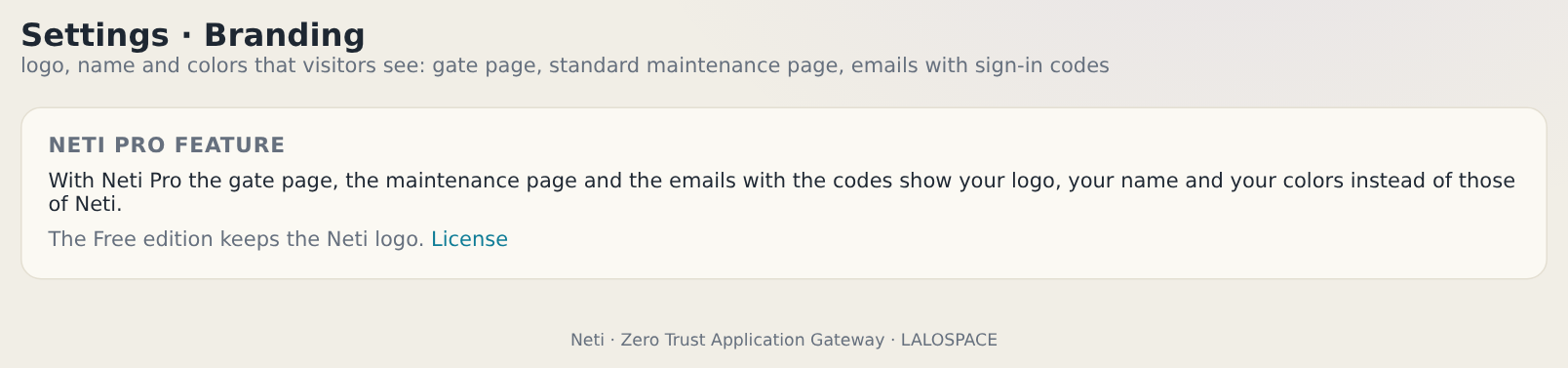
With branding, the visitors of your services see your brand instead of Neti's: your logo, name and colors on the gate page, on the standard maintenance page and in the emails with the sign-in codes. It is set once for the whole node.
Where: Settings → Branding. The page needs the permission to configure the
settings (manage.settings): the Admin role has it, and in the Free edition only the Admin role can.
What the Branding page shows
- The form and the preview
- On a Pro node with the Pro package installed.
- Pro package being installed
- The node is Pro but
neti-prohas not arrived yet. It installs by itself from the channel reserved for subscribers, usually within a few minutes of activation. If it does not arrive, see The Pro package. - Neti Pro feature
- The node is Free: the Free edition keeps the Neti logo. If a branding was configured earlier, the page says that it is kept and becomes visible again when the node is Pro again.
Where the branding appears
- on the gate page (the sign-in page) of all the protected services: logo, subtitle, colors of the button, links and focused fields, footer, title and icon of the browser tab;
- on the standard maintenance page: the logo and, at the bottom, your name and subtitle in place of the mention of Neti. The custom maintenance pages of a service stay as you wrote them;
- in the signature of the emails with the sign-in codes, which ends with the subtitle.
The management console does not change: it stays Neti. The invitation text of the gate is not part of the branding either: it is set service by service (see Gate).
The fields
The form is one card with a section for each group: Name and subtitle, Logo, Tab icon, Colors, Footer; Save at the bottom saves them all together.
- Name
- The name of your organization or of the service: title of the browser tab of the gate page, alternative text of the logo, name at the bottom of the standard maintenance page. Up to 60 characters. If left empty, "Neti" is used.
- Subtitle
- The line below the logo, for example "Customer area" or "Restricted access". Up to 80 characters. Empty: no subtitle. It also appears at the bottom of the standard maintenance page and in the signature of the emails. Until you save a branding the field proposes the subtitle of Neti.
- Logo
- A PNG, JPEG or WebP image of at most 200 KB, between 16 and 2000 pixels per side. A PNG with a transparent background works best: the page has a light background. The SVG format is not accepted, because it can contain code. Leaving the field empty keeps the logo already saved. The small box next to the field shows the logo in use, or the one just chosen.
- go back to the Neti logo
- A checkbox shown when a logo of yours is saved: tick it and save to remove your logo and show the Neti logo again, keeping the other settings.
- Logo width on the gate
- A slider from 48 to 240 pixels, default 128, with the value next to it; the height follows the proportions of the image. For a sharp image on high-density screens upload a logo at least twice as wide as the chosen width.
- Tab icon
- Optional: a square image (PNG, JPEG or WebP, at most 64 KB) for the icon of the browser tab. Without it, the logo is used.
- remove the uploaded icon
- A checkbox shown when an icon is saved: tick it and save to go back to using the logo as icon.
- Main color and Second color of the button
- The button of the gate is a gradient from the first to the second color; the first one also colors the links,
the border of the selected fields and the accents of the standard maintenance page. Choose colors dark enough to
keep the white text of the button readable. Values are colors in the
#RRGGBBformat. - Footer: Text
- The text at the bottom of the gate page, for example the name of your company. Up to 60 characters. Empty: no footer. Until you save a branding the field proposes the footer of Neti.
- Footer: Link
- Optional: the address the footer text links to. Only addresses that start with
https://, up to 200 characters (The footer link must start with https://). Empty: the footer is plain text. - Save
- Saves the branding (Branding saved.). The gate page and the emails use it at once; the standard maintenance pages are rewritten at the moment you save. If they cannot be rewritten the message adds The maintenance pages were not updated: … with the reason.
- Back to Neti
- Shown when a branding is saved. After a confirmation (Go back to the Neti logo and name?) it deletes the whole branding and puts the Neti logo and name back everywhere (Branding removed: visitors see the Neti logo and name again.).
Errors on the images: file too large (maximum … KB), a PNG, JPEG or WebP image is required, each side must be between 16 and 2000 pixels, upload failed. When there is an error nothing is saved.
Preview
The Preview box next to the form follows the form while you fill it in, before saving: a browser tab with the icon and the title, the gate page with the logo at the chosen width, the subtitle, the button with its colors and the footer, and the subject of the email with the access code. A logo or an icon you have just chosen is shown at once, without uploading it; a file that is too large or of the wrong type is reported under the preview. While the form differs from the saved branding the pill unsaved changes appears next to Save: visitors see the changes only after you save.
If the node goes back to Free
When the subscription expires (after the 14 days of grace) or the seat of the node is freed, the Neti logo and name come back, on the maintenance pages too. The branding stays saved and returns by itself as soon as the node is Pro again.
Scheduled updates
In Settings → Updates the box Scheduled updates makes Neti install the latest version of its channel by itself, on the days of the week and at the hour you choose, with the same safety copy, the same checks and the same automatic return to the previous version as an update started by hand. You can ask it to wait 1, 3 or 7 days after a version appears, and to install the Debian updates too. The server is never rebooted by itself, and the outcome arrives by email. Every option is described in Updates → Scheduled updates.
Automatic remote backup
In Settings → Backup the box Automatic remote backup makes Neti create a backup
by itself on the days and at the hour you choose, encrypt it on the server and upload it to an S3 (or compatible)
storage or to a NAS over SFTP. The backups open only with a recovery key that you keep outside the server; old
copies are removed by a daily, weekly and monthly rule; every backup can be checked and restored from the console,
or on a new server with neti restore-backup. Every option is described in
Backup → Automatic remote backup.
Certificate of the console
On a Pro node Settings → SSL Backend replaces the self-signed certificate of the console with a Let's Encrypt certificate issued for the public IP address of the server (no DNS name needed, valid about 6 days and renewed by Neti about every 3 days) or with a certificate uploaded by you. If a renewal cannot be done in time the console goes back to the self-signed certificate by itself and warns you. On a Free node the page is visible but its forms are disabled. Everything is explained in SSL Backend: the certificate of the console, including what a public certificate reveals in the public logs.
The Pro package
The Pro features are in a separate package, neti-pro, which needs Neti and brings with it the tools
used by the remote backups (age, rclone, the SSH client).
- Installation. There is nothing to do: right after a successful activation (or renewal) the node installs the package in the background. If the installation does not succeed, the node tries again by itself every 6 hours, and at once every time you press Renew now in Settings → License.
- Where you see it. The License page, row Pro package:
neti-prowith the version, or being installed from the Pro channel. - What it adds on the server. Its files in
/opt/neti/proand the schedule/etc/cron.d/neti-pro, which every 15 minutes checks whether a scheduled update or a scheduled remote backup is due. It does nothing unless those features are switched on. - Only with a valid license. The package is active only while the node is Pro. On a node that is back to Free it stays installed but switched off: the Pro boxes of the console go back to the short description with the Pro label.
If, about ten minutes after activation, the License page still says being installed from the Pro channel (or the Branding page says Pro package being installed): check in Settings → Updates that the node reaches the Internet (the update check must succeed), then press Renew now in the License page: the node tries the installation again.
Pro channel and updates
The neti-pro package is distributed from an update channel reserved for subscribers, signed with the
same key as the Neti package.
- Nothing to configure. At activation the node receives the credentials of the channel, which belong to that node only, and adds the channel to the package sources of the server.
- Updates arrive together with those of Neti, from Settings →
Updates: when you update Neti (by hand or with the scheduled updates),
neti-prois updated right after Neti has passed its checks. If the update of the Pro package fails, the update of Neti is not undone and the Pro package is tried again with the next update. - Same channel as Neti. The Pro channel follows the channel chosen for Neti (stable or staging, see Channel).
- When the node goes back to Free the credentials stop being valid and the node removes the Pro channel by itself, so that the update check keeps working. The package stays installed but switched off.
Several nodes and moving to another server
- A subscription has a number of seats: every activated node takes one. The same code activates all the nodes as long as there are free seats; if they are all taken, the License page lists the nodes that use them.
- To move the license to a new server: Deactivate this node on the old one (or free its seat from the account area), then activate the new one with the same code. Up to 3 changes per month are possible for each subscription.
- After a restore on a new server (see How to restore on a new server) the license has to be activated again on the new machine in the same way.
- To add seats or renew, contact the vendor: the nodes do not have to do anything, the renewal arrives by itself.
Support
Pro subscribers have the vendor's direct support, through requests opened on the Neti website: sign in and open Console → Support. The Free edition relies on the community.
How many requests
- Each node has 2 requests for every year of the subscription. The year is counted from the start date of the subscription, not from January; the page shows for each machine how many are left and when they are renewed.
- With more than one node you choose the machine the request is about: the request is deducted from that machine.
- A request is deducted when the support takes it in charge, not when you open it. A request about a defect of Neti, or a duplicate, is taken in charge without deducting it.
- A request is one request until it is closed, however many messages it takes. Once closed it is not reopened by a new message: for a new problem open a new request.
- With no requests left you can still write: the request is marked Extra and the support answers with an offer for extra assistance.
- The requests follow the license, not the hardware: moving a node to another server does not give new ones.
- When the subscription has expired, or the node is back to Free, new requests cannot be opened; the open ones can still be read and concluded.
Opening a request
- On the node, open Settings → Diagnostics and press Send to support (or run
neti diagnose --send): see Diagnostics. - On the Neti website open Console → Support, press New request next to the machine, write a subject and describe what happens, since when and what you already tried.
- The diagnostic package is attached by itself. If the node cannot send it, download the package and upload it from the request (Upload a package, up to 6 MB).
You get an email when the support takes the request in charge, answers or closes it; for confidentiality the text of the answers is not in the email. You can close the request yourself with Mark as solved.
What happens to the diagnostics
The package is stored as it is, readable only by you and by the support. It is deleted 7 days after the request is closed, with a note in the request; a package never attached to a request is deleted after 7 days.
Frequently asked questions
- If the license server cannot be reached, do my services stop?
- No. The node stays Pro for 44 days from the last successful renewal and tries again by itself every 6 hours. Even after that, no service stops: the limits of the Free edition apply to changes.
- What happens if I do not renew the subscription?
- After the expiry there are 14 days of grace; then the node goes back to Free. Everything keeps working: the items beyond the Free limits stay active but read-only, the Neti logo comes back, scheduled updates and scheduled remote backups stop. When you renew, the node goes back to Pro by itself.
- I restored the server from a backup: do I lose the license?
- No. If the original machine has been off for more than 8 days the restore is accepted by itself; otherwise choose in the account area which machine keeps the license.
- Can I use the same code on several servers?
- Yes, up to the number of seats of the subscription. Every server takes one seat.
- Which data does a Pro node send?
- Only what the license needs: see What is sent. Never domains, services, users or addresses of the backends.
- I lost the activation code.
- The nodes already active no longer need it. To activate others, the vendor can generate a new one: the old one stops being valid, the active nodes do not change.
- Do I have to install anything to get the Pro features?
- No. After activation the node installs the Pro package by itself and keeps it updated together with Neti.