Gate
The gate is the sign-in page that Neti puts in front of a published service. With the gate on, a visitor reaches the application only after proving who they are: a username and an email address allowed on that service, then a one-time code received by email. The application behind Neti is not touched: it keeps its own login, which the visitor sees after the gate. This page explains what the visitor sees, how codes and sessions work, how to manage the people allowed in, and how to leave single addresses of a service reachable without login (gate exceptions).
Where: Routing, open the card of the service, box Gate Neti.
Seeing the cards needs the permission view.routing; changing the gate, its users and its exceptions needs
manage.routing (roles Operator and Admin have it by default). The users of all gates can also be managed
from Users, which needs manage.users.
How the gate decides
The gate of a service works only when the service is live; a service in maintenance shows the maintenance page to everyone (see Routing). For every request to a live service with the gate on, Neti checks in this order:
- Trusted network: an address in the trusted networks (the global ones or those of the filtering profile of the service) passes straight to the application, without login and without a code.
- Gate exception: if the address requested is covered by an active exception, only the checks of that exception apply, not the login.
- Banned address: an IP banned on this service by an exception gets error 403, also on the sign-in page. See Ban on the service.
- Honeypot: an IP that is in the honeypot is always sent to the gate page, where it finds the decoy, even if it holds a valid session.
- Valid session: a visitor with a valid session cookie of this service, whose user is still allowed on the service, passes to the application.
- Everyone else is redirected to the sign-in page of the gate, and comes back to the page originally requested after signing in.
The gate covers every name the service answers to, including www. when it is enabled. Neti knows which
service a request belongs to from its own configuration, never from the host name written by the visitor, so a
request cannot pick another service or skip the gate by changing that name. All addresses that start with
/__neti/ are reserved to the gate on a service that uses it.
What the visitor sees
The sign-in page shows a logo, an invitation text and a form. In the Free edition the logo is the one of Neti; with Neti Pro the page can carry your logo, subtitle, colors and footer (see Neti Pro). The page asks search engines not to index it.
- Username and email. The visitor types the username and the email address registered for them on this service. Both must match the same entry of the list: the username is compared without regard to upper and lower case, the email is compared in lower case.
- Code. The page turns to the second step and asks for the numeric code sent by email. From here the visitor can ask for a new code or go back and change the email.
- Access. With the right code the browser receives the session cookie and is taken to the page it had asked for. The destination is always a path of the same site: the gate never redirects to another site.
After the first step the page always answers the same thing ("if the credentials are enabled, we sent you a code"), whether the pair is allowed or not, and whether the code was really sent or refused because of a send limit or a mail error. This is intentional: a different message would tell a stranger which users exist. The email is sent after the page has answered, so the page takes the same time for an allowed user and for an unknown one. The real reason of a refused send is recorded in Activity, table Gate events (sign-ins, rate limits, views), together with every successful access.
A visitor whose risk score falls in the red band does not see this page but a decoy that never lets anyone in: see Honeypot. The score is computed with the filtering profile of the service.
One-time codes
- Valid for one service only
- A code opens only the gate of the service that sent it. It does not open other services of the same Neti nor the console, and the codes of the console do not open the services.
- Length
- At least 6 digits. The length is chosen between 6 and 10 in Settings → Email (SMTP), field Code length (default 6).
- Lifetime
- 30 minutes by default: Settings → Email (SMTP), field OTP code lifetime (seconds), default 1800, from 60 to 86400. Asking for a new code does not cancel the previous ones: all codes still in their lifetime stay valid, and each can be used once.
- Wrong codes
- After 5 wrong codes all the codes waiting for that email on that service are void: the visitor has to ask for a new one.
- Send limits
- By default a new code for the same email can be sent every 60 seconds, at most 6 per hour for an email and 20 per hour from the same address (for IPv6, from the same /64 network). Each filtering profile can set its own values in Filtering → Profile policy → OTP codes: interval from 10 to 3600 seconds, 1 to 100 per hour per email, 1 to 1000 per hour per IP; empty fields mean the global value. When a limit is reached the visitor sees the usual answer and the refusal is written in the gate events.
- Delivery
- Codes go out through the mail server configured in Settings → Email (SMTP). If mail does not work, nobody can pass the gate (trusted networks excepted): see Settings.
Session and cookies
After a successful sign-in the browser keeps a session cookie for that service, so the visitor is not asked again at every visit.
- How long it lasts
- The number of days set in the filtering profile of the service: Filtering → Profile policy → Session duration (days), from 1 to 365. If the field is empty the global value applies: Settings → General → Device session duration (days), default 90. A shorter session means more frequent codes; choose it according to how sensitive the application is.
- Per service
- Each service has its own cookie, named
neti_gfollowed by the number of the service. A session of one service is not valid on another. A second cookie with the same name and the suffix_sesslives only while the browser is open and holds the state of the sign-in form. - Protection
- The cookies are sent only over HTTPS, cannot be read by scripts of the page, and are not sent by the browser
with requests that start from another site (
Secure,HttpOnly,SameSite=Lax). - Checked at every request
- At every request Neti verifies that the session exists, has not expired and that its user is still in the list of the service. Removing a user ends their sessions at once.
- Never sent to the backend
- Neti removes the gate cookies from the requests it forwards: the application never receives a gate session.
Rate limit of the gate pages
The gate pages of every service accept 30 requests per minute per address, with a tolerance of 20 requests in a burst. For IPv6 the limit counts the whole /64 network, because one subscriber usually owns a whole /64 and can change address inside it at will. Who goes over the limit gets error 429; a person signing in needs a handful of requests and never notices. The limit slows down scripts that hammer the page before they cost any work to the server. It only slows down: to ban whoever insists, turn on the automatic ban of bursts in Security.
The shared definitions are in /etc/nginx/conf.d/neti-gate.conf, installed by the package and
overwritten at every update: do not edit it.
What the backend receives
Neti writes by itself the headers that describe the visitor, so the application can trust them:
| Header | Content |
|---|---|
Host | the name of the site requested |
X-Real-IP, X-Forwarded-For | the address of the visitor only (the real one also when the service is behind the Cloudflare proxy) |
X-Forwarded-Host | the name of the site |
X-Forwarded-Proto | https |
X-Forwarded-Port | 443 |
The same headers sent by the visitor, including Forwarded, never reach the backend. This applies to
every service, with or without the gate. With the gate on, the gate cookies are removed from the Cookie
header as well.
HSTS
Neti asks browsers to always use HTTPS for the site (header Strict-Transport-Security with
max-age=31536000, one year). If the backend already sends its own header, Neti leaves that one, so the
choice of the application (for example includeSubDomains or preload) wins.
The Gate Neti box of a service
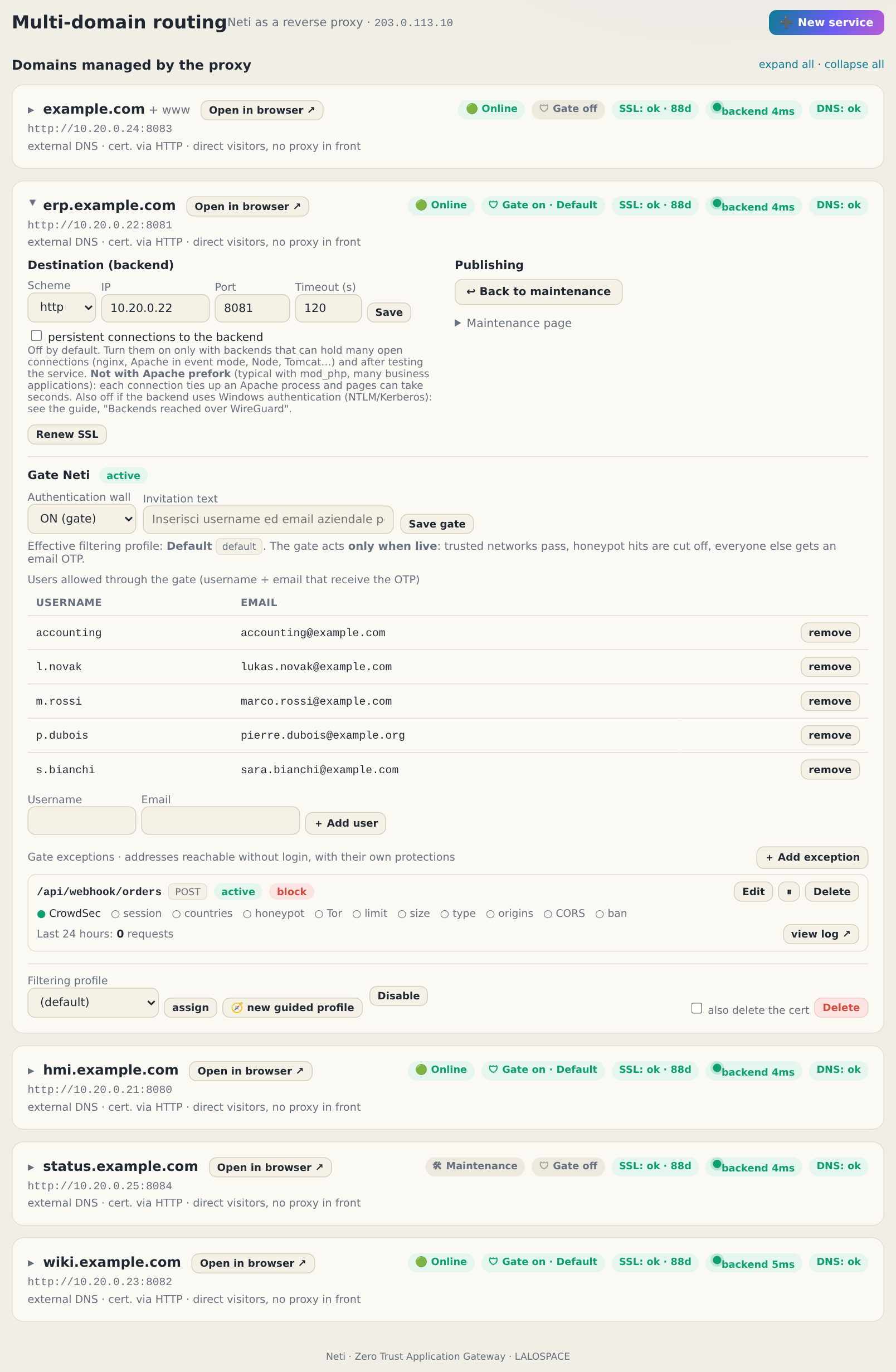
In Routing, the card of each service has a box Gate Neti, with a pill that says active or off. Under the form, a line shows the effective filtering profile of the service (the one assigned to the domain, otherwise the one of the WireGuard client that serves it, otherwise the default) and reminds that the gate acts only when the service is live.
Turning the gate on and off
- Authentication wall
- OFF (proxy): Neti forwards every request to the backend, with HTTPS, filtering and limits but without login. ON (gate): every request needs a valid session, a trusted network or an exception.
- Invitation text
- The sentence shown above the form of the sign-in page, up to 160 characters. Empty: a standard sentence that invites to enter username and company email. The text is visible to anyone who opens the page, so do not write confidential information in it. Neti refuses a text made only of an email address: it is almost always the browser that filled the field by itself.
- Save gate
- Saves the two fields and rewrites the configuration of the service. The change is immediate.
The gate can also be turned on when the service is created: in New service, option Neti gate: access only with user, email and code (users are enabled later).
Turning the gate off does not delete users and exceptions: they stay in the card, grayed out, marked not active: the gate is off and suspended: the gate is off, and become active again as they are when the gate is turned back on. The ban rules of the exceptions also work only with the gate on.
Users allowed through the gate
The table Users allowed through the gate (username + email that receive the OTP) lists who can sign in to this service. The list belongs to the service: a person who needs several services is added to each.
- Username
- What the person types in the first field of the gate. It is used only by the gate and is not passed to the application, which shows its own login afterwards. Using the same username as in the application is convenient: the person has one to remember. Always fill it in: an entry without username cannot sign in, because the gate requires both fields.
- The address that receives the codes. It must be a valid address. A service holds each email once: adding an email that is already in the list replaces its username.
- + Add user
- Adds the pair to the service. The person can sign in immediately.
- remove
- Takes the person off the list and closes their sessions at once: at the next request they are back on the sign-in page.
With the gate on and no users, the card warns No users: without users nobody gets past the gate: only trusted networks and exceptions reach the service.
The Free edition allows 20 gate users per service; Neti Pro has no limit. See License.
Gate users in the Users page
The same lists can be managed in one place from Users, section Gate users (who can authenticate, and for which destination). There you enter Username, Email and the Destination (a service with the gate on) and press Enable; the table shows every allowed pair with its destination and the date it was enabled, a pill username missing on incomplete entries, and remove. Only services with the gate on appear as destinations. See Users.
Gate exceptions
An exception is an address of a service with the gate that stays reachable without login: for example the address of the application that receives a form published on another website, or one called by a fetch/XHR request. The rest of the service keeps asking for the login. Because that address is open to the internet, each exception carries its own protections, each of which can be turned on or off: allowed methods and content types, maximum size, allowed origins, CORS, requests per IP, honeypot, Tor, country filter, and a ban limited to that service.
Exceptions are in the card of the service in Routing, box Gate Neti, under Gate exceptions · addresses reachable without login, with their own protections. They apply only when the service is live and its gate is on. Without exceptions the card says No exceptions: with the gate on, every address of the service asks for login.
The row of an exception
Each exception is a row with the address (followed by … when it also covers the addresses below it), the allowed methods, the optional note and two pills.
- active / disabled / suspended (gate off)
- Whether the exception is applied. disabled: paused with the ⏸ button; suspended (gate off): the gate of the service is off, so no exception is applied.
- observe / block
- The mode: in observe Neti logs what it would have blocked, without blocking; in block requests outside the rule are rejected.
- Edit
- Opens the editor with the values of the exception and the observed requests.
- ⏸ / ▶
- Disables the exception without deleting it (the address asks for login again), or resumes it.
- Delete
- Deletes the exception together with the bans it produced. With the gate on, that address asks for login again.
- + Add exception
- Opens the editor for a new exception of this service.
The dots of the row
Under the address, a line of dots tells at a glance which checks are on (●) and off (○); hovering over a dot shows the detail.
- CrowdSec
- Always on: CrowdSec works on the firewall of the whole machine, so it applies to exceptions too.
- session
- On: whoever is already signed in at the gate passes without these checks.
- countries
- On: the country filter of the profile applies to this address too. Off: it does not.
- honeypot
- On: IPs caught by the honeypot are refused.
- Tor
- On: Tor exit nodes are refused.
- the rate, for example 3/min (or "limit" when off)
- The maximum number of requests per IP, with the burst in the detail.
- the size, for example 64 KB (or "size" when off)
- The maximum size of the request body.
- type
- On: only the listed content types are allowed.
- origins (n)
- On: only requests from the listed sites; the number is how many origins are listed.
- CORS
- On: Neti answers fetch/XHR requests from other sites. Off: CORS is left to the backend.
- ban, for example "ban 5 in 10′ → 24h"
- On: hits, minutes and hours of the ban on the service; the detail says what is counted.
The exception editor
The dialog New exception (or Edit exception) is divided into groups. The fields of a check that is turned off are dimmed but keep their values: turning the check back on finds them again. Save exception saves and applies; Cancel or close ✕ leaves everything as it was. If the web server does not accept the new configuration, nothing changes and the previous one stays in place. Saving an exception on a service whose gate is off is allowed: it takes effect when the gate is turned on.
A new exception starts with these values: this address only, method POST, signed-in users pass, country filter not applied, honeypot refused, Tor allowed, origin check on (you must list at least one site), maximum size 64 KB, types form and form with files, 3 requests per minute per IP with burst 2, CORS off, ban after 5 hits in 10 minutes for 24 hours counting the refusals by Neti, mode observe.
Address
- the address field
- The path of the service to leave open, for example
/forms/capture.php. It must start with/, be at most 251 characters long and contain only letters, digits and. _ ~ - /. You can paste the complete address: Neti keeps the path and drops the host name and whatever follows?or#. Paths with.or..segments or a double slash, and paths under/__neti, are not accepted. - this address only / and those below it (/path/...)
- this address only (recommended) opens that exact path. and those below it
opens the path and everything under it:
/apicovers/apiand/api/…, never a longer name such as/api-admin. An exception on/with everything below is refused: it would be the same as turning the gate off. Two exceptions of a service cannot cover the same address: Neti asks to edit the existing one. - note (optional)
- A reminder of what the address is for, up to 80 characters, shown in the row.
- Allowed methods
GET,HEAD,POST,PUT,PATCH,DELETE,OPTIONS; at least one. An HTML form uses POST. With fetch/XHR from another site the browser first sends an OPTIONS request: add it, or turn on CORS handled by Neti (which then accepts OPTIONS by itself).
Requests whose path a backend could read differently from Neti (a backslash, %5c, %2e,
%2f, . or .. segments, ..;) always get error 400 on an exception,
in both modes: they could otherwise leave the exception on the backend side and reach a page that the gate
protects.
Who can reach it
- anyone already signed in to the gate passes without checks
- On by default. It is meant for internal users, for example the back-office application that uses the same address: with a valid gate session there are no checks on method, type, origin, size and rate, and no ban, honeypot or Tor checks. A forged or expired session is refused (in block mode) and counts toward the ban. Requests from the public site stay filtered, because the browser does not send the gate cookie when the request starts from another site. With this option on and the size check on, who has no session must declare the length of the body (browsers always do), otherwise the request is refused with 411.
- apply the country filter of the profile
- Off by default: requests to this address are accepted from anywhere in the world, even if the filtering profile limits the service to some countries; the rest of the service stays filtered. On: the country filter applies here as on the rest of the service.
- refuse IPs caught by the honeypot
- On by default. Addresses that are in the honeypot used by the service are refused.
- refuse Tor exit nodes
- Off by default. Refuses the addresses in the list of Tor exit nodes kept by Neti.
- only from these sites (origin of the request)
- On by default. The sites the request may start from, separated by spaces, commas or new lines:
example.com(meanshttps://example.com), an explicithttp://example.com,*.example.comfor all subdomains, optionally with a port. At least one is needed while the check is on. The browser declares the site in theOriginheader; when that is missing Neti looks atReferer. When editing an exception, origins seen in the traffic and not yet listed appear below the field as seen in the traffic: buttons, added only with a click. - also allow requests without an origin
- Off by default. Browsers state which site a POST starts from; requests without an origin usually come from scripts and automated clients, or from a server that sends on behalf of the site. Turn it on only for that last case.
CrowdSec always stays active, whatever the choices: it works on the firewall of the whole machine. Addresses in the trusted networks are never checked for honeypot, Tor or ban, and have no request limit.
What it can send
- maximum size
- On by default, 64 KB; from 1 to 102400 KB. The size of the request body. Larger requests get 413.
- only these content types
- On by default with form (urlencoded) and form with files (multipart); also available: JSON, XML, plain text. At least one while the check is on. Requests with the methods GET, HEAD, OPTIONS and DELETE that declare no content type are not affected. Other types get 415.
- at most … requests per minute / per second, per IP, burst …
- On by default: 3 requests per minute with a burst of 2. From 1 to 1000 requests, per minute or per second; the burst (0 to 1000) is the small extra allowance that absorbs a double click. Over the limit: 429. Trusted networks have no limit. Off: the limit of the service applies, if its filtering profile has one.
fetch/XHR requests from other sites (CORS)
- Neti answers CORS requests (OPTIONS preflight and headers)
- Off by default: CORS is handled by the backend, if needed. On: Neti answers the preliminary OPTIONS request of the browser by itself and adds the CORS headers to the answers, replacing those of the backend. The allowed origins are those of the list in Who can reach it; if the origin check is off, every origin is allowed.
- allowed headers
- The custom headers the page may send, separated by commas, for example
Content-Type,
    X-Requested-With
. DefaultContent-Type. - with credentials (cookies)
- Lets the browser send cookies with the request. It requires the list of allowed origins: CORS with credentials and any origin is refused when saving.
Ban on the service
- ban the IP after … hits in … minutes, for … hours
- On by default: 5 hits in 10 minutes, for 24 hours. Hits from 1 to 1000, minutes from 1 to 1440, hours from 1 to 8760. A banned IP can no longer reach this service: it gets 403 on the exception, on the rest of the service and on the sign-in page. The other sites published by Neti stay reachable for it, and the firewall is not touched.
- count: refusals by Neti
- On by default. Counts the requests outside the rule (method, type, origin, size), those over the request limit, and those from honeypot IPs, Tor nodes or with a forged or expired gate session.
- count: backend errors (4xx/5xx)
- Off by default. Also counts the requests the backend answered with an error. Useful when the application itself rejects bad submissions; leave it off if the application returns errors during normal use. At least one of the two counters must be on.
Trusted networks are never banned. A person with a valid gate session keeps working even if their IP is banned, as long as an active exception of the service has the session option on. In observe mode the ban is only recorded and does not block. The counting is done by fail2ban on the log of the exception: if fail2ban is not installed, the exception is saved and applied but Neti warns that the ban rules are not active (install it from Server → Components, see Server).
Observed requests: building the rule from real traffic
When you open Edit on an existing exception, the group Observed requests · build the rule from real traffic lists the latest requests recorded for it (up to 80, newest first; ↻ refresh reloads them).
- When, Method, Type, Size, Origin
- Time, method, content type, size of the body and declared origin of the request.
- Browser
- form for a page navigation (an HTML form), fetch/XHR for a script call.
- Result
- ✓ normal: the request respects the current rule. ⚠ followed by the reasons: it is outside the rule. ⛔: suspicious request (IP in the honeypot, Tor node, banned IP, over the request limit, forged or expired session) or request of a signed-in user; these cannot be selected.
Tick one or more normal requests and press Fill in from the selected requests: Neti sets the allowed methods, the content types, the maximum size (four times the largest request seen, rounded up to 16, 32, 64… KB) and, if the requests were fetch/XHR or OPTIONS, CORS with the headers they asked for. Who can reach it stays as you set it. Suspicious requests cannot be used, so that automated traffic that got through during the observation cannot open the door for itself. Check the result, choose block and save.
Mode: observe or block
- observe
- Logs what it would have blocked and blocks nothing; bans too are only recorded (observed only). Every new exception starts here. Remember that in observe mode the address is open to everyone without login.
- block
- Requests outside the rule are refused with the codes listed in Response codes.
The recommended way is to start in observe, look at what arrives for a few days, then switch to block.
The summary of the last 24 hours
Under each exception there is a line with the figures of the last 24 hours (of the last 2000 requests, if there were more).
- requests
- All the requests that arrived at the address.
- blocked
- Requests refused by Neti, with the reasons in brackets.
- would have been blocked
- Requests that passed in observe mode but would be refused in block mode, with the reasons.
- with a session
- Requests of users with a valid gate session, passed without checks.
- backend errors
- Requests the backend answered with 4xx or 5xx.
- view log ↗
- Opens in a window the log of that exception only (Logs → Sites → Gate exceptions, already on
the right domain). It needs the permission to see the logs (
view.logs). See Logs.
The reasons are shown with the words used in the log:
| Word | Meaning |
|---|---|
metodo | method not allowed |
tipo | content type not allowed |
origine | origin not in the list, or missing |
dimensione | body too large, or length not declared |
limite | over the requests per IP |
honeypot | IP in the honeypot |
tor | Tor exit node |
ban | IP banned on the service |
sessione-scaduta | forged or expired gate session |
The log of the exceptions of a service is the file /var/log/nginx/sites/<domain>.exc.log.
IPs banned on this service
When an exception has banned someone, the card shows the table IPs banned on this service.
- IP
- The banned address.
- From / Until
- When the ban started and when it ends. Expired bans disappear by themselves.
- Exception
- The address of the exception that produced the ban. The pill observed only means the exception was in observe mode: the ban is recorded but does not block.
- unblock
- Removes the ban at once, also from fail2ban.
Bans and unbans are also written in the gate events of Activity.
Response codes
In block mode, requests outside the rule receive a plain error, without a page:
| Code | Reason |
|---|---|
| 400 | ambiguous path (in both modes) |
| 403 | origin not allowed, IP in the honeypot, Tor node, banned IP, forged or expired gate session |
| 405 | method not allowed |
| 411 | length of the body not declared (only with the session option and the size check on) |
| 413 | body larger than the maximum size |
| 415 | content type not allowed |
| 429 | too many requests |
With CORS handled by Neti, the preliminary OPTIONS request is answered with 204.
How to: leave a form endpoint public
- In Routing, open the card of the service and press + Add exception.
- Write the address that receives the form, leave this address only and the method POST.
- In only from these sites write the website that hosts the form, for example
www.example.com. - Leave the mode on observe and press Save exception.
- Send the form a few times from the real website, then let it run for some days.
- Open Edit, tick the normal requests in Observed requests and press Fill in from the selected requests.
- Check the values, choose block and save. Watch the summary of the last 24 hours: legitimate requests must not appear among the blocked ones.
How to: let a person into a service
- In Routing, open the card of the service; the box Gate Neti must say active.
- Under Users allowed through the gate write the username and the email of the person and press + Add user.
- Tell the person the username you chose: at the gate they type username and email, then the code they receive by email.
Troubleshooting
- A person does not receive the code
- The page answers the same way in every case, so look at Activity → Gate events: a refused send is recorded there with its reason (wait between two sends, hourly limit, mail error). If there is no event, the username and email typed do not match an entry of the service: check both, and that the entry has a username. If mail fails for everyone, check Settings → Email (SMTP).
- "Wrong or expired code" with a code just received
- After 5 wrong codes all pending codes of that email on that service are void: ask for a new one. A code is also valid only on the service that sent it and only once.
- Error 429 on the sign-in page
- More than 30 requests per minute came from that address (or /64 network). Wait a minute. Many people behind the same public address should be put in the trusted networks.
- Error 403 on the whole service for one person
- Their IP was banned by an exception: look at IPs banned on this service in the card and press unblock. If it happens again, raise the hits of the ban or review what the exception refuses.
- A person signs in and lands on a sign-in page that never accepts them
- Their address is in the honeypot and sees the decoy. Release it in Honeypot.
- The public form stopped working after switching to block
- Look at the reasons in the summary of the exception or in view log ↗: most often the origin
(the form is served from a name not in the list, for example with or without
www), the content type or the size. - A fetch call from another site fails in the browser but the request is in the log
- The browser needs the CORS headers: turn on Neti answers CORS requests and list the headers the page sends, or let the backend answer the OPTIONS request and add OPTIONS to the allowed methods.
Good to know
- The gate is an additional door, not a replacement of the login of the application: after the gate the application still asks for its own credentials.
- A trusted network skips the gate completely: use it for the office, not for addresses shared with strangers.
- Users and exceptions survive turning the gate off and on.
- Sessions of the gate are per service and per browser: a person using two browsers signs in twice.
- An exception in observe mode is an open address. Do not leave it in observe longer than needed.