Backup
The Backup page saves everything that makes this Neti server what it is (database, configuration, secrets, certificates, tunnels) into an encrypted archive, so that a broken or lost server can be rebuilt. A manual backup is encrypted with a passphrase you choose and stays on the server until you download it. With Neti Pro, backups can also run by themselves and be uploaded, encrypted, to a storage outside the server, and be restored from the console.
Where: Settings → Backup. The page and all its actions need the permission
Create, verify and download encrypted backups (manage.backup). The Admin role has it; in the Free
edition it can be held only by the Admin role (see License). Under the page
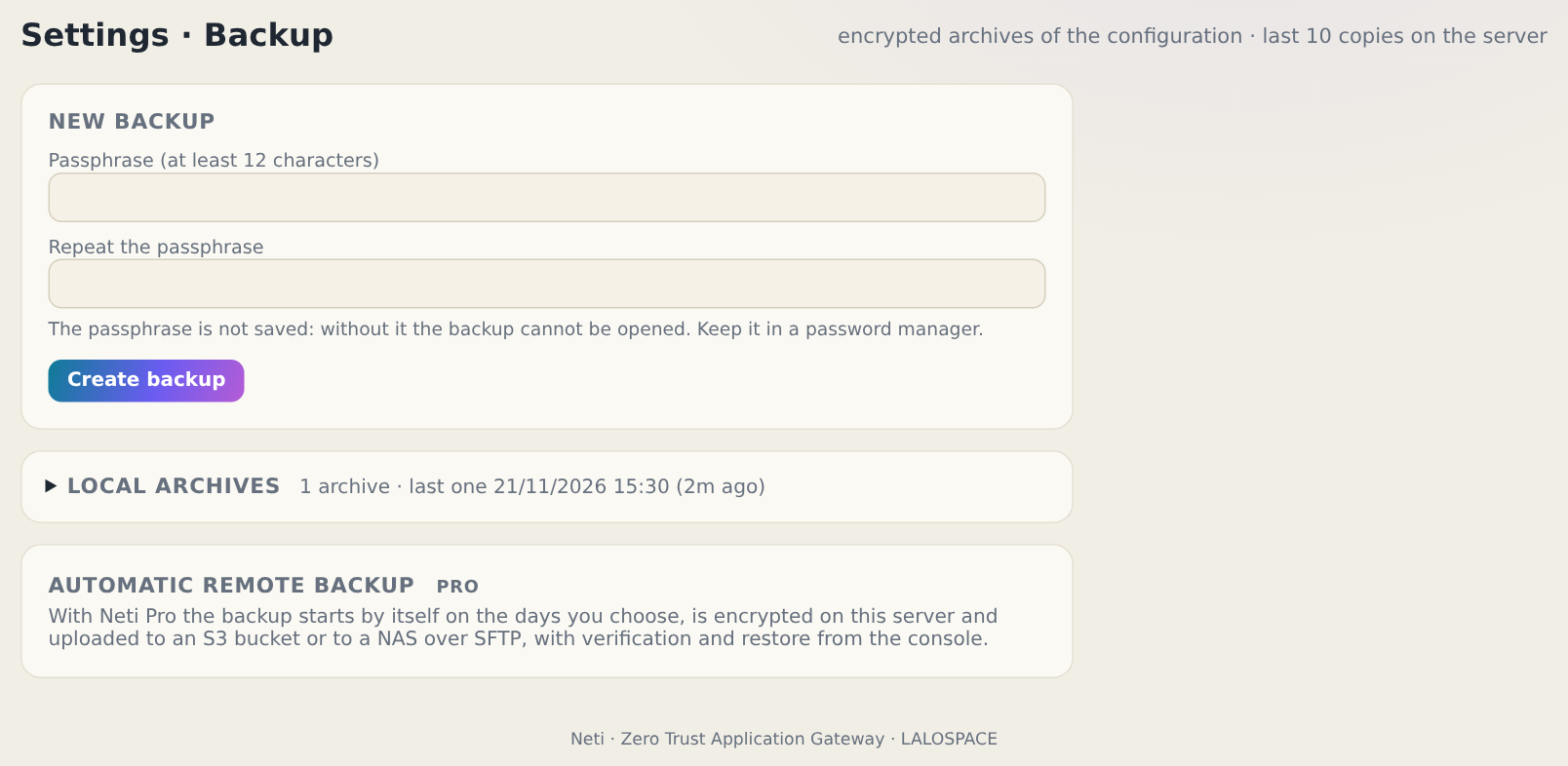
title the console reminds how many copies are kept: encrypted archives of the configuration · last 10 copies on
the server.
What a backup contains
A backup made from the Backup page of Neti is a single compressed archive holding:
- the database of Neti, copied in a consistent way while the console keeps working (users, services, settings, activity log, probe history);
- the configuration in
/etc/neti, secrets included; - WireGuard (
/etc/wireguard: keys and tunnels); - the nginx files written by Neti (sites, snippets, certificates in
/etc/nginx/certs); - the fail2ban jail and filters of Neti, the firewall rules (ufw), the sudo rule, the systemd units and the cron files of Neti;
- acme.sh: the account and the issued certificates (not its program code);
- the maintenance pages (
/var/www/neti-maint), the working data in/var/lib/netiand the code of Neti in/opt/neti.
It does not contain logs, the snapshots made before updates and database migrations, or temporary download areas. Inside the archive there is also a list of SHA256 checksums of every file, used by the Check button, and a small description (date, server name, number of files).
Because the archive holds the secrets of the server, it is always encrypted before it is written to disk. Treat the passphrase (manual backups) and the recovery key (remote backups) as you would treat the root password of the server.
New backup
The New backup box creates a backup right now and stores it on the server, among the Local archives.
- Passphrase (at least 12 characters)
- The secret that encrypts this archive (gpg, symmetric AES256). You choose it every time; it can be different for each backup. Minimum 12 characters, on one line (no line breaks). Neti does not store it anywhere: not in the database, not in a file, not in the activity log.
- Repeat the passphrase
- Type it again. The two values must be identical, otherwise nothing is created.
- Create backup
- Builds the archive and encrypts it. When it is done the console shows Backup created with the file name,
the size and the number of files. The file is named
neti-backup-YYYYMMDD-HHMMSS.tar.gz.gpgand is saved in/var/backups/neti, readable only by root. If there are already 10 archives, the oldest ones are deleted so that 10 remain. The action is recorded in Activity.
The passphrase is not saved: without it the backup cannot be opened, by you or by anyone else. Keep it in a password manager, together with a note of which archive it belongs to.
Messages you may see: Backup: the passphrase must be at least 12 characters long, Backup: the two passphrases do not match, Backup: the passphrase cannot contain line breaks, Backup failed: … (followed by the reason given by the system agent, for example a failed copy of the database).
Local archives
The Local archives box lists the manual backups stored on this server. It is closed by default: click its title to open it. While closed, the title line shows how many archives there are and the date of the last one (for example 3 archives · last one …), or no archives. The browser remembers whether you left the box open.
At most the last 10 archives are kept, in /var/backups/neti. They live on the same
disk as the server: if the server is lost, they are lost with it. Download a copy and keep it somewhere
else, or use the automatic remote backup.
- Archive
- File name:
neti-backup-date-time.tar.gz.gpg. - Size
- Size of the encrypted file.
- Created
- Date and time, and how long ago.
- Download
- Downloads the encrypted archive to your computer, exactly as it is on the server. No passphrase is asked: the file stays encrypted. The download is recorded in the activity log.
- passphrase field and Check
- Type the passphrase of that archive and press Check. Neti decrypts the archive into a temporary folder, compares every file with its SHA256 checksum, runs the integrity check of the database, then deletes the temporary copy. Nothing on the server changes. Results: Verification passed: … files intact, database ok (… users); Verification FAILED: … files not matching …, database: … (the archive is damaged); or Verification could not run: … (wrong passphrase or damaged archive). Check a backup from time to time: it is the only proof that the archive opens and that you still have the right passphrase.
- Delete
- After a confirmation (Delete this backup from the server?) removes the archive from the server. Copies you downloaded are not affected.
If the list cannot be read the box shows list not available with the reason (usually the system agent is not reachable, see Dashboard).
Opening a local archive by hand
A local archive is a standard gpg file. On any Linux machine with gpg installed:
gpg -d neti-backup-20260101-020000.tar.gz.gpg | tar -xz
gpg asks for the passphrase and the command unpacks META.json, SHA256SUMS,
neti.sqlite (the database) and the folder fs with the files, in the same layout they have on
the server.
The console has no button that restores a local (passphrase) archive: the guided restore, from the console and with
the command neti restore-backup, works with the remote backups of Neti Pro.
Automatic remote backup (Neti Pro)
The Automatic remote backup box is a feature of Neti Pro. On the days and at the hour you choose, Neti makes a backup by itself, encrypts it on this server and uploads it elsewhere: to an S3 (or compatible) storage, or to a NAS or server over SFTP. After the upload it reads the file back from the destination and compares it with the one it created. From the same box you can check and restore any backup found on the destination.
In the Free edition the box shows only a short description and the Pro label. On a Pro node the box is closed by default; click its title to open it. While closed, the title line summarizes the state: the destination (S3 · bucket or SFTP · user@server, or to be set up), the schedule and the next run (or schedule off, or recovery key to be created), and the outcome of the last backup (last one succeeded / last one FAILED with the date, or backup in progress / restore in progress).
What a remote backup contains: the same content as a manual backup (see What a backup
contains), without the measurements of the probes, which make up most of the size and are rebuilt
in a few days. The file is named neti-backup-server-name-YYYYMMDD-HHMMSS.tar.gz.age.
How it is protected: the archive is encrypted with age using a public key. The server keeps only the part of the key that encrypts: it can write backups but cannot open them, and neither can whoever runs the storage. Only the recovery key, which you keep outside the server, opens them.
The setup has three numbered steps, each with its state next to the title (to be set up, to be created, off, or a check mark with the current value). If the tools needed are missing, a notice says Missing on the server: … Install the age and rclone packages (they come with the Neti Pro update).
1 · Destination
Choose where the backups go: S3 or compatible storage or NAS or server over SFTP. Only one destination is active at a time.
Fields for S3 or compatible storage
- Service
- A helper list: Other S3-compatible storage (MinIO, Garage, …), Amazon S3, Backblaze B2, Wasabi,
Scaleway, OVHcloud, Hetzner, Cloudflare R2. Choosing a provider fills the service address with its usual form;
replace
REGION(orACCOUNT) in the address with the value given by your provider. Choosing Amazon S3 empties the address and turns off the path-style option. - Service address (https://…, empty for Amazon S3)
- The endpoint of the storage, in the form
https://nameorhttps://name:port, without a path. HTTPS only: anhttp://address is refused. Leave it empty for Amazon S3. - Region
- The region of the bucket (letters, digits and hyphens, up to 40 characters). If left empty Neti uses
us-east-1for Amazon S3 andautofor the other services. - Bucket
- Name of an existing bucket: lowercase letters, digits, dots and hyphens, 3 to 63 characters. Neti does not create the bucket.
- Folder (optional)
- A folder (prefix) inside the bucket, for example
neti. Letters, digits, dot, hyphen, underscore and slash, up to 200 characters. Useful when the bucket is shared with other data or other servers. - Access key and Secret key
- The credentials of the storage. Use a key limited to this bucket only. The secret key stays on this server in a file readable only by root and is never shown again: after saving, the field is empty and says (saved: leave empty to keep it). You must type it again when you change the service address or the access key: a stored secret is never sent to a different service.
- Addresses with the bucket in the path (leave it on for compatible services; turn it off for Amazon S3)
- How the bucket is written in the requests. On (default) for S3-compatible services; off for Amazon S3.
Fields for NAS or server over SFTP
- Server (name or IP)
- Host name or IP address of the NAS, for example
nas.example.comor10.0.0.20. - Port
- SSH port, 1 to 65535. Default 22.
- User
- The account Neti signs in with. Create a dedicated user on the NAS that can write only in the backup folder.
- Folder on the server
- Where the files are written, for example
/backup/neti. The folder must exist. - Step a. — the public key
- Neti shows a public SSH key (ed25519), created once for this server. Paste it among the authorized keys
(
authorized_keys) of the dedicated user on the NAS. Neti signs in only with this key, never with a password; the private part never leaves the server. - Step b. — Read the fingerprint
- Reads the host keys of the SFTP server and shows their SHA256 fingerprints. Compare them with the fingerprint shown by the NAS itself (in its SSH settings), then tick I have compared the fingerprint: it is the one of my server. From then on Neti talks only to a server that presents those keys: if someone puts another machine in its place, the upload fails instead of handing over the backup. Without the tick the destination cannot be saved (confirm the server fingerprint first). If the server or the port changes, read and confirm the fingerprint again. Once saved, the box shows Confirmed fingerprint: with the values.
For every destination
- Copies to keep: daily, weekly, monthly
- The retention rule, see Copies to keep. Defaults 7, 4 and 12.
- Test the connection
- Tries the destination with the values in the form, without saving them. It writes a small test file, reads it back and compares it, then deletes it, and shows the three steps with a check mark or a cross: writing a test file, reading it back and comparing, deleting the test file. If a step fails, the reason follows (see Troubleshooting).
- Test and save
- Runs the same test and saves the destination only if writing and reading back succeed (Destination saved.). A destination that accepts and returns files but does not allow deleting them is accepted, with a notice: Neti will not be able to remove old backups there (see Copies to keep).
- Remove destination
- Shown when a destination is saved. After a confirmation it deletes the destination and its credentials from the server and turns the schedule off. The backups already uploaded stay where they are.
The destination, its credentials and the keys are stored in /etc/neti/rbk, readable only by root.
Changing the destination is recorded in the activity log (never with the secret) and an email is sent to the users
who receive the emails about updates, so that a change made by someone else
does not go unnoticed.
2 · Recovery key
The recovery key is the only thing that opens the remote backups. Neti creates it, shows it once and does not keep it: on the server stays only the public part, which can encrypt but not decrypt. Without the recovery key the backups cannot be opened by anyone, the vendor included.
- Create the recovery key
- Creates a new key and shows it in a box. It starts with
AGE-SECRET-KEY-1. The state becomes created, to be confirmed. - Download as a file
- Saves a small text file with the key, the name of the server and the creation date.
- Copy
- Copies the key to the clipboard, to paste it into a password manager.
- The field below and Confirm the key
- After saving the key, paste it into the field and press Confirm the key: it proves that you really have it before any backup depends on it. Only then the key becomes active (Recovery key confirmed.) and the state shows active (fingerprint …). The fingerprint is a short code that identifies the key in use, not the key itself. If the pasted value is different: the pasted key is not the one just created.
- Replace the recovery key
- The same button, once a key exists. After a warning it creates a new key, to be confirmed in the same way; until you confirm it, the old one stays in use. From the confirmation on, new backups open only with the new key, while the backups made before open only with the old one: keep the two keys. An email about the change is sent to the users who receive the emails about updates.
Keep the key off this server: in a password manager, plus a printed copy in a safe place. Whoever has the key and access to the storage can read the whole configuration of the server, secrets included.
3 · When
- Run the remote backup automatically
- Turns the schedule on. It can be turned on only when the destination is saved and the recovery key is confirmed (The destination and the recovery key are needed first.). Default: off.
- Days of the week (Mon … Sun)
- The days on which a backup is made. At least one day is required when the schedule is on. Default: every day.
- at … (server time)
- The hour, from 0:00 to 23:00, in the time zone of the server. Default 2:00. The backup starts within fifteen minutes of that hour. If it cannot start (for example another backup or a restore is running) Neti tries again during the same hour; one backup is made per scheduled day.
- Save
- Saves the schedule: Remote backup scheduled: … or Scheduled remote backup off. The title of the step then shows the days, the hour and next: … with the next run.
- Run a backup now
- Starts a remote backup immediately, whatever the schedule. Available when destination and key are ready and no other backup or restore is running.
While a job runs, the box shows Backup in progress with the current step (archive, upload, verification, cleanup) and its log, refreshed every few seconds. When it ends it shows Last backup: done or Last backup: failed, with the time and the message, for example Backup caricato: neti-backup-….tar.gz.age (… file) (backup uploaded). History opens the list of the last jobs (backups and restores) with their outcome.
What a backup job does, in order: builds the archive and encrypts it on the server; uploads it; reads the uploaded file back from the destination and compares its checksum with the one of the file created (a mismatch makes the backup fail); removes the old copies according to the retention rule. On SFTP the file is uploaded with a temporary name and renamed at the end, so a half-written file never looks like a backup.
If the node goes back to the Free edition the scheduled backups stop; the backups already uploaded stay on the destination.
Copies to keep
After every successful backup Neti removes from the destination the copies that the rule no longer keeps. The rule has three numbers, set in the Destination step:
- daily
- Keeps the newest backup of each of the last N days that have one. 1 to 90, default 7.
- weekly
- Keeps the newest backup of each of the last N weeks. 0 to 52, default 4.
- monthly
- Keeps the newest backup of each of the last N months. 0 to 60, default 12.
A backup is kept if at least one of the three rules keeps it; the most recent backup is always kept. Only the backups of this server (recognized by the server name inside the file name) are counted and removed: backups of other servers stored in the same folder are never touched.
If the key used does not allow deleting, the old copies stay where they are and the message of the backup says so (La destinazione non permette di cancellare: … copie vecchie restano dove sono). This is not an error. In that case let the storage do the cleanup, with an expiry (lifecycle) rule. It is the safest choice: not even someone who breaks into the server could delete the backups.
Backups on the destination
Refresh the list reads the destination and lists the backups found there, newest first. Until you press it the box says Press "Refresh the list" to read the destination.
- Backup
- File name. The label another server marks a backup made by a different Neti server that uses the same folder.
- Size and Created
- Size of the encrypted file and the date written in its name.
- Check
- Opens the dialog Check this backup. Paste the Recovery key and press Check: Neti downloads the backup, opens it with your key in a temporary folder and checks every file and the database. Nothing changes on the server, and the key is not kept. Result: Backup intact: … files, … users, created on … on … (Neti …), or the reason why it is not.
- Restore
- Opens the dialog Restore from this backup, described in Restore from a remote backup.
Restore from a remote backup
A restore brings this server back to the moment of the chosen backup: users, services and settings return to what they were then. In the list of the backups on the destination press Restore on the backup you want.
- Recovery key
- Paste the recovery key that was active when that backup was made. It is used for this job only and then removed from memory.
- Type RIPRISTINA to confirm
- Type the word
RIPRISTINAexactly (capital letters), in every language of the console. It prevents a restore started by mistake. - Restore / Close
- Restore starts the job (Restore started: follow its progress below.); Close leaves without doing anything.
What the restore does, step by step:
- downloads the backup, opens it with the key and checks every file and the database; a damaged backup or a wrong key stops here, with nothing changed;
- checks the version: the backup must come from a version of Neti equal to or older than the one installed (otherwise: update Neti first);
- saves the current state of the server (database and configuration) in
/var/backups/neti/remote; the copies of the last two restores are kept; - replaces the database, the configuration in
/etc/neti, the WireGuard tunnels, the nginx sites and certificates, the acme.sh account and certificates, the maintenance pages and the working data of Neti with those of the backup; - applies the database migrations and regenerates console and services as after an update, restarts the active tunnels and reloads the web server;
- checks that the nginx configuration is valid, that the services which were running still run and that the console answers. If something does not answer as before, Neti puts everything back as it was by itself.
A restore does not touch the code of Neti, the firewall rules, the systemd units, the cron files, the sudo rule and the destination of the remote backups: the destination that works now keeps working after the restore.
Outcomes shown in the box and sent by email to the users who receive the emails about updates: Last restore: done; rolled back (the checks failed and the server is back as it was before); failed (the return to the previous state also left problems: the message gives the folder with the copy made before the restore). At the end you have to sign in again, because users and sessions are those of the backup. The start and the result are recorded in the activity log.
How to restore on a new server
Use this when the original server is lost and you have a remote backup and its recovery key.
- Install Neti on the new server (see Installation), at the same version as the old server or a newer one.
- Make sure the tools that open the backup are installed:
apt install age rclone. - Download the backup file from the storage (with the tools of your provider or from the NAS) and copy it to the new server.
- As root, in an interactive terminal, run:
neti restore-backup /root/neti-backup-server-20260101-020000.tar.gz.age
- The command explains what will be replaced, asks for the recovery key (it is not shown while you type) and for
the word
RIPRISTINA. Then it does the same steps as the restore from the console, including the automatic return to the previous state if the checks fail, and prints the result. - Sign in to the console with the users of the old server and check services, certificates and tunnels. Point the DNS records to the new server if its address changed.
- Activate the license again: the license is bound to the machine, so a restored server starts as Free until you move the seat (see Several nodes and moving to another server). Then set the destination of the remote backups again in Settings → Backup if you want them to continue from the new server.
The command works only from a terminal (not from the console) and only with remote backups
(.tar.gz.age). See also The neti command.
How to open a remote backup by hand
A remote backup is a standard age file. On any machine with age installed, with the recovery key saved in a file (for example the one downloaded from the console):
age -d -i recovery-key.txt neti-backup-server-20260101-020000.tar.gz.age | tar -xz
The command unpacks the description of the backup, the checksums, the database (neti.sqlite) and the
folder fs with the files.
Emails about remote backups
Neti sends an email to the users who have Emails about updates ticked in Users (Admin role or the permission to update Neti) when:
- a remote backup fails, with the reason;
- the destination of the remote backups is changed;
- the recovery key is replaced;
- a restore ends: completed, rolled back or failed.
The emails are sent through the SMTP server set in Settings. A successful scheduled backup sends no email: its outcome is in the box and in its history.
Troubleshooting
The messages of the test and of the backup jobs come from the system agent. The fixed ones are translated; those that carry a technical detail (the line returned by the storage, in brackets) may appear in Italian. The table gives their meaning.
| Message | Meaning and fix |
|---|---|
| chiave di accesso sconosciuta al servizio | The access key does not exist on that service: check the key and the service address. |
| chiave segreta errata | Wrong secret key: type it again. |
| accesso negato: la chiave non ha i permessi su questo bucket | The key is valid but may not write in this bucket: give it read and write permission on the bucket (and on the folder). |
| il bucket non esiste | The bucket name or the region is wrong, or the bucket has not been created. |
| nome del server non trovato | The host name does not resolve: check the address and the DNS of the server. |
| connessione rifiutata / il server non risponde | Wrong port, service down, or a firewall between Neti and the destination. Outgoing connections to the storage must be allowed. |
| certificato TLS del servizio non valido | The S3 service presents a certificate that is not trusted (self-signed or expired). Neti does not accept it. |
| il server non accetta la chiave di Neti | SFTP: the public key shown in step a. is not among the authorized keys of that user, or the user is another one. |
| la chiave del server è diversa da quella confermata | SFTP: the server presents host keys different from those you confirmed. If the NAS was reinstalled, read and confirm the fingerprint again; if not, someone may be impersonating it. |
| permesso negato sulla cartella / la cartella non esiste sul server | SFTP: create the folder and let the user write in it. |
| il server non risponde come un server SSH | Read the fingerprint found no SSH service on that server and port. |
| enter the secret key (asked again) | The service address or the access key changed: the stored secret is not reused for a different service. |
| the uploaded file does not match the one created | The file read back from the destination differs from the one sent: the backup is marked failed. Run it again; if it repeats, the storage is not reliable. |
| the recovery key does not open this backup | The key is not the one that was active when the backup was made (it was replaced later), or the file is damaged. Try the previous key. |
| this is not a Neti recovery key | The value pasted does not start with
AGE-SECRET-KEY-1: paste only the key line, not the whole file. |
| il backup viene da Neti …, più recente di quello installato | The backup was made by a newer version of Neti: update Neti first (see Updates), then restore. |
| a backup or restore job is already in progress | Wait for the running job to end. |
| job interrupted | The job stopped without finishing (for example the server was rebooted). Start it again. |
| Missing on the server: … / strumenti mancanti | The packages age and
rclone are not installed. They come with the Pro package; on a server without it:
apt install age rclone. |
| Remote backup is a Neti Pro feature. | The node is Free or the Pro package is not installed yet: see License. |
A manual backup that fails with Backup failed: … usually means that the disk is full or that gpg is not installed on the server.
Good to know
- Manual backups (passphrase, gpg) and remote backups (recovery key, age) are two separate things: the passphrase of one does not open the other.
- Neti also saves a copy of the database and of the configuration by itself before every update, to go back if the update fails (see What happens during an update). Those copies stay on the server and are not a substitute for a backup kept elsewhere.
- A backup contains the secrets of the server. Store downloaded archives where only administrators can reach them, and never in a folder published by a web server.
- Every backup action (create, check, download, delete, change of destination or key, restore) is recorded in Activity with the user who did it. Passphrases, credentials and keys are never written there.
- Check a backup regularly, and try a full restore on a test server at least once: a backup that has never been restored is only a hope.