Filtering
Filtering decides who can reach a service published by Neti. The settings live in profiles: each service uses one profile, or the default profile when none is assigned. A profile does two different jobs. Its entry filters (countries and request limit) are applied by nginx to every request, also on public sites with no sign-in. Its score (thresholds, rules, countries of the score) is used where there is a sign-in, to decide who receives the email code and who is sent to a decoy page.
Where: menu Filtering (the page is titled Score-based filtering).
To see it you need the permission to view the filtering layer (view.filtering: roles viewer, operator
and admin by default). To change anything you need the permission to configure rules and thresholds
(manage.filtering: role admin by default). Without it the page shows the same information read-only.
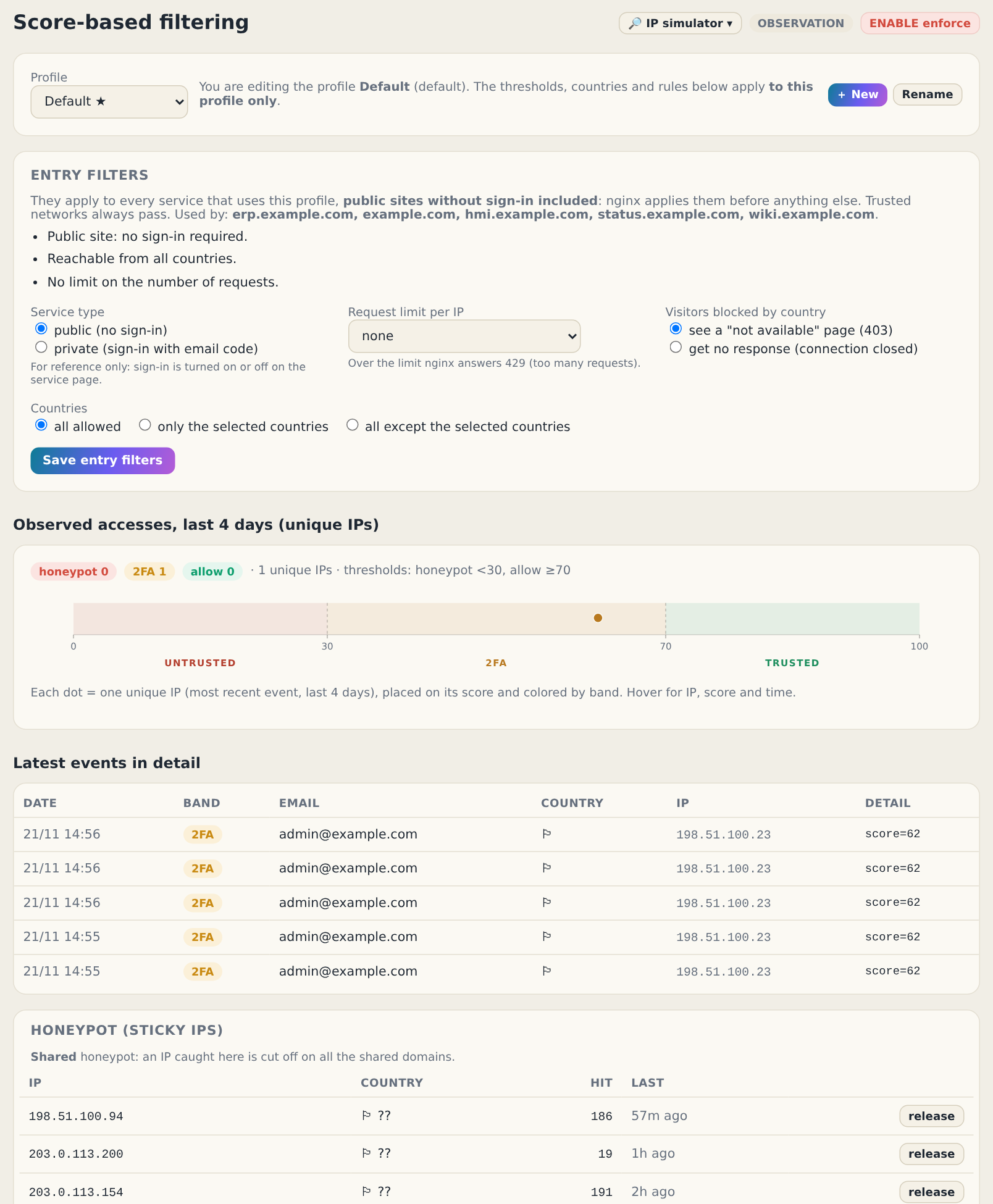
How filtering works: two layers
It helps to keep the two layers of a profile apart, because they act at different moments and on different services.
| Entry filters | Score | |
|---|---|---|
| Applied by | nginx, before anything else | the Neti sign-in pages |
| Applies to | every request to every service that uses the profile, public sites included (HTTPS only) | the sign-in of services with the gate, the sign-in of the console, the eligibility check of Remote access |
| What it looks at | country of the address, number of requests per second | about fifteen signals on the address: trusted network, honeypot, CrowdSec, Tor, country, kind of network, fail2ban, request rate, User-Agent, history, remembered device |
| Result | the request passes, or gets a 403 page / a closed connection (country), or a 429 error (too many requests) | a number from 0 to 100 and a band: access, email code, or decoy page |
| Configured in | box Entry filters | boxes Thresholds and bands, Rules, Profile policy |
A public site with no sign-in is therefore protected only by the entry filters of its profile (plus the server-wide protections: firewall, CrowdSec, see Security). The score matters only where somebody has to sign in.
Score and bands: what a visitor gets
The score is a whole number from 0 (hostile) to 100 (trusted). It starts from the Baseline of the profile (50 by default), each rule that matches adds or subtracts its weight, and the result is kept between 0 and 100. Two thresholds cut the scale in three bands:
| Band | Shown as | Condition (default thresholds) | Meaning |
|---|---|---|---|
| Red | HONEYPOT (UNTRUSTED in the chart) | score below Block (below 30), or a veto rule that forces the honeypot | The visitor is sent to the decoy: a fake sign-in that never lets anyone in and records what is typed. No code is sent. |
| Orange | 2FA | score from Block up to Allow (30 to 69), or a higher score without a remembered device | The visitor must confirm with the code sent by email. |
| Green | ALLOW (TRUSTED in the chart) | score at or above Allow (70 or more) and a remembered device, or the veto rule of the trusted networks | Access with the existing session, without asking for a new code. |
The bands are resolved in this order: a trusted network always wins (band ALLOW), then any veto towards the honeypot, then the score below Block, then the green band, and what is left is 2FA.
On a service with the gate
The sign-in page of a service (see Gate) evaluates every visitor that has no session yet, with the profile of that service:
- Trusted networks (the global ones and those of the profile) pass without sign-in and without code.
- Red band: the visitor sees the decoy page (title and error message are in the Profile policy). The address is recorded in the honeypot and from then on is cut off on the service even if it had a valid session. See Honeypot.
- Any other score: the visitor sees the real sign-in page, types username and email and receives the code if the pair is enabled on the service. On the service gate the score never skips the code: who has already signed in simply keeps the session cookie for the session duration of the profile.
So on a service gate the threshold that changes what happens is Block: it separates who may ask for a code from who is sent to the decoy. The red band of a service gate is applied whatever the mode of the profile.
On the sign-in of the console
The console sign-in is evaluated with the default profile (the one marked ★), and only when that profile is in ENFORCE mode the bands change the flow:
- Red: the sign-in answers "invalid credentials" whatever is typed, and the attempt goes to the honeypot log.
- Orange: the email code is required even from a browser that had been remembered.
- Green: a remembered browser goes straight to the password.
In enforce mode the browser is remembered after a sign-in only if the address was "clean" (see device rules). In OBSERVATION mode the score is computed and recorded but the console sign-in behaves as usual.
In Remote access
The rules of Remote access can require a minimum score before opening a temporary access: the score is computed with the default profile or with the profile chosen there, and compared with the Allow threshold of that profile unless a different minimum is set in those rules.
IP simulator
The button 🔎 IP simulator ▾ at the top of the page opens a small panel: type an address in IP to evaluate and press Evaluate. The panel shows, for the profile selected in the page:
- Score and band
- The number out of 100 and the pill HONEYPOT, 2FA or ALLOW.
- Country, ASN, clean IP / IP not clean
- The country and the network (number and name of the autonomous system) found for the address, and whether the address counts as clean: not a data center, not a VPN, not Tor, not in CrowdSec, not banned by fail2ban, with a known country that is not in the high-risk list.
- Rule / Effect
- One row per rule that matched, with its effect: a signed number (for example
+20,-45) orveto→allow/veto→honeypot. If nothing matched: no rule triggered. This is the quickest way to understand why an address ends in a band.
Limits of the simulation, to read the result correctly:
- It evaluates the address without a remembered device, so the best band it can show is 2FA (ALLOW appears only for a trusted network). This is exactly how a first visit to a service gate is evaluated.
- It does not count the request rate (rule
rate_high) and it uses the User-Agent of your own browser, soua_missingdoes not trigger. - It uses the global trusted networks and the shared honeypot: the additional trusted networks of the profile and a separate honeypot are not taken into account.
- The CrowdSec and fail2ban answers are remembered for 60 seconds: right after an unblock the simulator can still show the old result for a minute.
An address that is not valid gives Invalid IP.
Mode: observation and enforce
Next to the simulator a pill shows the mode of the selected profile, with the button to change it:
- OBSERVATION
- The score is computed and recorded at every sign-in of the console, but the sign-in flow does not change. A banner under the profile bar reminds you of it, and of the fact that on services with the gate the red band leads to the decoy in either mode. Use it to tune thresholds and rules while looking at the chart and the simulator. The button ENABLE enforce switches to enforce.
- ENFORCE (active)
- The bands are applied at the sign-in of the console (see above). The button back to observation returns to observation.
What the mode does and does not cover:
- The mode is stored per profile, but it changes the behavior of the console sign-in, which uses the default profile. Changing the mode of another profile has no visible effect on the console.
- The entry filters (countries, request limit) do not depend on the mode: they are active as soon as they are saved.
- On a service gate the red band sends to the decoy page in both modes.
The default profile created at installation starts in observation. Profiles created with the guided setup or from a preset start in enforce; a profile created with Basic rules starts in observation; a copy inherits the mode of the profile it was copied from.
Profile bar: choose, create, rename, default, delete
The bar under the title says which profile you are editing: You are editing the profile … The thresholds, countries and rules below apply to this profile only. Everything else in the page reads and writes that profile.
- Profile
- The list of profiles; the default one is marked ★ and is listed first. Choosing a profile reloads the page on it.
- + New
- Opens the dialog New filtering profile.
- Rename
- Asks for the new name (Rename profile:). Only the name changes: the services keep using the profile.
- Make default
- Shown on profiles that are not the default. The chosen profile becomes the one used by every service that has no profile of its own, by the sign-in of the console and, unless another one is chosen there, by Remote access. The nginx configuration of the services is regenerated at once, so its entry filters start applying to those services immediately. Check the countries and the mode of a profile before making it the default: an "only these countries" filter would apply to all the services without a profile.
- Delete
- Shown on profiles that are not the default (the default profile cannot be deleted: make another one the default first). After the confirmation the profile, its rules and its separate honeypot list are removed; the services and the WireGuard clients that used it go back to the default profile and the nginx configuration is regenerated.
Which profile a service uses
The profile is not assigned in this page. The effective profile of a service is found in this order:
- the profile assigned to the service: Routing, service page, field Filtering profile, button assign (see Routing);
- otherwise the profile assigned to the WireGuard client whose addresses contain the backend of the service (Network & Tunnels, column of the client list);
- otherwise the default profile ★.
The service page in Routing shows the effective profile and where it comes from (domain, client name or default). The box Entry filters of this page lists the services that currently use the selected profile (Used by:).
Entry filters
The box Entry filters holds the settings that nginx applies to every request, before the gate and before the backend. They are valid for every service that uses the profile, public sites without sign-in included. The top of the box shows who uses the profile (Used by: …, or Not assigned to any service yet) and a plain-language summary of the current filters, for example Public site: no sign-in required. · Reachable only from: … · Normal request limit · Blocked visitors see a "not available from your location" page.
What you should know before changing them:
- A new profile created with Basic rules, and the default profile of a new installation, have no entry filter: all countries allowed, no request limit.
- The filters are written in the nginx configuration of each service on its HTTPS port. Port 80 is not filtered: it only redirects to HTTPS and answers the certificate requests, which must keep working from everywhere.
- When you press Save entry filters the configuration of all the services is regenerated and nginx is reloaded. If nginx does not accept the new configuration, the previous one stays in place and the message says so.
- Behind the Cloudflare proxy the country and the address considered are those of the real visitor, not those of Cloudflare: the filters work the same way.
Service type
- public (no sign-in)
- The profile is meant for a site that everybody can open.
- private (sign-in with email code)
- The profile is meant for a service behind the gate.
This choice is for reference only: it is shown in the summary of the profile and it does not turn the sign-in on or off. The sign-in (gate) of a service is switched on the service page in Routing.
Request limit per IP
How many requests per second a single address may send to a service that uses the profile. Over the limit nginx answers 429 (too many requests) until the pace slows down; nothing else happens to the visitor.
| Choice | Sustained rate | Burst allowed | When to use it |
|---|---|---|---|
| none | no limit | no limit | Services used by programs (APIs, synchronization clients) that send many requests on purpose. Default. |
| normal: 20/s, bursts up to 100 | 20 requests per second | 100 requests at once | Websites and web applications: a person does not notice it, a program that copies the site or tries passwords in bursts is slowed down. |
| strict: 8/s, bursts up to 40 | 8 requests per second | 40 requests at once | Panels and sign-in pages with few resources per page. |
How the limit counts: each address has an allowance that refills at the sustained rate; a page that asks for many files together (images, styles, scripts) uses the burst, which is served immediately without delay. Requests beyond the burst are refused with 429 until the allowance refills. The count is kept per address and per service.
- If a legitimate application gets 429 errors (a page with more than 40 resources under the strict limit, a single-page application that calls many APIs, an office where many people share one public address), move to normal or none.
- The request limit also applies to the trusted networks: they are exempt from the country filter and from the bans, not from the limit.
- The limit only slows down. To get rid of an address that keeps hammering, turn on the automatic ban of bursts in Security, which counts the 429 answers.
- The sign-in pages of the gate have their own fixed limit (30 requests per minute per address), independent of this setting.
Visitors blocked by country
What a visitor from a country that is not admitted receives. It matters only when a country filter is set.
- see a "not available" page (403)
- A short courtesy page with status 403: "Access not available. This site is not available from your location.", in English and in Italian. Default. Choose it for public sites: a real person understands what happened.
- get no response (connection closed)
- nginx closes the connection without answering, as if the site did not exist. Choose it for private services that have no reason to reveal their existence to scanners.
Countries
The country filter of the entry filters is a hard block: it is decided on the country of the address only.
- all allowed
- No country filter. Default.
- only the selected countries
- The service opens only from the countries ticked in the list; from all the others the visitor gets the page or the closed connection chosen above.
- all except the selected countries
- The service opens from everywhere except the countries ticked in the list.
With the second and third choice the country picker appears:
- Add in one click:
- Buttons that tick a whole group: Italy (with San Marino and Vatican City), European Union (the 27 member states), All of Europe, United States and Canada, Countries many attacks come from (North Korea, Iran, Syria, Russia, China, Belarus). clear unticks everything.
- Search for a country…
- Filters the list by name or two-letter code. The counter on the right shows how many countries are selected and the line below lists the first ones.
- List by continent
- One checkbox per country.
Rules that always hold for the country filter:
- Trusted networks always pass, the global ones (Trusted networks) and the additional ones of the profile: whoever administers the service is not locked out while abroad.
- Addresses without a country pass: internal networks and addresses that the database cannot place are not blocked.
- Paths opened with a gate exception that has the country filter turned off pass as well.
- The country comes from the address, with a database that is updated regularly. It is reliable almost always; a visitor behind a VPN appears in the country of the VPN.
- You cannot save "only" or "all except" with an empty list: the page answers Filters not saved: choose at least one country, or "all allowed".
The country filter needs the GeoIP component of nginx. If it is missing, the box shows the warning Country blocking is not active yet: the nginx GeoIP component is missing; saving the filters starts the installation by itself (about a minute, then the block turns on), or you can install it from Server → Components (GeoIP → Install; see Server). Until then countries are not filtered.
Do not confuse this filter with the countries of the score (button configure countries in the rules): the entry filter refuses every request from a country; the countries of the score only add or subtract points, or send to the decoy, at sign-in.
- Save entry filters
- Saves service type, request limit, blocked action and countries of the selected profile and applies them to all the services that use it. Confirmation: Entry filters saved.
New filtering profile
+ New in the profile bar opens the dialog New filtering profile, which asks How do you want to create it?
- Guided setup (recommended)
- A few simple questions: who can enter, from which countries, how much protection. Every choice is explained and you start from a ready-made template. Described in Guided setup.
- Advanced
- You create the profile and then configure it item by item in this page. Clicking it shows the form below.
Advanced creation
- Profile name
- Required, up to 60 characters (for example "Company website").
- Start from
-
- Basic rules (no entry filters): the standard rules with their default weights, thresholds 70 / 30, baseline 50, all countries allowed at the entry, no request limit, and the profile in observation.
- Copy of the profile "…": an exact copy of the profile selected in the page: thresholds, rules, countries, entry filters, policy and mode.
- Preset: …: one of the six presets, applied as the guided setup would, with the profile in enforce.
- Create and open the editor
- Creates the profile and opens the page on it. A new profile is not used by any service until you assign it (see Which profile a service uses). Two profiles created from the basic rules or from a preset cannot have the same name.
Guided setup of a new profile
The guided setup (New profile · guided setup) builds a complete profile in five steps shown one at a time: 1 · Starting point, 2 · Who gets in, 3 · From where, 4 · Protection, 5 · Confirm. Nothing is saved until the last button; ← Back and Next → move between the steps, cancel returns to the Filtering page. You reach it from + New → Guided setup, or from the page of a service in Routing with 🧭 new guided profile, which opens it already linked to that service.
Step 1 · Starting point: the presets
Where do we start? Pick the situation closest to yours. The preset only fills in the answers of the next steps: you see every choice and can change it.
| Preset | Who gets in | Countries | Request limit | Blocked visitors | Evaluation | VPNs and rented servers | Device recognized |
|---|---|---|---|---|---|---|---|
| Public site open to everyone | everyone | all | normal | page | not relevant | not relevant | not relevant |
| Public site for European visitors | everyone | only Europe (all the European countries, San Marino and Vatican City included) | normal | page | not relevant | not relevant | not relevant |
| Public site, Italy only | everyone | only Italy, San Marino, Vatican City | normal | page | not relevant | not relevant | not relevant |
| Public site without high-risk countries | everyone | all except North Korea, Iran, Syria, Russia, China, Belarus | normal | page | not relevant | not relevant | not relevant |
| Private area with email code | authorized people | all except North Korea, Iran, Syria, Russia, China, Belarus | normal | page | balanced | more caution | 30 days |
| Strict private area, Italy only | authorized people | only Italy, San Marino, Vatican City | strict | no response | strict | not allowed | 7 days |
Step 2 · Who gets in
Who should be able to see the service?
- Everyone: it is a public site
- Like a normal website: whoever opens the address sees the pages, without signing up. Good for company sites, blogs, portfolios, shops. On a public site the content stays visible, but Neti can limit the countries it opens from and stop programs that send too many requests. The questions about the evaluation of who signs in are hidden in step 4.
- Authorized people only
- Before entering, people type their username and email and Neti sends a code by email. Good for business applications, panels, customer areas. You add the people allowed in on the service page in Routing. Neti also evaluates where those who try to enter come from: anyone who looks suspicious gets no code and lands on a decoy page, without noticing.
This answer becomes the Service type of the profile. It does not switch the gate of a service by itself, except through the checkbox of step 5.
Step 3 · From where
From which countries can it be opened?
- From anywhere in the world
- No country filter. The right choice for an international audience.
- Only from some countries
- Pick the allowed countries; from all the others the site does not open.
- From all except some
- Pick the countries to exclude, for example those many attacks come from and you expect no visitors from.
With the second and third answer the same country picker of the entry filters appears. The setup does not go on with an empty list (Pick at least one country, or go back to "From anywhere in the world") and warns when Italy is not among the allowed countries. If the GeoIP component of nginx is missing, a note says that Neti installs it when the profile is created (about a minute) and that until then countries are not filtered.
The answer sets two things at once: the country filter applied by nginx, and the countries of the score, so that the two stay consistent. With "only", the chosen countries also become the Allowed countries of the score; with "all except", the excluded countries also become the High risk countries of the score. See Countries of the score.
Step 4 · Protection
How much protection?
- Request limit per visitor
- No limit (services used by programs that send many requests on purpose), Normal (recommended: up to 20 requests per second, with bursts of 100; people do not notice it) or Strict (up to 8 per second, bursts of 40; for panels and sign-in pages). It is the Request limit per IP of the profile.
- How strictly to evaluate those who try to enter (only with "Authorized people only")
- Balanced: thresholds Allow 70 and Block 30; the code reaches those who connect from a normal network, suspicious visitors land on the decoy page. Strict: thresholds Allow 80 and Block 40; one more suspicious signal is enough to be turned away. For very sensitive services.
- People connecting through a VPN or a rented server (only with "Authorized people only")
-
- No difference: the rules
asn_vpnandasn_datacenterare switched off. Choose it if your users often use a company or commercial VPN. - More caution (recommended):
asn_vpn−45 andasn_datacenter−30, the default weights. They count as a suspicious signal: with the balanced thresholds a VPN alone from an allowed country still leaves the score below 30, a data center alone leaves it at 40, in the code band. - Not allowed:
asn_vpn−80 andasn_datacenter−45. Anyone coming from a VPN or a rented server ends below the Block threshold and gets no code.
- No difference: the rules
- After the code, for how many days does the device stay recognized? (only with "Authorized people only")
- 1, 7, 30 or 90 days: the Session duration of the profile. Fewer days means more security but more frequent codes.
- What do visitors from a blocked country see? (only with a country filter)
- A courtesy page ("This site is not available from your location", in English and in Italian) or Nothing (the connection is closed without a response: the site looks as if it did not exist). It is the setting Visitors blocked by country.
Step 5 · Confirm
- Summary
- The list of what the profile will do, in plain words.
- Profile name
- Required, up to 60 characters; proposed from the preset or from the chosen service. A name already used by another profile is refused (A profile called "…" already exists).
- Apply it right away to the service
- One of the services in Routing, or None, I will assign it later. The chosen service starts using the profile as soon as it is created.
- Enable sign-in with code on … (it is now open to everyone)
- Appears when the profile is for authorized people and the chosen service has no gate yet; ticked by default. It turns the gate of that service on: afterwards add the people allowed in on the service page. If instead the service already has the sign-in and the profile is for a public site, a note says that the sign-in stays as it is: remove it from the service page if you want.
- Create the profile
- Creates the profile from the standard rules (not from a copy of another profile), applies the answers, puts it in enforce, assigns it to the service if one was chosen, installs the GeoIP component when a country filter needs it, regenerates the nginx configuration of the services, and opens the Filtering page on the new profile. There you can review every detail and test it with the IP simulator.
What the guided setup writes besides the answers: baseline 50; the rule of the countries switched on; when no "only" list was chosen, the standard list of allowed countries of the score (Italy and the European neighbors, see Countries of the score); when no "all except" list was chosen, the standard high-risk list. For a public profile the session duration is left empty (global value).
Observed accesses, last 4 days (unique IPs)
The chart shows how the sign-ins of the console were scored in the last four days. Each dot is one address (its most recent event), placed horizontally on its score from 0 to 100 and colored by band: red on the left of the Block threshold (UNTRUSTED), orange between the two thresholds (2FA), green from the Allow threshold on (TRUSTED). The two dashed lines are the thresholds of the selected profile. Dots with the same score are stacked; over eight, a "+N" tells how many more there are. Hover a dot to read address, score, band and time.
- honeypot N · 2FA N · allow N
- How many addresses ended in each band.
- N unique IPs · thresholds: honeypot <N, allow ≥N
- Total number of addresses and the thresholds of the selected profile.
How to use it: in observation mode, look where the addresses of your real users fall. If legitimate people sit just below a threshold, lower the threshold or the weight of the rule that penalizes them before turning enforce on. If nothing was recorded the box says No access observed in the last 4 days.
The events of the chart are recorded when somebody submits the first step (email or username) of the console sign-in, in both modes. Visits to the gate of the services are not in this chart: those sent to the decoy are in Honeypot and are counted in the Protection box of the Dashboard.
Latest events in detail
The table under the chart lists the last 40 scored sign-ins of the console.
- Date
- Day and time of the attempt.
- Band
- HONEYPOT, 2FA or ALLOW.
- The account typed at the sign-in.
- Country
- Country of the address.
- IP
- The address.
- Detail
- The score, as
score=N. The table does not list the rules that matched: to see them, copy the address into the IP simulator.
Honeypot (sticky IPs)
The addresses that ended in the red band and are now held in the honeypot: the last 40, most recent first. The line above the table says which list you are looking at: the shared honeypot (an address caught here is cut off on all the services that share it) or the separate honeypot of this profile (see Honeypot: shared or separate).
- IP
- The address. For IPv6 the whole /64 network is also recorded, as a row of its own, so that a new address in the same network is still caught.
- Country
- Country of the address.
- Hit
- How many times the address reached the decoy.
- Last
- How long ago the last time was.
- release
- Removes the address from the honeypot. Use it when a legitimate user was caught, after fixing the reason (see Troubleshooting), otherwise the next visit puts the address back. For an IPv6 address release both the address and its /64 row.
"Sticky" means that the address stays in the list until somebody releases it: the rule
honeypot_member then sends it to the decoy at every visit, and a
service with the gate refuses its requests even with a valid session. In the shared honeypot, an address that reaches
the decoy several times is also banned at the firewall through CrowdSec (3 hits, 6 hours by default: settings and full
log in Honeypot).
Thresholds and bands
The colored bar shows the three bands of the selected profile: red from 0 to the Block threshold (honeypot), orange up to the Allow threshold (2FA), green up to 100 (access).
- Allow (access with a session) ≥
- From this score on, a visitor with a remembered device is in the green band. Default 70; 0 to 100. Raise it to ask for the code more often; lower it to trust remembered devices on more networks. It is also the minimum score used by Remote access when no other minimum is set there.
- Block (honeypot) <
- Below this score the visitor is in the red band and is sent to the decoy. Default 30; 0 to 100. This is the threshold that decides who may receive a code on a service gate. Raise it to be stricter (one suspicious signal is enough), lower it to be more tolerant. With 0 nobody is sent to the decoy because of the score alone: only the veto rules do it.
- Baseline
- The score every visitor starts from, before the rules. Default 50; 0 to 100. Moving the baseline shifts everybody by the same amount: it is usually clearer to leave it at 50 and move thresholds and weights.
- Save thresholds
- Saves the three values for the selected profile; they are used from the next evaluation. If Block is higher than Allow the two values are swapped. Confirmation: Thresholds updated.
How to reason about the numbers: with the defaults, a visitor from an allowed country with no other signal has 50 + 20 = 70; from the rest of the world 50 − 18 = 32, just above the Block threshold, so any additional negative signal sends that visitor to the decoy. See the worked examples.
Profile policy
The box Profile policy holds settings that apply to the services in Routing that use this profile (assigned to the domain or inherited from the WireGuard client). An empty field means "use the global value", which is shown in gray inside the field. They do not apply to the sign-in of the console.
Honeypot: shared or separate
- shared (as it is now)
- Default. The addresses caught on the services of this profile go to the common honeypot list: an address caught here is cut off on every service that shares the list, and after repeated hits it is banned at the firewall through CrowdSec.
- separate for this profile
- The profile keeps its own list. An address caught here is not cut off on the services of other profiles, and the CrowdSec auto-ban is not triggered (it would drop the address on all the services). Choose it for a strict profile, for example one that excludes VPNs, when the same people may legitimately use other services with a more tolerant profile.
Additional trusted networks (one per line)
Addresses or networks, IPv4 or IPv6, with or without prefix (for example 203.0.113.0/24,
198.51.100.7, 2001:db8::/48), one per line. They are added to the global
Trusted networks, only for the services of this profile. A visitor from a trusted
network:
- passes the gate of the service without sign-in and without code;
- is never sent to the decoy (veto rule
office_ip); - passes the country filter of the entry filters;
- is never banned by the automatic ban of bursts.
Use it for the office of a customer who must reach only this group of services. An entry that is not a valid address or network stops the save: Policy not saved: invalid networks: …
Session duration (days)
For how many days the browser of a person who entered the code stays recognized on a service of this profile, before the code is asked again. From 1 to 365; empty means the global value (90 days unless changed in the configuration of the instance). Fewer days means more security but more frequent codes. The new duration applies to the sessions created from then on.
OTP codes
Limits on the emails with the code sent by the gate of the services of this profile. They protect the mailbox of your users and your mail server from somebody who keeps asking for codes.
- every … s
- Minimum time between two codes sent to the same email address. From 10 to 3600 seconds; global value 60.
- max … /hour per email
- Maximum number of codes per hour to the same email address. From 1 to 100; global value 6.
- max … /hour per IP
- Maximum number of codes per hour requested from the same address. From 1 to 1000; global value 20. Raise it when many people sign in from the same public address (an office, a school).
When a limit is reached the sign-in page says the same thing as always (so that a stranger learns nothing); the reason is recorded in the gate events.
Decoy page: title and error message
- Decoy page: title
- Title of the fake sign-in shown to the red band on the services of this profile. Up to 60 characters; empty means the standard text "Accesso".
- error message
- The message the decoy shows after every attempt. Up to 120 characters; empty means the standard text "Credenziali non valide.".
The decoy is a plain form with the fields Email and Password that always answers with the error message and records what is typed. Write the two texts in the language of the service, so that the decoy looks like a normal sign-in of yours.
- Save policy
- Saves the whole box for the selected profile and regenerates the nginx configuration of the services (the trusted networks of the profile are part of the country filter). Values outside the limits are brought back to the nearest limit. Confirmation: Profile policy saved.
Without the permission to change, the box shows a one-line summary: honeypot shared or separate, number of additional trusted networks, session days, OTP interval and codes per hour.
Rules (weight from −100 to +100; "veto" rules force the band)
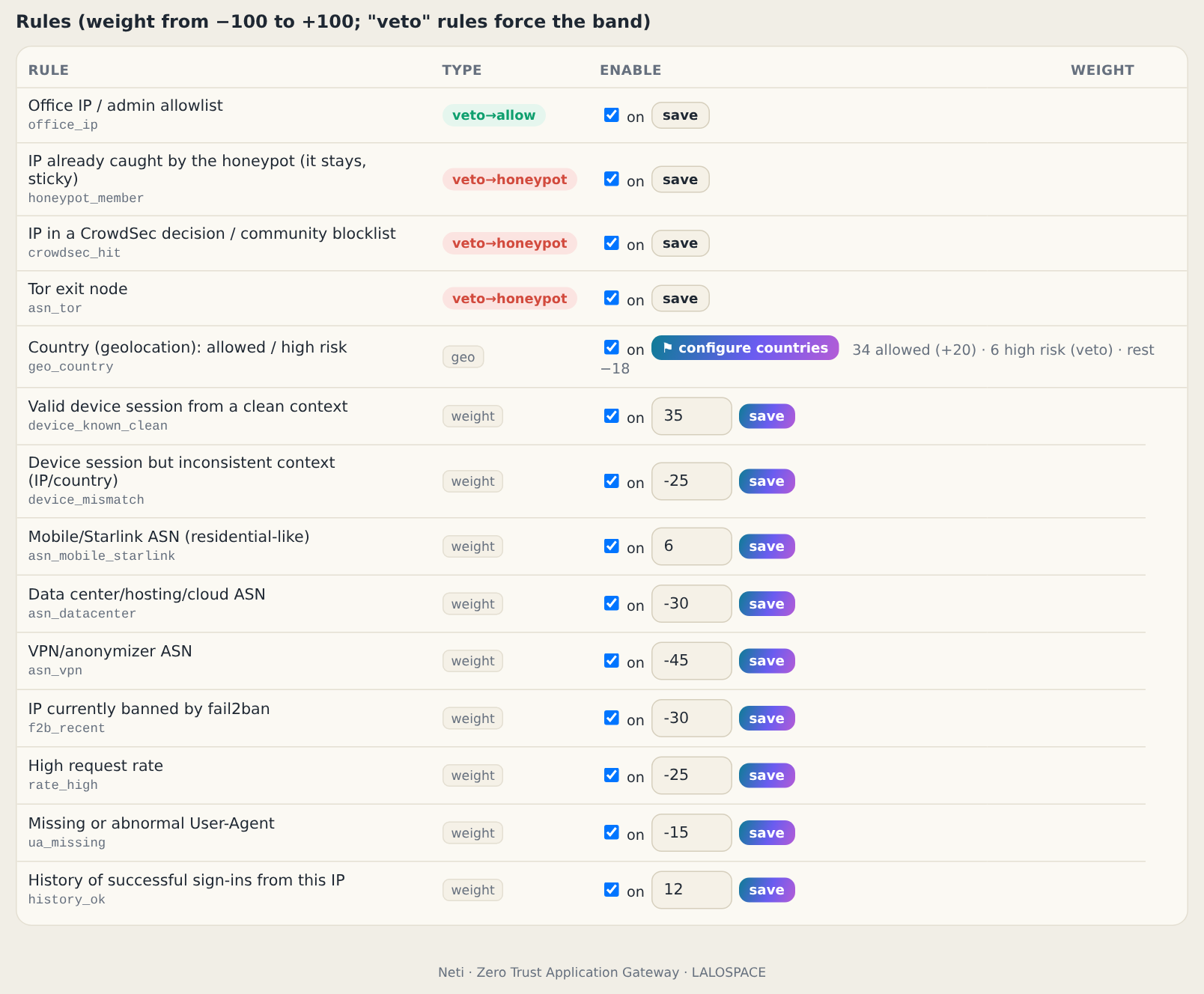
The table lists the rules of the selected profile. Each rule watches one signal about the address or the browser. There are three types, shown in the column Type:
- weight: when the signal is present, the weight is added to the score (a negative weight subtracts).
- veto→allow and veto→honeypot: when the signal is present the band is forced, whatever the score. Veto rules have no weight.
- geo: the rule of the countries, which can do both (bonus, penalty or veto).
- Rule
- Description and, below it, the technical name of the rule (for example
asn_vpn), the same that appears in the activity log when a rule is changed. - Type
- weight, veto→allow, veto→honeypot or geo.
- Enable
- Whether the rule is used. A rule that is off is ignored: it neither changes the score nor forces a band. Ticking or clearing on saves at once, also for the country rule (which has no save button): the page reloads with the confirmation Rule … updated.
- Weight
- For weight rules, a whole number from −100 to 100. Type the new value and press save on the same row; the change applies from the next evaluation. Confirmation: Rule … updated.
A weight rule can also be neutralized by setting its weight to 0: the rule still appears among the matched ones in the simulator, with effect 0, and no longer moves the score.
All the weights below are the defaults of a new profile. The weights add up: several weak signals together can move a visitor from one band to another.
office_ip · Office IP / admin allowlist
Type: veto→allow. Detects: the address belongs to a trusted network: the global list in Trusted networks and, on the services, the additional trusted networks of the profile.
Effect: band ALLOW, whatever the score. This veto wins over every other rule, also over the vetoes towards the honeypot, so that you cannot lock yourself out from your own office: even if the office address is listed by CrowdSec or is in a high-risk country, it gets in.
When to change it: leave it on. Keep the list of trusted networks short and limited to addresses you control, because for them no other rule counts.
honeypot_member · IP already caught by the honeypot (it stays, sticky)
Type: veto→honeypot. Detects: the address (or, for IPv6, its /64 network) is in the honeypot list of the profile: the shared one, or the separate one if the profile has it.
Effect: band HONEYPOT at every visit, until the address is released from the list (Honeypot (sticky IPs)). It is what makes the honeypot "sticky": an address that was judged hostile once does not get a second chance by changing browser or waiting.
When to change it: leave it on. If a legitimate user was caught, release the address instead.
crowdsec_hit · IP in a CrowdSec decision / community blocklist
Type: veto→honeypot. Detects: the address is currently blocked by CrowdSec on this server: a local decision (automatic ban of bursts, honeypot auto-ban, ban from the console, CrowdSec scenarios) or the community blocklist.
Effect: band HONEYPOT. An address that arrives directly is already dropped by the firewall and never reaches the sign-in; this rule matters for visitors that arrive through a proxy such as Cloudflare, which the firewall cannot stop because the connection comes from the proxy: they reach the gate and are sent to the decoy.
When to change it: leave it on. To let a single address in, remove its decision in Security → CrowdSec · local decisions or add it to the trusted networks. The rule does nothing if CrowdSec is not installed. The answer of CrowdSec is remembered for 60 seconds.
asn_tor · Tor exit node
Type: veto→honeypot. Detects: the address is in the list of the exit nodes of the Tor network, which Neti downloads every 6 hours.
Effect: band HONEYPOT. Tor hides who is connecting, and for a private service there is rarely a reason to accept it.
When to change it: turn it off only if your users are expected to reach the service through Tor. If the list could not be downloaded yet, the rule simply never matches.
geo_country · Country (geolocation): allowed / high risk
Type: geo. Detects: the country of the address, compared with the two lists of the profile. The row shows a summary such as 34 allowed (+20) · 6 high risk (veto) · rest −18 and the button ⚑ configure countries.
Effect: one of three, depending on the country:
- country in the High risk list: veto→honeypot ("High-risk country");
- country in the Allowed list: the Allowed bonus is added (default +20, "Allowed country");
- any other country: the Rest of the world penalty is subtracted (default −18, "Rest of the world").
When the country of the address is unknown (internal networks, addresses that are not in the database) the rule does not apply: no bonus, no penalty.
When to change it: see Countries of the score just below.
Countries of the score: Configure countries
⚑ configure countries opens the dialog Configure countries, with two tabs and two weights.
- ✅ Allowed
- The countries your users normally connect from. A visitor from one of them gets the bonus. Default of a new installation: Italy plus Andorra, Austria, Belgium, Bulgaria, Croatia, Czechia, Denmark, Estonia, Finland, France, Germany, Greece, Hungary, Iceland, Ireland, Latvia, Lithuania, Luxembourg, Malta, Monaco, Netherlands, Norway, Poland, Portugal, Romania, San Marino, Slovakia, Slovenia, Spain, Sweden, Switzerland, United Kingdom, Vatican City. If your users are elsewhere, put their countries here: otherwise every one of them starts with the penalty of the rest of the world.
- ⛔ High risk
- The countries from which nobody should sign in: a visitor from one of them is sent to the decoy whatever the score (high risk = veto → honeypot). Default: North Korea, Iran, Syria, Russia, China, Belarus. Trusted networks are the only exception.
- Allowed bonus
- Points added for an allowed country. From 0 to 100; default 20. With baseline 50 and Allow 70, the default bonus is exactly what brings a visitor with no other signal to the Allow threshold.
- Rest of the world penalty −
- Points subtracted for a country that is in neither list. From 0 to 100; default 18. With the defaults a visitor from the rest of the world has 32: the code is still sent, but one more negative signal (a data center, a missing User-Agent) sends to the decoy. Set it to 0 if your audience is international and the country should not count; raise it to 21 or more to send to the decoy everybody outside the allowed countries (50 − 21 = 29, below the default Block threshold).
- all / none
- Next to each continent: ticks or unticks all its countries in the current tab.
- Save country configuration
- Saves both lists and both weights for the selected profile. A country ticked in both tabs stays only in Allowed. Confirmation: Country settings saved: N allowed, N high risk. cancel or close ✕ leaves everything as it was.
These lists belong to the score and act only at sign-in. To refuse every request from a country, also on a public site, use the Countries of the entry filters. The two can be combined: for example, the entry filter excludes the high-risk countries for everybody, and the score gives a bonus to the two or three countries where your staff lives.
device_known_clean · Valid device session from a clean context
Type: weight, default +35. Detects: the browser is one that already completed a sign-in (remembered device) and the address is clean (not a data center, not a VPN, not Tor, not in CrowdSec, not banned by fail2ban, known country that is not high risk) and the country is the same as when the device was remembered, when that is known.
Effect: the strongest positive signal: a returning user on a normal network easily reaches the green band (50 + 35 = 85 before the other rules).
Where it counts: at the sign-in of the console and in the eligibility check of Remote access. The gate of a service evaluates the visitor before knowing who it is, so this rule and the next one do not trigger there.
When to change it: lower it if a remembered browser should not be enough to skip the code from networks you do not know; with 20 or less, an allowed country is also needed to reach 70.
device_mismatch · Device session but inconsistent context (IP/country)
Type: weight, default −25. Detects: a remembered device that now arrives from an address that is not clean, or from a country different from the one where it was remembered. It is the opposite of the previous rule: for a remembered device exactly one of the two triggers.
Effect: a stolen session cookie used from a rented server, or a laptop suddenly connecting from another country, loses the advantage of being known and is pushed towards the code or the decoy.
When to change it: bring it closer to 0 if your users travel a lot or use a VPN and are asked for the code too often; make it more negative for a console that is only used from fixed places.
asn_mobile_starlink · Mobile/Starlink ASN (residential-like)
Type: weight, default +6. Detects: the network that owns the address is a mobile operator (recognized from the name of the network: words such as "mobile", "wireless", "cellular" and the names of the main European operators) or Starlink.
Effect: a small bonus: these networks carry people, not servers, and automated scanners rarely come from them. A network recognized as mobile is never counted as a data center.
When to change it: raise it a little if most of your users connect from phones and you want them to stay comfortably above the thresholds; set it to 0 if you do not want the kind of connection to count.
asn_datacenter · Data center/hosting/cloud ASN
Type: weight, default −30. Detects: the network that owns the address belongs to a hosting or cloud provider (recognized from the name of the network: words such as "hosting", "datacenter", "cloud", "server", "dedicated" and the names of the main providers), and is not a mobile network.
Effect: people rarely browse from a rented server; scanners and automated traffic almost always do. With the defaults a visitor from a data center in an allowed country has 50 − 30 + 20 = 40 (code band), in the rest of the world 50 − 30 − 18 = 2 (decoy).
When to change it: make it less negative (or 0) if your users reach the service through a company proxy, a cloud desktop or a security gateway hosted in a data center; make it −45 or lower to exclude data centers also from allowed countries (the guided setup uses −45 for "Not allowed"). If only a few known addresses are involved, add them to the trusted networks instead.
asn_vpn · VPN/anonymizer ASN
Type: weight, default −45. Detects: the network that owns the address belongs to a VPN or anonymization provider (recognized from the name of the network: "vpn", "proxy", "anonymous", "tunnel" and the names of the main commercial VPN services).
Effect: the heaviest negative weight. With the defaults a VPN visitor from an allowed country has 50 − 45 + 20 = 25, below the Block threshold: decoy. A network can be recognized both as VPN and as data center: then both weights apply.
When to raise or lower it:
- Your users legitimately use commercial VPNs: bring it to −20 or 0 (the guided setup, with "No difference", switches the rule off). With −20 a VPN from an allowed country has 50, in the code band.
- You want to be sure that no VPN gets a code: −80 (the guided setup uses it for "Not allowed"), which sends to the decoy also a visitor with every positive signal.
- Only your own company VPN must pass: leave the weight and add the exit address of the VPN to the trusted networks.
The recognition is based on the name of the network: a VPN hosted in an ordinary data center is seen as a data center, and a small provider with an anonymous name may not be recognized at all.
f2b_recent · IP currently banned by fail2ban
Type: weight, default −30. Detects: the address is banned right now in at least one fail2ban jail of the server (see Security → fail2ban · jails).
Effect: an address that just failed several sign-ins on the console or scanned the server is treated with suspicion on the services too. Most fail2ban bans block only the port they protect, so the address can still reach the gate of a service: this rule connects the two. With the defaults, 50 − 30 + 20 = 40 from an allowed country (code), 2 from the rest of the world (decoy).
When to change it: make it more negative (−45) if a fail2ban ban should always mean decoy; bring it towards 0 if your users often get banned by mistake (for example for mistyped codes) and then cannot use the services. The rule does nothing without fail2ban. The answer is remembered for 60 seconds.
rate_high · High request rate
Type: weight, default −25. Detects: the address asked for the sign-in page 40 times or more within the same minute (for IPv6 the count is per /64 network).
Effect: a person opens a sign-in page a few times; a program that tries credentials or reloads the gate in a loop reaches 40 quickly and loses 25 points, which is usually enough to fall into the decoy from the rest of the world (32 − 25 = 7) but not from an allowed country (70 − 25 = 45).
When to change it: make it more negative (−45) to send to the decoy anybody who hammers the sign-in, wherever it comes from; make it less negative if many people share one public address and open the gate in the same minute (a classroom, a large office). In that case the trusted networks are the cleaner solution.
ua_missing · Missing or abnormal User-Agent
Type: weight, default −15. Detects: the request has no User-Agent header, or one shorter than 8 characters. Every real browser sends a long one.
Effect: a light penalty that catches the simplest scripts. It is decisive mostly together with other signals: rest of the world plus missing User-Agent gives 50 − 18 − 15 = 17, decoy.
When to change it: make it more negative if the service is used only from browsers; set it to 0 if a legitimate client (a device, an old application) signs in without User-Agent.
history_ok · History of successful sign-ins from this IP
Type: weight, default +12. Detects: at least one completed sign-in to the console is on record from exactly this address.
Effect: the addresses your administrators already used start a little higher, which compensates a small penalty (for example a home connection in a country outside the allowed list: 50 − 18 + 12 = 44).
When to change it: raise it to give more credit to known addresses; set it to 0 if many unrelated people share the addresses your administrators use (a large carrier network), because then everybody behind that address inherits the bonus.
Signals that always exclude (veto rules)
Some signals do not move the score: they decide alone. In a filtering profile they are the veto rules:
| Signal | Rule | Forced band |
|---|---|---|
| Trusted network | office_ip | ALLOW (wins over all the others) |
| Address already in the honeypot | honeypot_member |
HONEYPOT |
| Address blocked by CrowdSec | crowdsec_hit |
HONEYPOT |
| Tor exit node | asn_tor | HONEYPOT |
| High-risk country | geo_country, tab High risk |
HONEYPOT |
fail2ban, VPN and data center are weights in a filtering profile, not vetoes: they exclude only
if the resulting score falls below the Block threshold. To make one of them exclude always, give it a weight that no
bonus can compensate (for example −80 for asn_vpn).
The box Blocks with the six checkboxes CrowdSec, Honeypot, Tor, fail2ban, VPN and Datacenter / hosting is a different thing: it belongs to the rules of Remote access and decides who may open a temporary access to a server, independently of the weights set here.
Worked examples: how a score is computed
All the examples use a new profile with the defaults: Baseline 50, Allow 70, Block 30, allowed bonus +20, rest of the world penalty −18, and the default weights of the rules.
1. An employee at home, first visit to a service gate
- Start: 50.
- Country in the allowed list: +20 → 70.
- Home fiber connection: no network rule matches. Normal browser: no
ua_missing. - Final score 70. No remembered device at the gate, so the band is 2FA: the real sign-in page is shown and the code is sent.
2. The same employee with a commercial VPN turned on
- Start: 50.
asn_vpn: −45 → 5.- The VPN exits in an allowed country: +20 → 25.
- Final score 25, below Block 30: band HONEYPOT. The employee sees a sign-in that always answers with the error message, and the address goes into the honeypot list.
If the VPN exits in a country outside the allowed list the score is 50 − 45 − 18 = −13, which is kept at 0.
3. A script on a cloud server in an allowed country
- Start: 50.
asn_datacenter: −30 → 20.- Allowed country: +20 → 40.
- The script sends no User-Agent:
ua_missing−15 → 25. - Final score 25: band HONEYPOT. With a browser-like User-Agent it would be 40, band 2FA: the sign-in page is shown, but a code is sent only to a username and email pair enabled on the service.
4. A customer on a phone, in a country outside the allowed list
- Start: 50.
asn_mobile_starlink: +6 → 56.- Rest of the world: −18 → 38.
- Final score 38: band 2FA, the code is sent. From a fixed line it would be 32, still 2FA but two points above the decoy.
5. Any visitor from a high-risk country
The weights are not even considered: the country is in the High risk list, veto→honeypot. Band HONEYPOT, whatever the rest. Only a trusted network changes this.
6. An administrator signing in to the console from the usual computer
- Start: 50.
- Remembered browser on a clean address, same country:
device_known_clean+35 → 85. - Previous sign-ins from this address:
history_ok+12 → 97. - Allowed country: +20 → 117, kept at 100.
- Final score 100 with a remembered device: band ALLOW. In enforce mode the console asks only for the password.
The same computer through a rented server abroad: 50 − 25 (device_mismatch) − 30
(asn_datacenter) − 18 (rest of the world) = −23, kept at 0: band HONEYPOT in enforce mode.
How to: open a service only from one country
- Open Filtering and choose the profile of the service in Profile (or create one with + New → Guided setup, preset Public site, Italy only, and change the countries in step 3).
- In Entry filters → Countries choose only the selected countries and tick the country, by hand or with Add in one click.
- Choose what the others receive in Visitors blocked by country.
- Check that the networks you administer from are in Trusted networks if you may need to work from abroad.
- Press Save entry filters. If the GeoIP component was missing, wait about a minute.
- If the profile is new, assign it to the service: Routing, service page, Filtering profile, assign.
For a service with sign-in, also open ⚑ configure countries in the rules and leave only that country in Allowed, so that the score is consistent with the filter.
How to: block the high-risk countries
- Choose the profile in Profile.
- In Entry filters → Countries choose all except the selected countries.
- Press + Countries many attacks come from in Add in one click, and add any other country you never expect visitors from.
- Press Save entry filters.
This refuses every request from those countries, on public sites too. The High risk tab of the rules does something different: it lets the request reach the sign-in and then sends it to the decoy. On a service with the gate you can use both.
How to: a public site with request limits
- + New → Guided setup, preset Public site open to everyone.
- Step 2: Everyone: it is a public site. Step 3: From anywhere in the world. Step 4: Normal.
- Step 5: give the name, choose the site in Apply it right away to the service, press Create the profile.
- Optional: in Security turn on the automatic ban of bursts, so that who keeps going over the limit is banned instead of only slowed down.
If the site loads a very large number of files per page and visitors report "too many requests" errors, keep normal and never strict; if it is an API used by programs, choose none.
How to: a strict profile for an internal application
- + New → Guided setup, preset Strict private area, Italy only.
- Step 3: replace the countries with the ones your staff works from.
- Step 4: Strict request limit, Strict evaluation (thresholds 80 / 40), VPNs and rented servers Not allowed, device recognized for 7 days, blocked visitors get Nothing.
- Step 5: choose the service and leave Enable sign-in with code on … ticked; press Create the profile.
- In Routing, on the service page, add the people allowed in.
- Back in Filtering, in Profile policy: add the office network to Additional trusted networks, consider separate for this profile for the honeypot, and write the decoy texts in the language of the application.
- Try a few addresses with the IP simulator: the office, a home connection, a known VPN.
Troubleshooting
A legitimate user ends on the decoy page
Symptom: the user types the right data and always gets the error message of the decoy ("Credenziali non valide." or the text you set), and never receives a code.
Find the cause:
- Ask the user for the public address (or find it in Honeypot, where every visit to the decoy is logged with address, country, network and time).
- In Filtering, choose the profile of the service and evaluate the address with the IP simulator. The table Rule / Effect lists what matched.
- Read the result:
veto→honeypot"IP already caught by the honeypot": the address is in the sticky list. This is often only the consequence of an earlier visit: release it, evaluate again and look at what remains.veto→honeypot"High-risk country" or "Tor exit node" or "IP in a CrowdSec decision": the veto decides alone.- only weights: add them to the baseline and compare with the Block threshold, as in the worked examples. The usual causes are a VPN (−45), a company proxy seen as a data center (−30), a country outside the allowed list (−18).
Fix:
- One known place (an office, a company VPN exit): add its address to Trusted networks or to the Additional trusted networks of the profile.
- A whole category of users (people abroad, people on VPN): change the list of allowed countries, the weight of the rule, or the Block threshold.
- A CrowdSec decision: remove it in Security.
- Then release the address in Honeypot (sticky IPs); if it was also banned at the firewall by the honeypot auto-ban, unblock it in Security as well. The CrowdSec and fail2ban checks are remembered for 60 seconds, so wait a minute before the user tries again.
A visitor sees "Access not available" (403) or the site does not answer
Cause: the country filter of the entry filters. The address is seen in a country that is not admitted (also because of a VPN, or because the database places the address in another country).
Fix: check the country of the address with the simulator; add the country to the list, or the address to the trusted networks. Addresses with no known country are never blocked.
Visitors get "too many requests" (429)
Cause: the request limit of the profile is too low for the application, or many people share one public address.
Fix: move Request limit per IP from strict to normal, or to none. If the automatic ban of bursts is on, raise its threshold too, otherwise those visitors are also banned.
The country filter is set but visitors from excluded countries still pass
- The GeoIP component of nginx is missing: the box shows the warning. Install it from Server → Components, or save the entry filters again and wait a minute.
- The service does not use this profile: look at Used by in the box and at the effective profile on the service page in Routing.
- The visitor comes from a trusted network, or its address has no known country: both always pass.
A known user is asked for the code at every console sign-in
Cause: in enforce mode the green band needs a remembered device and a score at or above Allow. The simulator shows the score without the device bonus: add +35 if the address is clean, or −25 if it is not. A user on a VPN or on a rented server is never "clean", so the device is not remembered and the code is always asked.
Fix: add the network to the trusted networks, or lower the Allow threshold, or reduce the weight that keeps the user below it.
"nginx did not accept the new configuration, the previous one stays in place"
The save was stored but the nginx configuration of the services could not be regenerated, so the filters in use are still the previous ones. The message carries the error of nginx; details are in Logs. Fix the cause and save again.
Good to know
- Behind the Cloudflare proxy the country and the address considered are those of the real visitor, read from the header that Cloudflare adds: filtering works also for the services behind the proxy.
- Certificate requests on port 80 are never filtered by country.
- IPv6: honeypot membership and request rate are kept per /64 network, because a single subscriber controls a whole /64.
- What the score cannot see: it judges the address and the browser, not the person. It complements the sign-in with the code; it does not replace it.
- Network names: VPN, data center and mobile networks are recognized from the registered name of the network. It is a good approximation, not a certainty: check a doubtful address with the simulator.
- Every change is recorded in Activity: thresholds, mode, rules, countries, entry filters, policy, creation and deletion of profiles.
- Glossary: filtering profile, score and bands, trusted networks, honeypot.