Routing
The Routing section is where you publish services: a service is a domain (or subdomain) that Neti answers in HTTPS and forwards to a backend, a server of yours that visitors never reach directly. From here you create a service, give it a certificate, choose its backend, put it in production or back in maintenance, switch the visitor gate on or off, assign a filtering profile and remove it.
Where: menu Routing (page title Multi-domain routing; next to the title the console shows the public IP address of Neti, the one the DNS records must point to). To see the page you need the permission View multi-domain routing (roles viewer, operator and admin by default). To change anything you need Manage domains, destinations, SSL and publishing (operator and admin by default): without it you see only the headers of the service cards, with their status, and no buttons.
The page loads in two steps: the frame appears at once, the tables and the cards a moment later (Reading Cloudflare records and domain status…), because Neti asks the DNS providers and tests every backend while it builds them. If loading fails, the page shows Could not load the data with a Try again link.
New service
The button ➕ New service, top right, opens the dialog that creates a service. A new service always starts in maintenance: visitors see a courtesy page until you put it in production from its card. Nothing in this dialog sends traffic to your backend.
The dialog closes with close ✕, cancel or the Esc key. Add creates the service.
Domain
- Domain (FQDN)
- The full name visitors will type, for example
app.example.com. Required. Letters, digits and hyphens, at least two parts separated by dots, 253 characters at most. A name that is already a service, or that is already served as thewwwof another service, is refused (Domain already managed). While you type, Neti looks for the name among the DNS zones you configured and tells you under the field:- Zone example.com on Cloudflare: Neti can create the record and get the certificate over DNS. The domain belongs to a configured zone: the choices "through the zone provider" below become available and are selected for you (you can still change them).
- No zone configured for this domain / No DNS zone configured. To have Neti manage it, add the zone in Settings → DNS. Those choices stay grayed out: you create the DNS record yourself and the certificate comes over HTTP or is uploaded by hand.
- also www.example.com (same service, one certificate for both names)
- Shown only when the name is a main domain: the zone itself, or a name of two parts such as
example.comwhen no zone is configured. Checked by default. The service then answers bothexample.comandwww.example.com, with a single certificate valid for the two names. Uncheck it ifwwwmust not be published. If a separate servicewww.example.comalready exists, the dialog refuses: create the service without www, then enable www from its card to merge the two (see www).
Domain DNS
Who creates the DNS record that brings visitors to Neti.
- Managed outside Neti: you create the record, Neti checks that it points here
- Default. You create an A record for the domain at your DNS provider, pointing to the public IP of Neti. Neti never touches your DNS; it only checks where the name resolves and shows the result in the DNS pill of the card.
- Managed by Neti through the zone provider
- Available only when the domain belongs to a configured zone (the label shows the provider, for example Cloudflare or OVHcloud). Neti works on the records of that zone through the provider's API.
- point the A record to Neti (…) if the name is new; if it currently leads to another server it is left alone: you move it from the service card once the service is in production
- Shown under the previous choice, checked by default. With it:
- if the name has no A record yet (or already points to Neti), Neti creates the A record toward its own
public IP, and the one of
wwwtoo when www is checked. On Cloudflare the record is created with the proxy on when you chose the Cloudflare proxy below; - if the name today leads to another server (a site that is working), Neti does not move it: the new service is in maintenance and the site would go offline. The confirmation message says DNS not moved and where the name points. You move it later with Move the DNS to Neti in the card, after going live.
- if the name has no A record yet (or already points to Neti), Neti creates the A record toward its own
public IP, and the one of
In front of the service
Where the visitors' traffic comes from. This choice cannot be changed afterward from the card: to change it, remove the service and create it again.
- No proxy: visitors reach Neti directly
- Default. Visitors connect straight to the IP of Neti; the visitor's address is the one of the connection.
- Cloudflare proxy (orange cloud): Neti accepts traffic from Cloudflare only
- Visitors pass through Cloudflare. Neti accepts for this service only connections coming from Cloudflare's addresses; whoever tries to reach Neti directly is closed without an answer. Neti reads the real address of the visitor from Cloudflare's header, so logs and filtering see the real visitor. On Cloudflare set the SSL/TLS mode to Full (strict). With this choice the certificate cannot be obtained over HTTP.
The Cloudflare proxy exists only for domains whose DNS is on Cloudflare. When the domain belongs to a zone of another provider (for example OVHcloud) the two choices are replaced by the note No proxy in front: the Cloudflare proxy is available only for domains with their DNS on Cloudflare, so visitors reach Neti directly.
HTTPS certificate
How the service gets the certificate that visitors see. The method is fixed when the service is created. Details on each method are in Certificates.
- Automatic over HTTP (port 80 to Neti, the DNS must already point here)
- Default when the domain is not in a configured zone. The certificate authority checks the domain by calling it on port 80: the domain must already resolve to Neti and port 80 must be reachable from the internet. If at creation the domain does not point to Neti yet, the certificate is not requested: you ask for it later from the card (Issue SSL certificate) once the DNS pill is green. Not available behind the Cloudflare proxy (the choice disappears).
- Automatic over DNS (zone provider): port 80 is not needed
- Available when the domain belongs to a configured zone, and selected automatically in that case. Neti requests the certificate right away, even if the domain does not point to Neti yet: the proof is a temporary record written in the zone. It is the recommended choice whenever a zone is configured, and the only automatic one behind the Cloudflare proxy.
- Uploaded by hand (manual renewal)
- You upload a certificate of any authority (a commercial CA, the internal CA of your company) from the card of the service. Renewing it is up to you. See Certificates → Manual certificate.
Destination (backend)
The server that receives the requests once the service is in production. All three fields can be changed later from the card, and the IP can be left empty now (placeholder Backend IP (can be set later)): the service cannot go live until it has one.
- Scheme (
http/https) - How Neti talks to the backend. Default
http. Choosehttpswhen the backend answers only in HTTPS or hosts several sites on one address: Neti then tells the backend the name of the site (SNI), as a browser would. The backend's certificate is not verified: visitors always receive Neti's certificate. - IP
- The IPv4 address of the backend (a host name is not accepted). If the backend is connected with WireGuard it is its address in the tunnel: the field suggests the connected clients by name.
- Port
- 1 to 65535. Default
80.
Neti gate
- Neti gate: access only with user, email and code (users are enabled later)
- Unchecked by default. Checked, the service is created with the gate on: once in production, visitors must identify themselves before reaching the application. The users allowed through are added afterward in the card. You can switch the gate on or off at any time: see Neti gate below and the page Gate.
What happens when you press Add
- Neti creates the DNS record, if you asked for it and the name was free.
- The service is saved in maintenance, with the name of the domain as title of the maintenance page.
- The web server is reconfigured. Until the certificate exists the service answers only on port 80, with the maintenance page; as soon as the certificate is installed it switches to HTTPS by itself.
- The certificate is requested in the background: at once with the DNS method; with the HTTP method only if the domain already points to Neti; never with a manual certificate (you upload it).
- The confirmation message sums it up, for example Service "app.example.com" created, in maintenance: certificate being issued., followed by what was done on the DNS and by any warning (for example an IPv6 record that leads elsewhere).
Errors you may get: Invalid domain; Domain already managed; No DNS zone configured for …: add it in Settings → DNS, or choose DNS managed outside Neti; The Cloudflare proxy requires the DNS on Cloudflare; Behind the Cloudflare proxy a certificate via HTTP is not reliable: use Cloudflare DNS or a manual upload; www can only be added to a main domain; Invalid destination IP; Invalid destination port; Domain with a dedicated configuration: it cannot be managed by routing.
DNS records of the zones
This table appears only if at least one DNS zone is configured. It lists the A records of all the configured zones, so you can see at a glance which names already lead to Neti and publish the others. Neti only reads these records here; nothing changes until you press a button.
- Domain
- The name of the record, with the provider and the zone it belongs to.
- Origin
- The address written in the record: the server that name leads to. For a Cloudflare record with the proxy on, it is the address behind Cloudflare, not what a DNS lookup returns.
- Points to Neti
- 🟢 yes when the origin is the public IP of Neti; ⚪ elsewhere otherwise.
- Proxy
- For Cloudflare records: 🟠 on or ⚪ off, the state of the Cloudflare proxy (orange cloud). Empty for other providers.
- Management
- managed: a service exists for this name (as domain or as www of a service). dedicated config: the name is served by a web server configuration of its own, outside Routing, and cannot become a service.
- Last column (only with the permission to manage)
-
- Take over: for a record that already points to Neti and has no service. Creates the service in one click with the defaults: DNS and certificate through the provider of the zone, Cloudflare proxy in front if the zone is on Cloudflare, no backend, gate off. The certificate request starts at once and the service is in maintenance; open its card to set the destination.
- + Publish with Neti: for a record that leads elsewhere and has no service. Opens
New service with the domain already written and the current server as backend
(
https, port 443). The DNS stays as it is until you move it. It is the starting point for moving an existing site without downtime. - service created, DNS still elsewhere: "Move the DNS to Neti" on its card: the service exists but the record does not point to Neti yet.
- dedicated vhost: nothing to do from here.
If the table says No A records in the zones, or invalid credentials (check in Settings → DNS), the provider did not answer with the credentials saved for the zone. Under the table: a record "points to Neti" if its origin is the proxy IP; for Cloudflare zones with the proxy on, SSL/TLS must be Full (strict).
Domains managed by the proxy
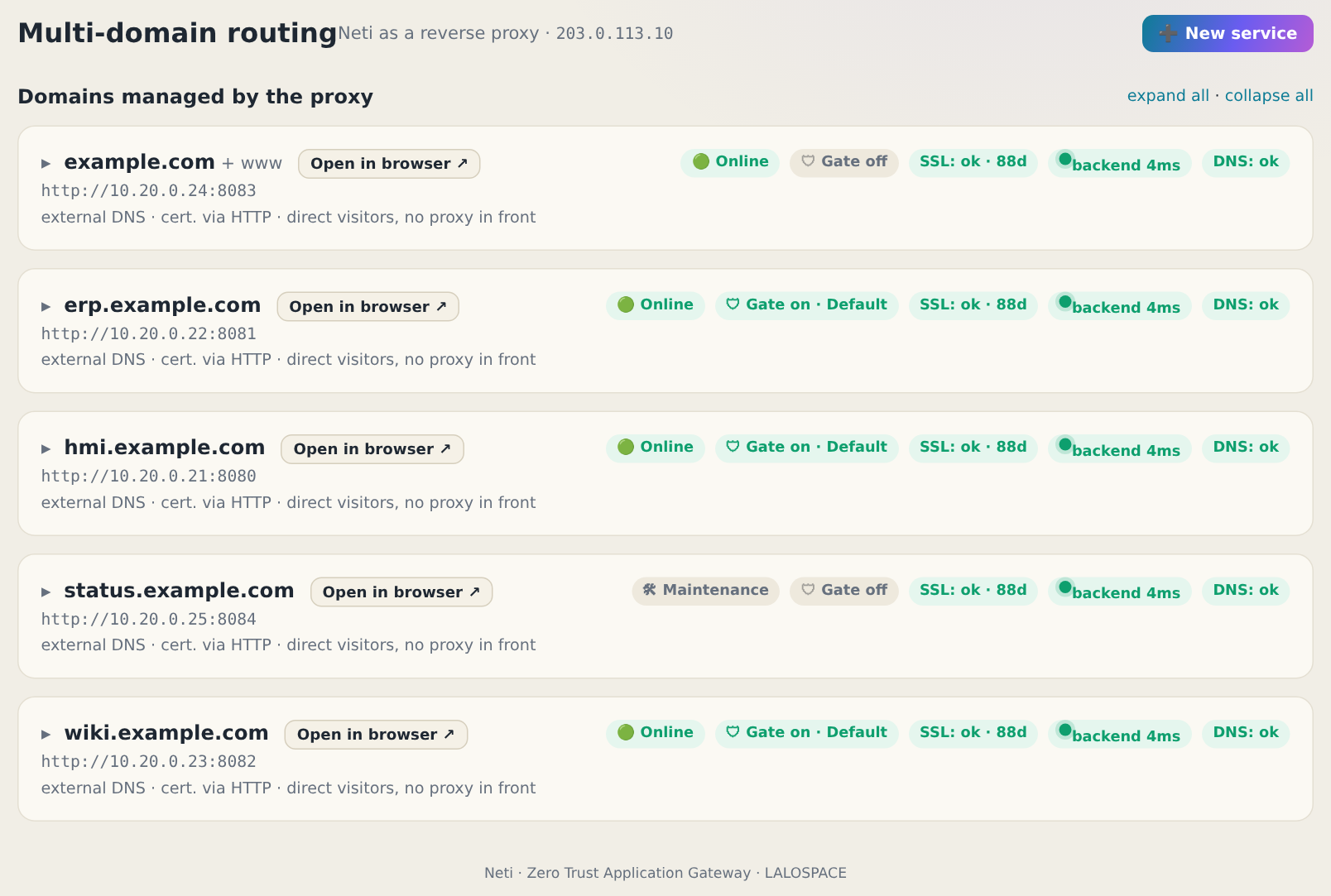
The list of the services, one card each, sorted by main domain: first the domain, then its subdomains. With no services the box says No services published and points to ➕ New service.
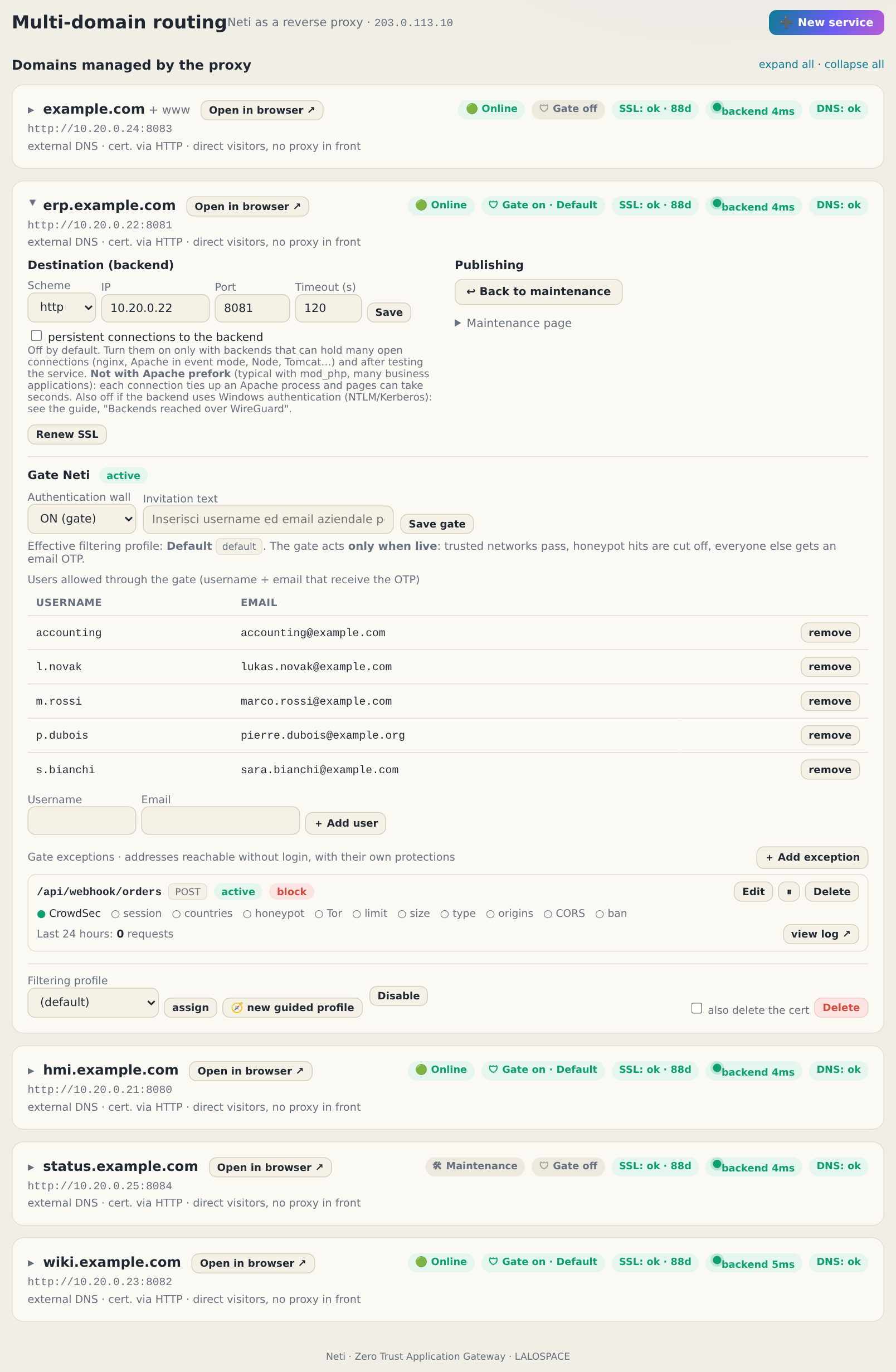
By default a card shows only its header. A click on the header (or on the ▸ arrow) opens the details. Open cards stay open when you change page and come back. expand all and collapse all, to the right of the title, open or close every card. A disabled service is shown dimmed.
When a www merge has just been completed, a line above the cards says ✓ Merge completed: www.example.com is now part of the main domain's service, with a single certificate for both names.
Header and status of a service
- Name
- The domain; + www when the service also answers
www.; the pill www merge in progress while a separate www service is being merged (see www). - Open in browser ↗
- Opens
https://the domain in a new tab: what a visitor sees right now. - Destination
- Under the name, the backend as
scheme://IP:port, or destination not set. - 🟢 Online / 🛠 Maintenance
- The mode really in effect on the web server: in production (requests go to the backend) or in maintenance (courtesy page).
- 🛡 Gate on · Default / 🛡 Gate off
- Whether the gate is on for the service, visible also with the card closed. When it is on, the pill is green and carries the name of the filtering profile in effect; when it is off, the same symbol is grey and the service can be reached without login.
- SSL
-
- SSL: ok · 62d: certificate installed, with the days left before it expires. The pill turns orange under 15 days.
- SSL: issuing…: a request is running in the background (usually a couple of minutes).
- SSL: error: the last request failed. See Troubleshooting.
- SSL: missing: no certificate and no request made.
- SSL: www missing / SSL: reissuing for www…: the service answers www
too, but the installed certificate does not cover
www.yet.
- backend 12ms / backend down
- Neti opens a TCP connection to the IP and port of the backend every time the page is loaded (3 seconds at most) and shows the time it took. backend down also when no destination is set. It tests that the port answers, not that the application works.
- DNS: ok / DNS: needs fixing
- Whether the domain (and www, if on) leads to Neti. Hover the pill for the detail. See DNS check and Move the DNS to Neti.
- Summary line
- The choices made at creation: DNS via Cloudflare, DNS via OVHcloud or external DNS; cert. via Cloudflare DNS, cert. via OVHcloud DNS, cert. via HTTP or cert. uploaded manually; behind the Cloudflare proxy (direct access closed) or direct visitors, no proxy in front.
- ⚠ Second-level subdomain: Cloudflare Universal SSL does not cover it at the edge
- Shown for a service behind the Cloudflare proxy whose name is a subdomain of a subdomain (for example
a.b.example.com). Cloudflare's free certificate covers onlyexample.comand*.example.com: use a first-level name (app.example.com) or a dedicated edge certificate on Cloudflare.
DNS check and Move the DNS to Neti
For every service Neti checks where the domain leads; with www on, both names must lead to Neti.
- Domain in a Cloudflare zone: Neti reads the origin of the record on Cloudflare (with the proxy on, a normal lookup would only show Cloudflare's addresses). Messages: the record on Cloudflare leads to Neti, or the record on Cloudflare still leads to … (origin), not to Neti.
- Domain in another configured zone: Neti asks the nameservers of the zone directly, so a change made on the DNS is seen at once, without waiting for caches.
- Any other domain: the resolver of the server. For a service behind the Cloudflare proxy, Cloudflare's addresses count as correct.
Possible messages: resolves to … (ok); the name does not resolve; resolves to …, expected …; it resolves both to Neti and to …: there is still an A record that leads elsewhere, delete it from the DNS (two A records split the visitors at random between the two servers).
When the check fails, the header shows a line ⚠ DNS: … with what to do:
- External DNS
- The instruction to create at your provider an A record from the domain to the IP of Neti (with the Cloudflare proxy on, if the service is behind it), then reload the page.
- Move the DNS to Neti
- For services whose DNS is managed by Neti. A confirmation dialog shows which A records will be pointed to Neti and to which address, says that the Cloudflare proxy stays as it is, and warns in red if the service is still in maintenance (after the move visitors would see the maintenance page). Move the DNS confirms. Neti then replaces the existing A record of the domain, and of www if on: never two A records for the same name. If an AAAA (IPv6) record exists for the name, Neti does not touch it and warns you: delete it by hand, or IPv6 visitors will not pass through Neti. The result is DNS moved: … DNS caches update within the TTL. To go back, put the previous address back in the record at the provider.
Destination (backend)
Inside the card, left column. Where the requests go in production. Save applies the change at once, also to a service in production: the web server is reloaded without interrupting the connections in progress.
- Scheme
httporhttps: how Neti talks to the backend. WithhttpsNeti sends the name of the site in the TLS handshake (SNI), so it works with servers that host several sites on one address, including shared hosting. The certificate of the backend is not verified (a self-signed or internal one is fine): visitors receive the certificate of Neti.- IP
- IPv4 address of the backend. For a backend reached over WireGuard it is its tunnel address (the field suggests the clients; see Network & Tunnels). Emptying it leaves the service without destination: it cannot go live.
- Port
- 1 to 65535.
- Timeout (s)
- The longest Neti waits for the backend's answer before giving up. Default 120 seconds; allowed 30 to 3600 (values outside are brought back into the range). Raise it for operations that keep the browser waiting a long time, such as large imports or exports. The time to open the connection to the backend is fixed at 10 seconds.
- persistent connections to the backend
- Off by default. On, Neti keeps a few connections to the backend open and reuses them instead of opening a
new one for every request (at most 16 idle connections per worker process, closed after 4 seconds of
inactivity). Under many requests the server works less. The gate still checks every single request: only the
link between Neti and the backend changes.
- Fine with backends that can hold many open connections: nginx, Apache in event mode, Node, Tomcat and similar. Turn it on only after you have tested the service.
- Do not turn it on with Apache in prefork mode, the typical setup with mod_php (many business applications): every connection kept open holds an Apache process, and the first load of a page can take several seconds. If you do not know how the backend is configured, leave it off: for a service with few users the difference cannot be noticed.
- If pages become slow after turning it on, turn it off: the effect is immediate.
- Keep it off if the backend uses Windows authentication (NTLM or Kerberos, for example IIS or Exchange); read Network & Tunnels first, because NTLM through Neti is not supported even with persistent connections off.
- Services created with versions 0.2.11 to 0.3.0.1 were born with persistent connections on: check them.
Errors: Invalid IP, Invalid port. Success: Destination updated.
www
- also answers at www.example.com + Save
- Shown only for a main domain (the zone itself, or a name of two parts), never for a subdomain or a name that
already starts with
www.Checked, the same service answersexample.comandwww.example.comwith one certificate valid for both names. When you turn it on from the card:- with an automatic certificate, Neti requests it again for the two names by itself (certificate being reissued for example.com and www.example.com); with a manual certificate you must upload one that covers both names;
- the DNS of www follows the DNS of the domain: if the domain already leads to Neti and the DNS is managed by Neti, the record of www is pointed to Neti; if the domain does not point to Neti yet, the record of www is not touched (move the two names together); with external DNS you are asked to point www to Neti yourself.
Merging a separate www service. If a service www.example.com already exists, the
card of example.com says so under the checkbox. Turning www on merges it into this service (same
destination as this one) without interruption: until the new certificate for the two names is ready (usually a
couple of minutes) www. keeps being served by its own service and the header shows www merge
in progress; as soon as the certificate is installed the separate service is removed by itself, together
with its old certificate. With a manual certificate, first upload a certificate that covers both names, then turn
www on.
Certificate of the service
Under the destination. What you see depends on the method chosen at creation and on the state of the certificate. The full explanation is in Certificates.
- Issue SSL certificate
- Automatic methods, no certificate yet: starts the request in the background (Certificate issuance started (in the background)). With the HTTP method the button is disabled, with the tooltip DNS first, until the domain points to Neti.
- Retry SSL issuance / Retry SSL issuance (error)
- The same button while a request is running, or after one failed. Use it after fixing the cause of the error.
- Renew SSL
- Automatic methods, certificate present: asks for the certificate again. Normally not needed: automatic certificates renew by themselves. If the certificate is not yet due for renewal the current one is kept (the tooltip of the button says so); to force a renewal use Renew in Certificates.
- Upload the certificate / Replace the certificate
- Manual method: opens the upload form, described in Certificates → Manual certificate.
- Proxy CF: on 🟠 / Proxy CF: off
- Only for a domain whose record is in a Cloudflare zone: switches the Cloudflare proxy (orange cloud) of the record on or off, on Cloudflare. It needs the permission Turn the Cloudflare proxy on or off. It does not change the choice "In front of the service" made at creation, so keep the two aligned: a service created behind the Cloudflare proxy refuses every connection that does not come from Cloudflare, and becomes unreachable if you turn the proxy off; a service created with no proxy keeps working with the proxy on, but then sees Cloudflare's addresses in place of the visitors'.
Publishing
Right column of the card: the switch between maintenance and production. The switch is immediate in both directions, and Neti never makes it by itself, not even when the DNS starts pointing to Neti.
- 🚀 Go live
- Shown for a service in maintenance. Disabled until the certificate is installed (The SSL certificate is needed before publishing) and a destination is set (Set the destination first). A confirmation dialog (Go live) says where the requests will go: app.example.com stops showing the maintenance page: visitor requests go to the backend http://10.9.0.5:80, and warns in red if the backend is not answering right now or if the DNS does not lead to Neti yet (until you move it, visitors keep reaching the old server). On confirmation Neti checks again: without certificate, without destination or with a backend that does not accept the connection the switch is refused (Destination not reachable: check the backend before publishing). Otherwise: Domain IN PRODUCTION.
- ↩ Back to maintenance
- Shown for a service in production. After confirmation, visitors see the maintenance page and the backend no longer receives traffic from Neti. You can go live again whenever you want. Result: Domain in maintenance.
Maintenance page
Under Publishing, click Maintenance page to open it. It is the courtesy page visitors see while the service is in maintenance, on every address of the service.
- Title
- The heading of the page (and the title of the browser tab). Default: the domain. Empty = the domain.
- Message
- The text under the title. A new service starts with a standard message in Italian ("site being set up, back online soon"): replace it with your own.
- Save page
- Applies at once (Maintenance page updated.).
The page shows a logo, a small "maintenance" label (fixed text, in Italian), title, message and a footer line. In the free edition logo and
footer are Neti's; with the branding of Neti Pro they are yours (see Neti Pro). The page is
served with the status code 503 and the header Retry-After: 3600, and asks search engines not to index
it: a service in maintenance does not lose its position because of the courtesy page. While the service has no
certificate yet, the same page is served on port 80.
Neti gate
The gate is the login wall in front of the service. Next to the title, the pill active or off. In this page only the switch is described; how visitors log in, the users of a service and the exceptions are in Gate.
- Authentication wall
- OFF (proxy): Neti is a plain reverse proxy, every visitor allowed by the filtering profile reaches the backend. ON (gate): before reaching the application a visitor without a valid session must enter a username and an email enabled for this service, and the code sent by email; trusted networks pass without login. The gate acts only in production: in maintenance everybody sees the maintenance page.
- Invitation text
- The sentence shown on the login page of the gate, 160 characters at most. Empty = the standard text. It is visible to anyone who opens the page: Neti refuses a text made only of an email address, because it is almost always the browser that filled the field by itself.
- Save gate
- Applies the two fields at once (Neti gate enabled for the domain / Neti gate disabled for the domain).
Under the switch, with the gate on, the card states the filtering profile in effect. With the gate off it says Gate off: users and exceptions stay saved but are not active; when you turn the gate back on they become active again as they are. With the gate on and no users, without users nobody gets past the gate: add at least one user before going live. The lists Users allowed through the gate, Gate exceptions and IPs banned on this service that follow in the card are documented in Gate.
Filtering profile
Bottom row of the card. The filtering profile decides which visitors may reach the service (countries, request limits, scores): see Filtering.
- Filtering profile + assign
- Choose a profile from the list: the change is applied as soon as you choose (Filtering profile assigned to the domain). (default) means the service has no profile of its own: Neti then uses the profile of the WireGuard client that serves the backend, if that client has one, otherwise the default profile. The profile really in effect, and where it comes from (domain, client name, default), is written in the gate area of the card when the gate is on.
- 🧭 new guided profile
- Opens the guided procedure of Filtering to create a profile and apply it to this service. Needs the permission to manage filtering.
Disable and Enable
- Disable / Enable
- Disable removes the service from the web server without deleting anything: Neti stops answering for that domain, while destination, certificate, gate users, exceptions and profile stay saved, and the card is shown dimmed. Enable puts it back as it was, in the mode it had. To hide a site from visitors while you work on it, ↩ Back to maintenance is usually the better choice: visitors get a courtesy page instead of an error.
Delete
- Delete
- Removes the service after a confirmation (Remove the service → Remove): app.example.com is removed from Neti: configuration, maintenance page and publishing. The backend and the DNS records stay as they are. The gate users, the exceptions and the bans of the service are deleted too, and the sessions of its visitors are closed. If the service is in production the dialog warns that, if the DNS points to Neti, visitors will get an error until you move the DNS elsewhere.
- also delete the cert
- Unchecked by default: the certificate stays on the server and keeps renewing, ready if you create the service again. Checked, the certificate and its key are deleted and automatic renewal stops.
When no service is left, Neti closes ports 80 and 443 on the firewall again.
How to publish a service, step by step
- Make sure the backend answers from the Neti server: on its tunnel address if it is connected with WireGuard (Network & Tunnels), or on an address Neti can reach.
- Optional but recommended: add the DNS zone of the domain in Settings → DNS (DNS). Neti can then create the record and get the certificate over DNS.
- Routing → ➕ New service. Write the domain; choose who manages the DNS, what is in front of the service and how to get the certificate; write scheme, IP and port of the backend; check the gate if the application is for known users only. Add.
- Open the card and wait for the pills: SSL: ok, backend with a time in milliseconds, DNS: ok. Reload the page to refresh them. With external DNS, create the A record shown in the card; with the HTTP method press Issue SSL certificate once the DNS is green; with a manual certificate upload it.
- If the gate is on, add the users (Gate). Choose the filtering profile if the default one is not what you want.
- Press 🚀 Go live and confirm.
- Open in browser ↗ to check what visitors see.
How to move an existing site without downtime
For a site that is online today on another server and must pass behind Neti.
- Create the service with the certificate over DNS and, as backend, the server where the site is today. The DNS is not touched and the site keeps working where it is. If the domain is in a configured zone, in DNS records of the zones press + Publish with Neti next to the record: it opens New service with the domain and the current server (in HTTPS) already written.
- When certificate and backend are green, press 🚀 Go live. Before proceeding Neti shows where the requests will go and warns you if the backend does not answer or if the DNS does not lead to Neti yet (expected at this point).
- Press Move the DNS to Neti in the card (or change the record in your provider's panel): visitors arrive at a service that is already working. Before changing anything Neti shows which records it moves and to which address; you confirm or cancel.
The order matters: production first, DNS after. Moving the DNS while the service is in maintenance shows the maintenance page to every visitor.
How to put a service back in maintenance
- Open the card of the service.
- Optional: open Maintenance page, write title and message for the occasion, Save page.
- Press ↩ Back to maintenance and confirm. The change is immediate.
- When the work is done, 🚀 Go live again.
How to change the backend of a service
- Prepare the new backend and check that Neti can reach it.
- In the card, under Destination (backend), change Scheme, IP and Port, then Save.
- Reload the page and check the pill backend. The change is already in effect, also for a service in production: if you want to test first, put the service in maintenance, change the destination, and go live again (going live is refused if the new backend does not answer).
How to remove a service
- If the site must stay reachable somewhere else, first point the DNS record to the new server at your provider: Neti does not change DNS records when a service is deleted.
- In the card, bottom right, check also delete the cert if the certificate is no longer needed.
- Delete, then Remove in the confirmation.
Troubleshooting
- Visitors see error 502 (Bad Gateway)
- The backend does not accept the connection. Check the pill: backend down means Neti cannot
open the port. Causes: the application or the server is stopped; wrong IP or port in the destination; the
WireGuard tunnel of that client is down; a firewall on the backend refuses the address of Neti. If the pill is
green but the error remains, check the Scheme:
httptoward a port that speaks only HTTPS (or the opposite) also fails. The site log of the service in Logs shows the answer of the backend for each request. - Visitors see error 504 (Gateway Timeout) on long operations
- The backend did not answer within the Timeout (s) of the service (120 seconds by default). Raise it in Destination (backend), up to 3600.
- Pages are slow to start after turning on persistent connections
- Typical of a backend running Apache in prefork mode. Uncheck persistent connections to the backend and save: the effect is immediate.
- SSL: error, or the certificate never arrives
- See Certificates → Troubleshooting. In short: with the HTTP method the domain must point to Neti and port 80 must be reachable; with the DNS method the credentials of the zone must be valid; the details are in Logs → Certificates.
- 🚀 Go live is gray
- The note under the button says why: the certificate is missing, or the destination is not set.
- "Destination not reachable: check the backend before publishing"
- Going live is refused while the backend does not accept a connection on its IP and port. Fix the backend or the destination, reload the page until the pill shows a time, then try again.
- The browser reports too many redirects
- Neti answers every request on port 80 with a redirect to HTTPS. Behind the Cloudflare proxy, if Cloudflare's
SSL/TLS mode is not Full (strict) and Cloudflare contacts Neti in plain HTTP, the redirect
repeats forever: set Full (strict) on Cloudflare. If the loop comes from the application, it is usually
because it is reached in
httpand insists on redirecting to HTTPS: Neti tells the backend that the visitor is in HTTPS with the headerX-Forwarded-Proto: https; configure the application to trust it, or set the destination tohttpson the HTTPS port of the backend. - The site does not open at all behind the Cloudflare proxy
- A service created with the Cloudflare proxy in front closes without answer every connection that does not come from Cloudflare. Check that the record on Cloudflare has the proxy on (orange cloud). If you want direct visitors, create the service again with No proxy.
- DNS: needs fixing although the record was changed
- Hover the pill to read the reason. For a domain outside the configured zones Neti uses the resolver of the server, which may keep the old answer until its TTL expires: wait and reload. If the message says the name resolves both to Neti and elsewhere, a second A record still exists: delete it. An AAAA (IPv6) record that leads elsewhere must be deleted by hand.
- Visitors still reach the old server after going live
- The DNS does not lead to Neti yet: press Move the DNS to Neti, or change the record at your provider, and wait for the DNS caches to expire (the TTL of the record).
- Uploads of large files fail
- Neti accepts request bodies up to 100 MB per request on every service; larger uploads are refused with error 413. The backend may have a lower limit of its own.
- An application with Windows authentication keeps asking for the password
- NTLM through a reverse proxy is not supported: see Network & Tunnels.
- "configuration not applied: …"
- The web server refused the new configuration. Neti tests every change before applying it and, if the test fails, puts the previous configuration back: the services keep working as before. The message carries the error of the web server.
Good to know
- What the backend receives. The original host name (
Host), and the headersX-Real-IPandX-Forwarded-Forwith the visitor's address only,X-Forwarded-Proto: https,X-Forwarded-HostandX-Forwarded-Port: 443. These are written by Neti: values sent by the visitor in those headers never reach the backend. With the gate on, the gate's own cookies are removed from the request before it is forwarded. - What visitors get. HTTPS with TLS 1.2 and 1.3 and HTTP/2; every request on port 80 is redirected to HTTPS. Neti adds the HSTS header (one year) unless the backend sends its own.
- Firewall. Ports 80 and 443 are opened when the first service is created and closed again when no service is left. As long as all the services are behind the Cloudflare proxy, the firewall lets in on 80 and 443 only Cloudflare's addresses: whoever tries to reach the server directly does not even find the port open. See Firewall.
- Logs. Every service has its own access and error log, readable in Logs under Sites; certificate requests are under Certificates. The main operations (creating and removing a service, going live and back to maintenance, moving the DNS, www, the gate switch, certificate uploads) are recorded in Activity.
- Safe changes. Every change is tested on the web server before it is applied; if the test fails the previous configuration is restored.
- Files on the server. The configuration of the services is generated by Neti
(
/etc/nginx/sites-available/neti-route-<domain>.confand/etc/nginx/neti/): do not edit these files by hand, they are rewritten at every change.