Updates
The Updates page keeps Neti and the Debian system under it up to date. Neti is updated only when you decide: the page shows what is new, installs it with a safety copy and goes back by itself to the previous version if something does not work as before. With Neti Pro the same update can run by itself on the days and at the hour you choose.
Where: Settings → Updates. The page and its actions need the permission
Update Neti and the system (check, install, channel) (manage.updates). The Admin role has it; in
the Free edition it can be held only by the Admin role (see License). Rebooting
the server from this page needs the permission to manage the system components (manage.system).
When a new version of Neti or system updates are available you also see it in the Dashboard (box Updates, with the link Go to updates →) and under the name of the instance in the menu (Neti … available, … system updates, Reboot required): one click leads to this page.
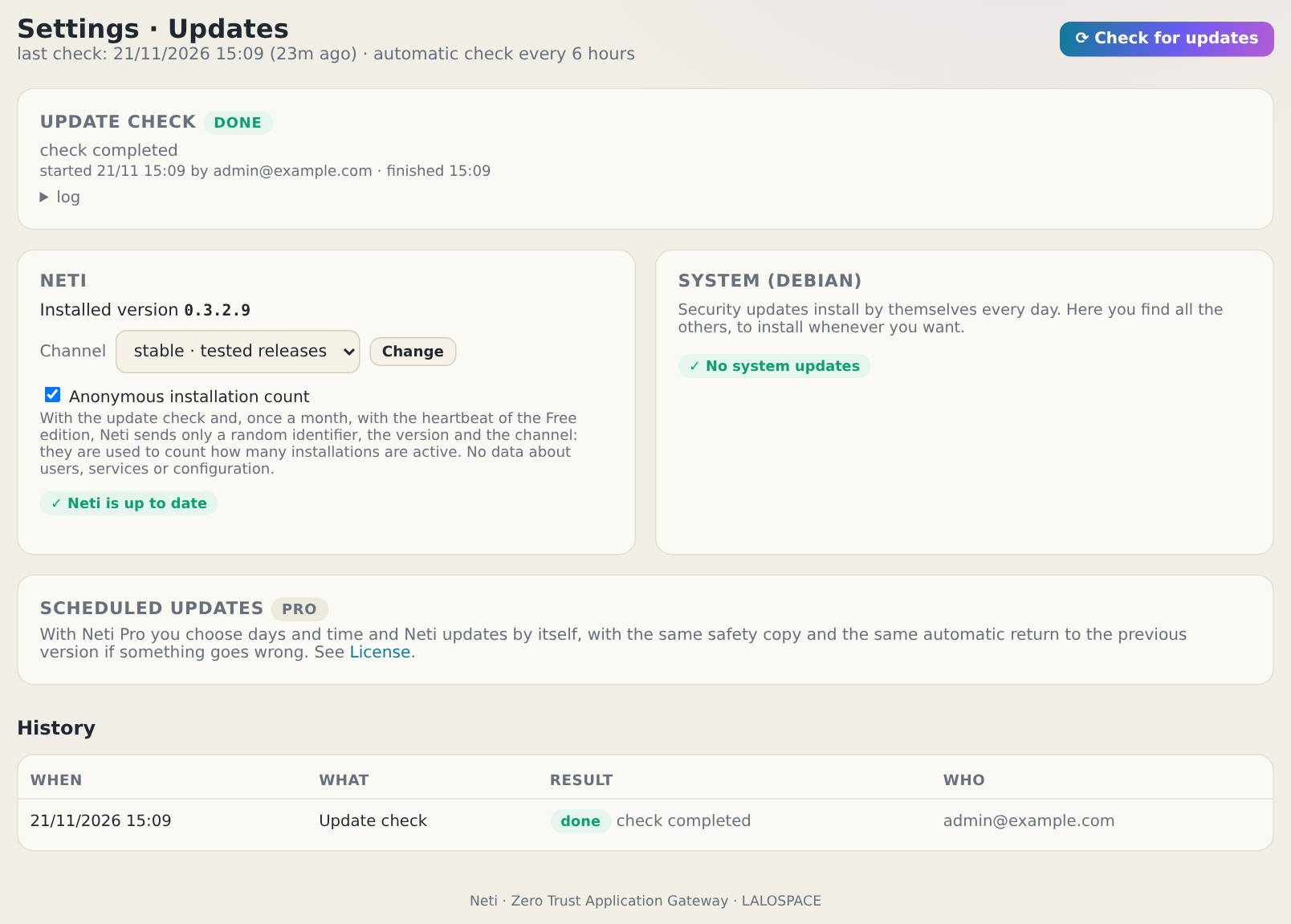
Check for updates
At the top of the page, next to the title, the line last check: … · automatic check every 6 hours says when the list was last refreshed.
- ⟳ Check for updates
- Reads the signed repository of Neti and the package lists of Debian, and refreshes what the page shows. It installs nothing. The check runs as a short job whose progress appears in the job box. The button is disabled while another update job is running.
Neti runs the same check by itself every 6 hours and two minutes after every start of the server. If the check could not read the package lists (network, DNS or repository not reachable), a notice Last check: … appears under the title with the reason; the versions shown are then those of the previous successful check.
Current or last job
While a check or an update is running, and for 24 hours after it ends, a box at the top shows it.
- Title
- What the job is: Update check, Neti update to version, or System update.
- State
- running; done; canceled, previous version restored (an update of Neti failed its checks and Neti went back by itself); failed.
- step:
- While running, the current step: starting, checks before, snapshot, installation, checks after, return to the previous version, package lists, update check, email. When finished, the final message instead.
- started … by … · finished …
- When the job started, who started it (the email of the user, scheduled update for the scheduled updates of Neti Pro, automatic for Neti itself) and when it ended.
- log
- The output of the job, line by line. It is open while the job runs and when it failed or was rolled back; otherwise click to open it. It is the first place to look when an update does not succeed.
The page follows the job live. While Neti is being updated the console may not respond for a few seconds: the page retries by itself and reloads when the job ends. Only one job can run at a time (an update is already in progress); while it runs the buttons of the page are disabled. If the server is rebooted or the job dies unexpectedly, the state becomes failed with job interrupted (reboot or unexpected error): see the log.
Neti
The Neti box shows the installed version of Neti and, when there is one, the new version to install.
- Installed version
- The version of the Neti package on this server.
- Channel and Change
- Which releases this server receives, see Channel.
- Anonymous installation count
- A checkbox, on by default, saved as soon as you click it. See Anonymous installation count.
- No check yet: press "Check for updates".
- Shown on a new installation before the first check.
- ✓ Neti is up to date
- The repository has no version newer than the installed one.
- ⬆ Neti … available
- A newer version exists. Below it you find the release notes and the button to install it.
New features and fixes
For each version newer than the installed one, the Neti box shows its release notes under new features and fixes, newest first. The page shows the first 10 lines of the 3 most recent versions (the first one open, the others to click); longer notes end with … N more lines in the full changelog, and older versions are summarized as and N more earlier versions.
- signed
- The notes were verified with the key of the Neti repository: they are the ones published by the vendor.
- notes not available
- The notes could not be downloaded or their signature is not valid. In that case they are not shown at all (The release notes are not available or the signature is not valid.), so that a text altered on the way is never displayed. The update itself can still be installed: packages are verified separately by the package manager.
View the full changelog
When some notes were cut (more than 10 lines, or more than 3 versions to install), the button View the full changelog opens a scrolling window titled Changelog · from installed version to new version, with the complete notes of every version you are about to install. Close it with ✕ or by clicking outside the window.
Download and install
Under the notes the label No server reboot required reminds that updating Neti never needs a reboot, and a short text explains what will happen.
- Download and install version
- Opens a confirmation (Update Neti to …) that states the versions and what to expect: the console and the published services are interrupted for a few seconds; if the checks after the installation do not pass, Neti goes back to the previous version by itself. Confirm with Download and install. The update always installs the latest version available, which includes the changes of all the versions in between. Progress appears in the job box.
- Warning The installed version is no longer in the repository…
- Shown in the confirmation when the version you are running can no longer be downloaded. The update is still possible, but if something goes wrong only the database is restored, not the previous code. Make a backup first.
The details of the procedure are in What happens during an update of Neti.
Channel
The channel decides which releases of Neti a server sees. Choose it in the Neti box and press Change: Neti switches the package source of the server and starts a check right away (Channel set to …: update check started.).
- stable · tested releases
- The default. Receives the versions that have already been tried. Use it for production.
- staging · previews
- Receives the previews, to try them on a test installation before they reach everyone. While it is selected the box shows the warning Staging channel: releases under test, before they reach everyone. For production use stable.
How versions are numbered: stable versions have three numbers (0.3.0, 0.3.1…); previews on staging have four and follow the last stable (0.3.0.1, 0.3.0.2…). When a preview has been tried it is released as the next stable (0.3.1) with the same changes, on the two channels: a server on staging receives that one too, and then the previews 0.3.1.1, 0.3.1.2…
Neti is never downgraded by an update: a server that goes from staging back to stable keeps the preview it has until a newer stable version is released.
To install a new machine directly from staging, set NETI_CHANNEL=staging for the installer: use
| NETI_CHANNEL=staging bash in place of | bash in the installation command (see
Installation). The Pro package follows the same channel as Neti (see
Pro channel).
Anonymous installation count
With every update check Neti tells its own repository (never Debian's) three things: a random identifier of the
installation, created once and stored in /var/lib/neti/install-id; the installed version; the channel.
They only serve to count how many installations exist and how many are still in use. Nothing about the machine, its
users, services, domains or configuration is sent. The same data leave once a month with the heartbeat of the Free
edition (see What is sent).
- Anonymous installation count
- On by default. Untick it to turn off the count with the update check and the monthly heartbeat of the Free edition together (Anonymous count disabled: the update check will no longer send the identifier.). The update check itself keeps working.
System (Debian)
The System (Debian) box is about the packages of the operating system. Debian security updates install by themselves every day, without a reboot. This box lists all the others, to install when you want. Neti itself is not updated from here: it has its own update.
- ✓ No system updates
- Nothing to install.
- N packages to update, including N security updates
- How many packages have a newer version, and how many of them come from the security archive of Debian (not yet installed by the daily run).
- ⚠ Server reboot required (new kernel)
- The update includes a new kernel: it takes effect only after a reboot of the server, which you can do whenever you want from this page.
- Reboot recommended (system libraries: services use them from their next start)
- The update includes core components (system libraries, systemd, firmware or microcode). A reboot is advisable, when convenient.
- No server reboot required
- None of the packages needs a reboot.
- package list
- Opens the table of the packages: Package, From (installed version), To (new version) and the labels security and reboot where they apply.
- Update the system
- Opens a confirmation that says how many Debian packages will be updated and, when it applies, that a reboot will be needed or is recommended afterwards. Confirm with Update. Some services restart by themselves for a few seconds. Existing configuration files are kept. After the installation Neti runs the same checks as after its own update (web server, system services, console, published services) and reports any problem in the result; a system update is not undone automatically.
Scheduled updates (Neti Pro)
With Neti Pro the box Scheduled updates makes Neti install the latest version of its channel by itself, on the days and at the hour you choose, with exactly the same procedure as the Download and install button: safety copy first, checks afterwards and automatic return to the previous version if something goes wrong. You get an email with the outcome. The server is never rebooted by itself. In the Free edition the box only shows a short description with the Pro label.
Next to the title a label says whether they are on or off.
- Enable scheduled updates
- Turns them on. Default: off.
- Days
- One or more days of the week. At least one is required when the scheduled updates are on. Default: Tuesday.
- Hour (server time, …)
- The hour at which the window opens, from 0:00 to 23:00, in the time zone of the server (shown in the label). Default 3:00. The window lasts one hour: at its start Neti refreshes the list of versions if it is older than an hour, then installs Neti, then (if chosen) the system updates. Choose an hour with little traffic: the console and the published services are interrupted for a few seconds.
- Install versions available for at least
- no wait, 1 day, 3 days (default) or 7 days. A version is installed only after this server has seen it for that long. With a few days of waiting, a problem in a new version is usually discovered and fixed before it reaches your server.
- After Neti, also install the system updates (Debian)
- Off by default. When on, after Neti the same window installs the Debian packages listed in the System box. Security updates are installed every day anyway. If a reboot is needed (new kernel) you get the notice and the email, and you reboot when you want.
- Save
- Saves the settings: Scheduled updates on: … with a summary (days, hour, waiting time, Neti only or Neti and system), or Scheduled updates off: Neti is updated only from the console.
Under the form, when the scheduled updates are on:
- Next window: … (it lasts one hour). / Window open until …
- When the next window starts, or that one is open now.
- Neti … will be installed on …
- When the version now available will be installed, taking the waiting days into account.
- Neti … will not be installed by itself
- A scheduled update to that version failed (and Neti went back to the previous version). That version is not tried again by itself: check what happened in the log and install it from the console when you are ready. A later version is scheduled normally.
- Last action: …
- What the scheduler did last, and when.
- Staging channel: versions still under test would be installed by themselves too. Use stable for production.
- Shown when the scheduled updates are on and the channel is staging.
Other things to know about scheduled updates:
- The outcome arrives by email as for the updates started from the console; in the history and in the activity log they appear as scheduled update.
- The email that announces a new version also says when it will be installed by itself. You can always install it earlier from the console.
- If another update job is running when the window opens, the scheduler waits and tries again within the same hour.
- If the node goes back to the Free edition the scheduled updates stop; the updates from the console remain.
Reboot required
When updates already installed take effect only after a reboot, the box Reboot required appears with the reason: installed updates waiting for a reboot, or kernel … installed, … still running. The same notice appears under the name of the instance in the menu and in the Dashboard.
- Reboot now
- Visible to users with the permission to manage the system; the others read The reboot can be done by anyone with the permission to manage the system. After a confirmation (Reboot the server) the server reboots a few seconds later. For about a minute the published services and the console do not respond; Neti, the firewall and the protections start again by themselves. Then reload the page.
After the reboot the notice disappears as soon as you reload the page: the console looks at the state of the server at that moment, not at the result of the last check. Neti never reboots the server by itself, neither after the daily security updates nor with the scheduled updates.
History
The History table lists the last 10 jobs that ended.
- When
- Start of the job.
- What
- Update check, Neti update to version, System update.
- Result
- The state (done, canceled, previous version restored, failed) and the final message, for example the reason of a failure.
- Who
- The user who started it, scheduled update or automatic.
Every update is also recorded in Activity and the output of the last job can be read in Logs → System → Updates from the console (last job).
What happens during an update of Neti
Whether it starts from the button or from the schedule, an update of Neti runs as a separate job of the system, so that the restart of the web server during the installation cannot interrupt it. The steps:
- Checks before. Neti records what works now: the nginx configuration, the system services (nginx, PHP, fail2ban), the console, and the answer of every published service that is switched on.
- Snapshot. A consistent copy of the database and an archive of the configuration are saved in
/var/lib/neti/updates. The snapshots of the last 3 updates are kept. - Installation. The new package is downloaded from the signed repository and installed. The
database is brought to the new version, with a further copy saved first in
/var/lib/neti/backup; the console and the published services are regenerated with the new templates. Configuration, services, users, certificates and tunnels stay as they are. The console and the published services are interrupted for a few seconds. - Checks after. The same checks as before, repeated for about half a minute to give services the time to restart. A problem is: the nginx configuration is not valid; a service that was running has stopped; the console answered and no longer does; a published service that answered now gives a server error or does not answer.
- Pro package. On a Pro node, once Neti has passed its checks, the
neti-propackage is updated too. If that fails, the update of Neti is not undone; it is tried again with the next update. - Return to the previous version, only if a check failed: the database of the snapshot is put back, the previous version of the package is installed again, console and services are regenerated, and the checks run once more. The result is canceled, previous version restored. If even after the return something is wrong, the result is failed and the message gives the folder of the snapshot.
- Update check and email. The list of updates is refreshed and the outcome is sent by email (see Emails about updates).
Updating Neti does not require a reboot of the server.
Emails about updates
In Users, editing a user, the checkbox Emails about updates decides who receives these emails. It is accepted only for users with the Admin role or with the permission to update Neti and the system; for the others the console answers Update emails not enabled: the Admin role or the manage.updates permission is required. Users with the checkbox receive:
- the outcome of every update of Neti or of the system: done, canceled with the return to the previous version, or failed, with the reason, who started it and whether a reboot is needed;
- a notice when a new version of Neti is released, once per version, with its new features and fixes. Nothing is installed: the update starts from the console or, with the scheduled updates (Neti Pro), in the window you chose, stated in the email.
The same users also receive the emails about remote backups. The emails are sent through the SMTP server configured in Settings and never contain the address of the console, which is kept confidential on purpose. What was sent can be seen in Logs → Email.
How to update from the terminal
The same update of Neti can be done as root from the terminal:
apt update && apt install neti
This installs the new package and brings database, console and services to the new version, but without the checks before and after and without the automatic return to the previous version. Prefer the console; use the terminal when the console is not reachable. Related commands (see The neti command):
neti setup --refresh- What an update runs after installing the package: database migrations, console and services regenerated, nothing else. Safe to run again if an update was interrupted.
neti migrate- Only the database migrations, with a copy of the database saved first in
/var/lib/neti/backup. neti status- State of the services and address of the console.
Troubleshooting
- The notice Last check: package lists could not be updated (network, DNS or repository) appears
- The server could not reach the repository of Neti or the Debian mirrors. Check that the server can go out to the Internet in HTTPS and that its DNS works (Settings), then press Check for updates again. The lines after the colon are the errors of the package manager.
- An update of Neti ended as canceled, previous version restored
- The new version did not pass the checks and Neti is back on the previous one, with the database of before. Nothing is lost. Open log in the job box: the line that starts with PROBLEMS: says what did not answer (for example a published service that answered before and gave an error afterwards). Fix the cause, or wait for the next version, and install again.
- An update ended as failed
- Read the message and the log. For Neti it means that the return to the previous version was not complete: the message gives the folder of the snapshot with the database and the configuration of before. For the system it means that a package could not be installed or that a check failed after the installation.
- The button answers Not started: an update is already in progress
- Another job is running (also the automatic check). Wait for it to end.
- The release notes show notes not available
- The notes could not be downloaded or verified. Press Check for updates again later.
- The console does not answer during an update
- It is normal for a few seconds while the web server restarts. The page retries by itself. If you closed it, open the console again and go back to Settings → Updates: the job box shows how it went.
- A scheduled update did not run
- Check in the Scheduled updates box: the next window, the waiting days (will be installed on …), a version marked will not be installed by itself, and Last action. Check also that the node is still Pro in License.
Good to know
- The packages of Neti are verified with the signing key of the repository installed with Neti; a package that is not signed with that key is refused by the package manager.
- Debian security updates are installed every day by the system itself, and never reboot the server.
- The state shown by this page is kept in
/var/lib/neti/updates(result of the last check, last job and its log, history). It contains no secrets. - Before an important update you can also make a backup and download it: the snapshot of the update stays on the server, a downloaded backup does not.