Users
The Users section manages two different kinds of people. Console users are the administrators and operators who sign in to this console: each has a role and, if needed, extra permissions. Gate users are the people allowed to pass the gate of a published service; they never enter the console. The page also lists the devices that are currently remembered, so that a lost laptop can be cut off.
Where: menu Settings → Users (the page is titled Users &
permissions). Seeing the page and doing anything in it needs the permission manage.users,
which is part of the Admin role and can be given to other users as an extra permission.
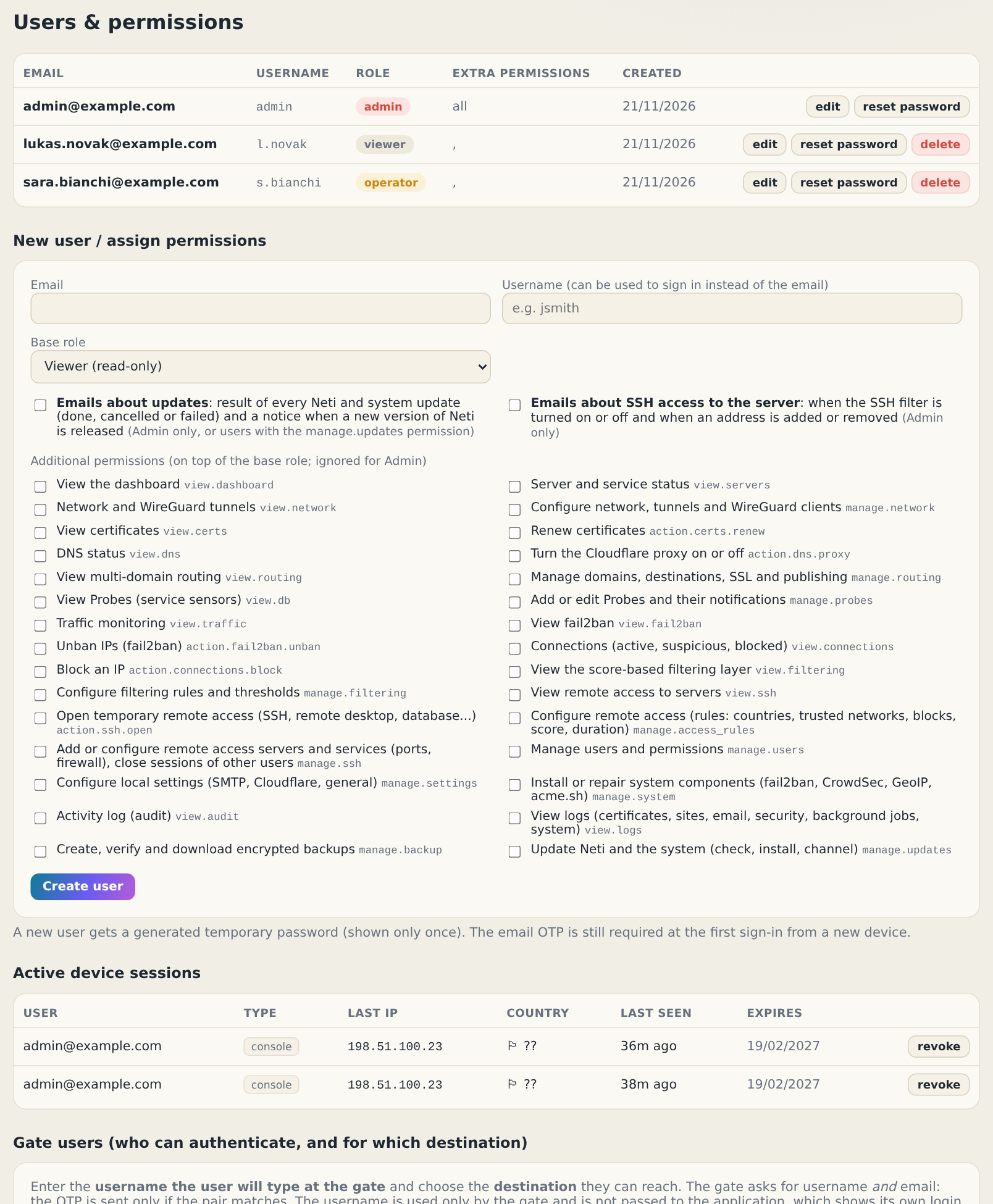
List of console users
The first table lists every console user, in alphabetical order of email.
- The email address of the user. It identifies the user, it is where the access codes are sent, and it cannot be changed afterwards.
- Username
- The optional short name the user can type at sign-in instead of the email.
- Role
- A pill with the base role: viewer (gray), operator (yellow) or admin (red). See Roles.
- Extra permissions
- all for an Admin; otherwise the number of permissions given on top of the role (for example 2 extra). Two tags may follow: ✉ updates = the user receives the emails about updates; ✉ SSH = the user receives the emails about changes to SSH access to the server.
- Created
- The date the user was created.
- edit
- Loads the user in the form below, which becomes Edit ….
- reset password
- After confirmation, generates a new temporary password for that user. See Resetting a password.
- delete
- Removes the user. The button is not shown on your own row: you cannot remove yourself. A dialog asks for confirmation first. See Deleting a user.
New user / assign permissions
The form under the list creates a user or, after you pressed edit on a row, changes an existing one (the title becomes Edit followed by the email). If you type in the empty form the email of a user who already exists, that user is updated instead of a new one being created.
- Required, a valid email address; saved in lower case. Read-only when editing. Make sure the mailbox works: the access code of the first sign-in is sent there.
- Username (can be used to sign in instead of the email)
- Optional. A short name (for example
jsmith) the user can type in the first field of the sign-in page. It must be unique among console users, without distinction between upper and lower case; a name already taken is refused. The access code is always sent to the email of the user. - Base role
- Viewer (read-only) (default), Operator (actions) or Admin (everything). See Roles.
- Emails about updates and Emails about SSH access to the server
- Two optional emails for this user: see Notification emails.
- Additional permissions (on top of the base role; ignored for Admin)
- One checkbox per permission, with its technical key in small type. Tick what this user needs beyond the base role. Permissions already included in the role need not be ticked. See Permissions.
- Create user / Save changes
- Creates the user or saves the changes. For a new user the message at the top shows the temporary password: see Temporary password. Changes to role and permissions apply from the next page the user opens.
- cancel
- Shown while editing: leaves the user unchanged and goes back to the empty form.
Roles
A role is a ready-made set of permissions. Choose the lowest role that covers the daily work of the person, and add single permissions on top of it when needed.
- Viewer (read-only)
- Sees the state of the system and changes nothing: Dashboard, servers, network and tunnels, certificates, DNS, Routing, Probes, Traffic, Security and Filtering, all read-only. Suitable for someone who must be able to check that everything works.
- Operator (actions)
- Everything the Viewer sees, plus the day-to-day operations: publishing and changing services in Routing, renewing certificates, switching the Cloudflare proxy, managing network, tunnels and WireGuard clients, managing probes, unbanning and blocking addresses, opening and configuring remote accesses, and reading the Activity log. An Operator cannot change filtering rules, settings, users, backups, updates, system components, or read the Logs, unless you add those permissions.
- Admin (everything)
- Has every permission, present and future; the additional permissions are ignored. Some things are reserved to the Admin role and cannot be delegated: the License page and the box SSH access to the server in Settings → General.
Permissions
Each permission opens a page of the console (the view. ones), allows single operations (the
action. ones) or allows changing a whole area (the manage. ones). The table shows the label
used in the form, the key, and whether the Viewer and Operator roles already include it. The Admin role includes
all of them.
| Permission (label in the form) | Key | What it allows | Viewer | Operator |
|---|---|---|---|---|
| View the dashboard | view.dashboard |
Opens the Dashboard. | yes | yes |
| Server and service status | view.servers |
Opens the page with the state of the machine and of the system services (Servers). | yes | yes |
| Network and WireGuard tunnels | view.network |
Opens Network & Tunnels and Firewall. | yes | yes |
| Configure network, tunnels and WireGuard clients | manage.network |
Changes the WireGuard network: clients, backends reached through the tunnel. | no | yes |
| View certificates | view.certs |
Opens Certificates. | yes | yes |
| Renew certificates | action.certs.renew |
Starts the issue or renewal of a certificate. | no | yes |
| DNS status | view.dns |
Opens DNS. | yes | yes |
| Turn the Cloudflare proxy on or off | action.dns.proxy |
Switches the Cloudflare proxy of a DNS record. | no | yes |
| View multi-domain routing | view.routing |
Opens Routing, read-only. | yes | yes |
| Manage domains, destinations, SSL and publishing | manage.routing |
Adds, changes, publishes and removes services in Routing. | no | yes |
| View Probes (service sensors) | view.db |
Opens Probes. | yes | yes |
| Add or edit Probes and their notifications | manage.probes |
Creates and changes probes and chooses who they alert. | no | yes |
| Traffic monitoring | view.traffic |
Opens Traffic. | yes | yes |
| View fail2ban | view.fail2ban |
Sees the fail2ban jails and the addresses they banned. | yes | yes |
| Unban IPs (fail2ban) | action.fail2ban.unban |
Removes a ban set by fail2ban. | no | yes |
| Connections (active, suspicious, blocked) | view.connections |
Opens Security. | yes | yes |
| Block an IP | action.connections.block |
Blocks an address by hand. | no | yes |
| View the score-based filtering layer | view.filtering |
Opens Filtering, Honeypot and Trusted networks, read-only. | yes | yes |
| Configure filtering rules and thresholds | manage.filtering |
Changes filtering profiles, rules and thresholds. | no | no |
| View remote access to servers | view.ssh |
Opens Remote access. | no | yes |
| Open temporary remote access (SSH, remote desktop, database...) | action.ssh.open |
Opens a temporary access for one's own address. | no | yes |
| Configure remote access (rules: countries, trusted networks, blocks, score, duration) | manage.access_rules |
Opens Settings → Remote access, the rules that decide who may open an access. | no | no |
| Add or configure remote access servers and services (ports, firewall), close sessions of other users | manage.ssh |
Defines the servers and services reachable with Remote access and closes accesses opened by others. | no | yes |
| Manage users and permissions | manage.users |
Opens this page: console users, remembered devices, gate users. | no | no |
| Configure local settings (SMTP, Cloudflare, general) | manage.settings |
Opens Settings → General, Email (SMTP), DNS, Notifications and Branding. | no | no |
| Install or repair system components (fail2ban, CrowdSec, GeoIP, acme.sh) | manage.system |
Installs and repairs the components, opens the Guided setup and shows the box Management console in Settings → General. | no | no |
| Activity log (audit) | view.audit |
Opens Activity. | no | yes |
| View logs (certificates, sites, email, security, background jobs, system) | view.logs |
Opens Logs. | no | no |
| Create, verify and download encrypted backups | manage.backup |
Opens Settings → Backup. | no | no |
| Update Neti and the system (check, install, channel) | manage.updates |
Opens Settings → Updates. | no | no |
A menu entry appears only to users who have the permission of its page. A user who opens the console lands on the first page they are allowed to see.
Notification emails
Two checkboxes in the form decide whether this user receives operational emails. They are sent to the email address of the user through the SMTP server of Settings → Email (SMTP).
- Emails about updates
- The result of every update of Neti and of the system (done, cancelled or failed) and a notice when a new
version of Neti is released. Available only to Admins and to users with the permission
manage.updates: for anyone else the tick is dropped when you save and the message says so. Default: off. See Updates. - Emails about SSH access to the server
- An email whenever the SSH filter of the Neti machine is turned on or off and whenever an address is added to or removed from its list, with who made the change and the resulting list. Admin only: for other roles the tick is dropped when you save. Default: off. See SSH access to the server.
Temporary password
You never choose the password of another user. When you create a user, Neti generates a random temporary password and shows it once, in the message at the top of the page (User created. Temporary password: …). Copy it and pass it to the person over a channel you trust; if you lose it, use reset password to get a new one. Passwords are stored only as a hash: nobody, not even an Admin, can read an existing password.
The password alone is not enough to get in: at the first sign-in from a device Neti has never seen, the user must also type the code received by email.
Resetting a password
reset password on a row of the list is for a user who forgot the password, or whose password may be known to someone else. After the confirmation:
- a new temporary password of 12 characters is generated (letters and digits, without the characters that are easily confused, such as 0 and O or 1 and l) and shown once in the message at the top;
- the old password stops working at once;
- the remembered devices of that user for the console are revoked: at the next sign-in the user must type the email code again, then the new password.
You can reset your own password as well. To prevent abuse, one operator can do at most 5 resets in 10 minutes, and the same user cannot be reset twice within 30 seconds.
Deleting a user
delete removes the user and all the remembered sessions registered under that email, so the person is out immediately. The entries the user left in Activity remain. After the confirmation dialog (Delete user) the deletion is immediate and cannot be undone: to bring the person back, create the user again (with a new temporary password).
Limits for those who manage users without being Admin
The permission manage.users can be given to a non-Admin, for example to a team leader. To keep that
person from giving themselves more power, a user manager who is not Admin:
- cannot edit, delete or reset the password of an Admin, nor revoke an Admin's sessions;
- cannot assign the Admin role;
- can give only permissions they hold themselves, counting both the role and the additional permissions they assign.
Active device sessions
When a sign-in is completed with the email code, Neti remembers that browser: for the following days it asks only for the password (console) or lets the person straight in (gate of a service). This table lists the remembered devices that have not expired yet, the most recently used first (up to 40).
- User
- The email the session belongs to.
- Type
- console for a session of this console; the domain of a service for a session of that service's gate.
- Last IP
- The address the device was last seen from.
- Country
- The country of that address, with its flag; ?? when unknown (private addresses, for example).
- Last seen
- How long ago the device was last used.
- Expires
- The date the device will be forgotten. For the console the duration is Device session duration (days) in Settings → General (90 days by default); for a gate it is the session duration of the service's filtering profile.
- revoke
- Forgets the device at once. A console device will be asked for the email code at the next sign-in; a gate session is sent back to the gate page at the next request. Use it when a device is lost or stolen, or when you see a session from a place you do not recognize (in that case also reset the password).
Gate users
The last box, Gate users (who can authenticate, and for which destination), lists the people who can pass the gate of the published services. A gate user is a pair of username and email enabled for one service (a destination). At the gate the visitor types both; the code is sent only if the pair matches an enabled user. Gate users have no password in Neti and no access to the console. The same list, limited to one service, is in the card of that service in Routing: use whichever is handier. How the gate works is explained in Gate.
- Username
- Required. The name the person will type at the gate. It is used only by the gate and is not passed to the application, which shows its own sign-in after the code. Using the same username the person has in the application is recommended, so that there is only one to remember.
- Required. Where the gate sends the code.
- Destination
- The service the person may enter. The list contains the services of Routing that have the gate turned on; if there is none, the box says No destination available: turn on the gate of a service in Routing first.
- Enable
- Adds the pair to that destination. To enable the same person for several services, add them once for each. Adding an email that is already enabled on that destination replaces its username.
The table under the form has the columns Username (with the pill username missing for an old entry saved without one: add it again with a username, which replaces it), Email, Destination, Enabled (the date) and the button remove. Removing a gate user also ends that person's sessions on that service: at the next request they are back at the gate page. With no user enabled, a gate sends no code and nobody gets through.
How to add a console user
- Open Settings → Users.
- In New user / assign permissions type the Email and, if you like, a Username.
- Choose the Base role and tick any additional permission.
- Press Create user and copy the temporary password from the message at the top: it is shown only this once.
- Give the person the address of the console, their email or username, and the temporary password. At the first sign-in they type email or username, then the code received by email, then the password.
Creating or repairing a user from the server
If nobody can sign in any more (the only Admin forgot the password, or lost the role), a user can be created or repaired from a root shell on the Neti machine:
php /opt/neti/bin/adduser.php admin@example.com --admin
--admin- Gives the Admin role (same as
--role=admin). --role=viewer|operator|admin- Sets the role. Without options the role is Viewer.
- Password
- The command asks for it without showing it; it must be at least 8 characters long. For scripts, it can be
passed in the environment variable
NETI_PW.
If the email already exists, the command replaces its password and role and leaves username and additional permissions as they are; otherwise it creates the user. The email code is still required at the first sign-in from a new device, so the mailbox must work.
Troubleshooting
- I lost the temporary password before passing it on
- Press reset password on the user's row: a new one is shown.
- A new user does not receive the code
- Check the email address in the list, then Logs → Email for the outcome of the delivery, and the spam folder of the user. See also Settings → Troubleshooting.
- The message says the update emails or the SSH access emails were not enabled
- The user has no right to them: update emails need the Admin role or the permission
manage.updates; SSH access emails need the Admin role. - I cannot edit a user, or I cannot give a permission
- You are managing users without being Admin: see the limits for non-Admin user managers.
- Too many resets in a short time
- You reached 5 password resets in 10 minutes: wait a few minutes.
- There is no Admin left
- Use the command in Creating or repairing a user from the server.
Good to know
- Keep at least two Admins. Neti stops you from deleting yourself and refuses to lower the role of the only Admin (This is the only Admin: first give the Admin role to another user.), so the console always has one; but an only Admin who loses the password or the mailbox can be recovered only from the server.
- Every operation in this page (user created or changed, password reset, user deleted, session revoked, gate user added or removed) is recorded in Activity with who did it.
- Console users and gate users are separate lists: the same email can be in both, with different roles in the two worlds.
- Five wrong codes or passwords in 10 minutes from the same address get that address banned from the console port for one hour by fail2ban: see Management console.