Certificates
The Certificates section lists the TLS certificates installed on the Neti server, with their expiry, and lets you force a renewal. The certificate of each service is requested, uploaded and replaced from the card of the service in Routing; this page of the guide explains both places: the list, and how a service gets its certificate (automatically over HTTP or over DNS, or uploaded by hand), how certificates renew and how you are warned before they expire.
Where: menu Certificates (page title TLS certificates). To see the page you need the permission View certificates (roles viewer, operator and admin by default). The renewal buttons need Renew certificates (operator and admin by default). Everything that concerns the certificate of a single service (issuing, uploading, replacing) is in Routing and needs Manage domains, destinations, SSL and publishing.
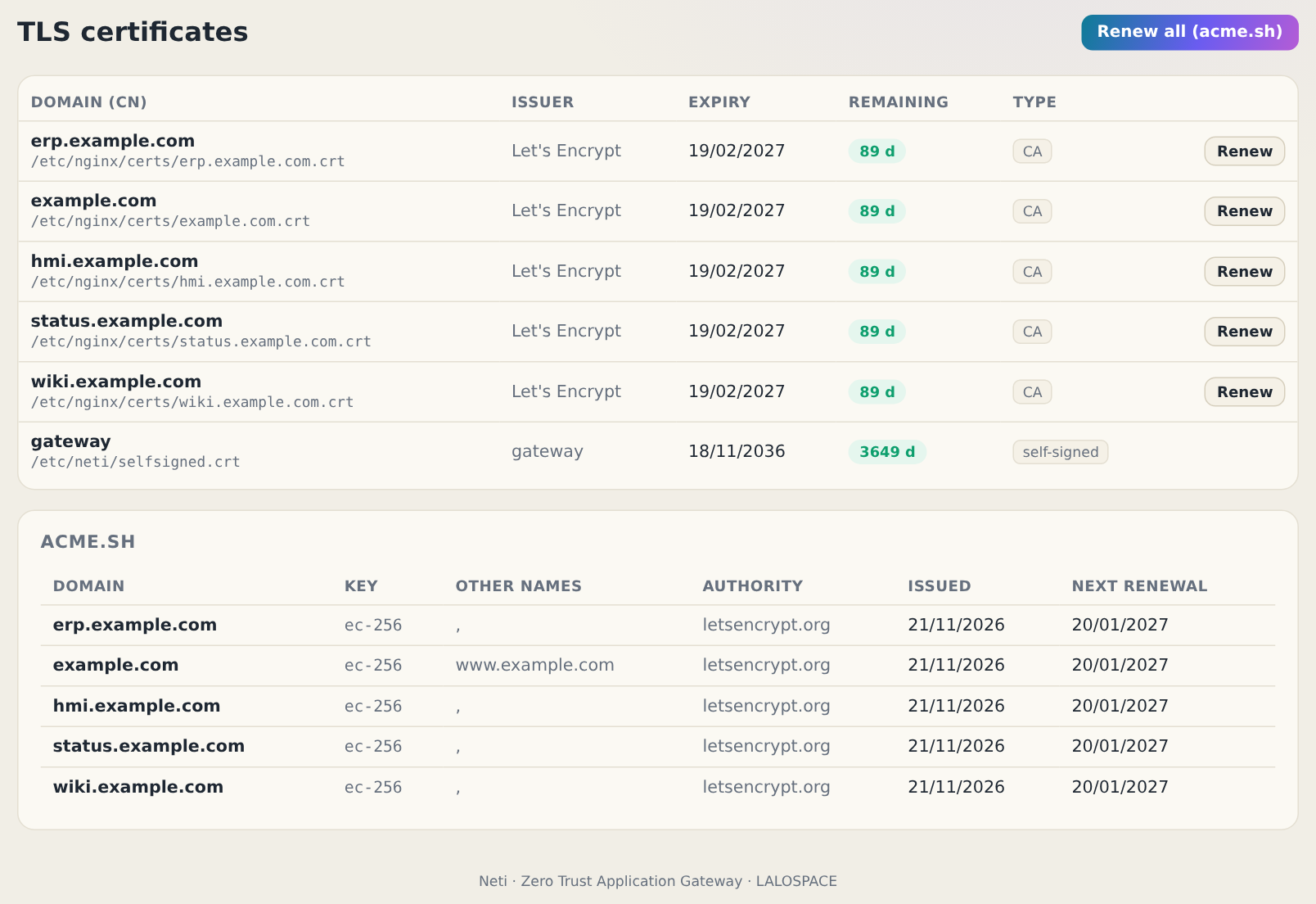
Certificate list
One row for each certificate file found on the server: the certificates of the services
(/etc/nginx/certs/<domain>.crt) and the certificates of the console, marked
console (see Certificate of the console). With no certificates the table says No certificates found. The
list is refreshed when a certificate file changes (new, renewed, removed).
- Domain (CN)
- The name written in the certificate (its Common Name; for the certificates of today's public authorities, which
carry the names only as alternative names, the domain the file is named after) and, under it, the path of the file on the server. A
certificate that also covers
www.is one row: the second name is inside the same certificate. - Issuer
- The organization that signed the certificate, for example Let's Encrypt for the automatic ones.
- Expiry
- The last day of validity.
- Remaining
- Days left, as a colored pill: green from 21 days up, orange under 21 days, red under 7 days; ? if the date cannot be read. An automatic certificate normally never turns orange, because it is renewed well before: orange or red on an automatic certificate means renewals are failing.
- Type
- CA: signed by a certificate authority (public or internal). self-signed: signed by itself, as the certificate of the console: browsers do not recognize it, and it is not meant for services open to the public.
- Renew
- On each row except the self-signed ones (only with the permission to renew). Forces the renewal of that certificate now, even if it is not yet due, and reloads the web server. It works for certificates obtained automatically; a certificate uploaded by hand cannot be renewed by Neti (the button answers Renewal failed: …): replace it from the card of the service.
Renew all (acme.sh)
- Renew all (acme.sh)
- Button at the top right. Runs now the same check that runs by itself every day: every automatic certificate that is due for renewal is renewed, the others are left as they are; then the web server is reloaded. Normally not needed. The answer is Renewal started/completed. or Renewal failed: … with the last lines written by the certificate client. If acme.sh is not installed: acme.sh not installed.
Certificate of the console
The console has its own certificates, marked console in the list, with a pill that says which one is in use and which is the spare:
- the self-signed certificate created at installation (
/etc/neti/selfsigned.crt), always present; - on a Pro node, the certificate chosen in
Settings → SSL Backend
(
/etc/neti/console-cert/live.crt): a Let's Encrypt certificate for the IP address of the server, or one uploaded by hand.
A Let's Encrypt certificate for an IP address lasts about 6 days, so its row shows the hours left and the
expiry with the time. Neti renews it by itself; Renew on that row asks for a new one right now
(permission action.certs.renew or manage.settings, Pro nodes only). For an uploaded
certificate the row has the link SSL Backend →, where it can be replaced. Renew
all does not touch the certificate of the console.
acme.sh
The second box shows the state of acme.sh, the program Neti uses to obtain and renew the automatic certificates: its own list, as a table with one row per certificate (main domain, key type, additional names, authority, date of creation and date of the next renewal). It is the quickest way to see when a certificate will be renewed.
The box lists the certificates obtained over HTTP and those obtained through the main Cloudflare zone. The certificates obtained with the credentials of the other configured DNS zones are kept by zone and do not appear in this box; they are in the certificate list above like all the others.
If the box says acme.sh not found in /root/.acme.sh., the program is not installed: automatic certificates cannot be requested until you install the component acme.sh (Let's Encrypt certificates) from the components list of the Server page.
How a service gets its certificate
Every service published by Neti answers in HTTPS with a certificate of its own, stored on the Neti server. The method is chosen when the service is created (Routing → ➕ New service → HTTPS certificate, see Routing) and is shown in the summary line of the card.
| Method | Label in New service | Needs | Renewal |
|---|---|---|---|
| Automatic over DNS | Automatic over DNS (zone provider): port 80 is not needed | The domain in a DNS zone configured in Neti (Cloudflare or OVHcloud) | Automatic |
| Automatic over HTTP | Automatic over HTTP (port 80 to Neti, the DNS must already point here) | The domain already pointing to Neti, port 80 reachable, no Cloudflare proxy in front | Automatic |
| Manual | Uploaded by hand (manual renewal) | A certificate and its key from any authority | By hand |
Automatic certificates are issued by Let's Encrypt, today the only automatic authority. A certificate covers the
domain of the service and, when the service also answers www, www. the domain: one certificate for the
two names. Without any DNS zone Neti works all the same: certificates are obtained over HTTP or uploaded by
hand.
Until a service has a certificate it answers only on port 80 with its maintenance page, and it cannot be put in production. As soon as the certificate is installed the service switches to HTTPS by itself.
Automatic over DNS
The authority checks that you control the domain by looking for a temporary record that Neti writes in the DNS zone through the provider's API. It is the recommended method whenever the zone is configured:
- the certificate is requested right away when the service is created, even if the domain does not point to Neti yet: useful to prepare a service before moving an existing site;
- port 80 is not needed;
- it is the only automatic method for a service behind the Cloudflare proxy.
It requires the zone of the domain in Settings → DNS, on Cloudflare or OVHcloud: see DNS. Before each request Neti hands the credentials of the zone to the certificate client and tests them. The summary line of the card shows cert. via Cloudflare DNS or cert. via OVHcloud DNS.
Keep the credentials valid: if the Cloudflare token or the OVHcloud keys have an expiry date, when they expire the certificates stop renewing. Choose credentials without expiry, or repeat the zone procedure before the date.
Automatic over HTTP
The authority checks the domain by fetching a file from it on port 80. Neti serves that file by itself, also for services in maintenance and for services whose other requests are redirected to HTTPS. It requires:
- the domain already resolving to Neti (and
www.too, if the service answers www). Neti checks this before every request and refuses with The domain does not point to Neti yet: …; in the card the button is disabled with the tooltip DNS first; - port 80 of the Neti server reachable from the internet (Neti opens it on its firewall when the first service is created; a firewall of the provider in front of the server must allow it too);
- no Cloudflare proxy in front of the service: behind it this method is not offered (Behind the Cloudflare proxy a certificate via HTTP is not reliable: use Cloudflare DNS or a manual upload).
If at creation the domain does not point to Neti yet, the certificate is not requested: when the DNS pill of the card is green, press Issue SSL certificate. The summary line shows cert. via HTTP.
Issuing: buttons and states in the service card
A request runs in the background and usually takes a couple of minutes; requests are processed one at a time. Reload the Routing page to see the state in the SSL pill of the card.
- SSL: missing
- No certificate and no request so far. Button: Issue SSL certificate.
- SSL: issuing…
- A request is running. Button: Retry SSL issuance, to start it again if it seems stuck.
- SSL: error
- The last request failed. Button: Retry SSL issuance (error). Read the reason first in Logs → Certificates.
- SSL: ok · 62d
- Certificate installed, with the days left; orange under 15 days. Button: Renew SSL, which asks for the certificate again (if it is not yet due for renewal the current one is kept). To force a renewal use Renew in the Certificates page.
- SSL: www missing / SSL: reissuing for www…
- The service answers www too but the installed certificate does not cover
www.yet. With an automatic certificate Neti requests the new one by itself when you turn www on; with a manual one, upload a certificate valid for both names.
Messages when a request starts: Certificate issuance started (in the background). Refusals: The domain does not point to Neti yet: … (HTTP method); The zone of … on … is not configured (Settings → DNS). and DNS credentials not delivered to acme.sh: … (DNS method); acme.sh missing: install it from the components; Manual certificate: upload it from the service page.
Manual certificate
For a service created with Uploaded by hand (manual renewal) you provide the certificate: one bought from a commercial authority, or one issued by the internal CA of your company. In the card of the service (Routing), under the destination, open Upload the certificate (it becomes Replace the certificate once one is installed). You can upload the certificate in the form the CA gives it to you, without converting it: either one PFX/P12 file, or certificate and key in PEM format.
The upload form
- PFX / P12 file (certificate, intermediates and key in one file)
- A
.pfxor.p12file, typical of Windows, IIS and many CA portals: it contains the certificate, the intermediate certificates and the key, protected by a password. Old files made by older Windows versions (RC2/3DES encryption) are read too. If you choose a PFX file the PEM fields below are ignored. Maximum size 64 KB. - Certificate, with the intermediates if you have them (PEM)
- A file (
.pem,.crt,.cer) or, in the box under it, the pasted text that starts with-----BEGIN CERTIFICATE-----. It may contain several certificates (yours and the intermediates of the CA), in any order. If you both choose a file and paste a text, the file is used. Maximum 64 KB. A binary (DER) certificate is not accepted here: use PEM or PFX. - Private key (PEM)
- A file (
.pem,.key) or the pasted text that starts with-----BEGIN PRIVATE KEY-----. A key protected by a password is accepted: write the password in the field below. Maximum 16 KB. - Password of the PFX file or of the key, if they have one
- Used only to open the files. Neti does not save it, and installs the key unencrypted, readable only by root, as the web server needs it.
- Internal (corporate) CA: accept even if the chain does not reach a public authority
- Unchecked by default. See Internal CA below.
- Upload and verify
- Checks the files, fixes the chain and installs the certificate. The change is immediate, without interruption. The answer is Certificate installed. followed by what Neti fixed, or Certificate rejected: … with the reason; a rejected upload changes nothing on the server.
What Neti checks and fixes
Before installing, Neti checks that:
- the key matches one of the uploaded certificates (that one is the certificate of the server);
- the certificate covers the domain of the service, and
www.the domain too if the service answers www; - the certificate is not expired and does not expire within one day.
Then it puts the chain in order, that is the intermediate certificates of the CA that the server must present together with its own:
- it puts the certificate of the server first, whatever the order in the file (server certificate moved to the first place);
- if intermediates are missing it downloads them from the CA, at the address written in the certificate itself, as browsers do (added the missing intermediate certificate, downloaded from the CA);
- it removes the root certificate, which clients already have (removed the root certificate);
- it leaves out certificates that are not part of the chain (ignored one certificate that is not part of the chain);
- other notes you may read: certificate and key extracted from the PFX/P12 file, key decrypted with the given password.
Without intermediates a site seems to work in the browser of a computer but gives an error on phones, apps and programs: for this reason Neti refuses a certificate whose chain does not reach a recognized authority.
Internal CA
For a certificate issued by the internal CA of your company (Active Directory Certificate Services, a PKI of your own), check Internal (corporate) CA. The certificate is then accepted even though its chain does not reach a public authority:
- if you upload the root certificate of the CA together with yours (in the same PEM text or inside the PFX), Neti verifies the chain against that root (Internal CA: chain verified with the uploaded root; clients must have that root), and refuses if it does not match;
- otherwise it accepts the chain as it is (Internal CA: chain not verified (root not uploaded); clients must have the root of the CA).
Visitors must have the root of the CA installed on their devices, as for any internal site.
Requesting a certificate from a commercial CA
Neti does not generate the request (CSR): you prepare it with openssl, on any computer, and send the
.csr file to the CA. The key stays with you until you upload it to Neti.
openssl req -new -newkey rsa:2048 -nodes -keyout example.com.key -out example.com.csr \
  -subj "/CN=example.com" -addext "subjectAltName=DNS:example.com,DNS:www.example.com"
When the CA delivers the certificate, upload it with the intermediates you received and the key
example.com.key.
Messages when a certificate is rejected
- PFX/P12 file not readable: wrong password or damaged file
- Check the password of the file.
- the PFX/P12 file does not contain a certificate and a key
- The file was exported without the private key: export it again including the key.
- no certificate in PEM format (-----BEGIN CERTIFICATE-----): for a .pfx or .p12 file use its own field
- The certificate field received something that is not PEM text.
- the private key is missing
- With PEM, the key must be uploaded too.
- the key is encrypted: enter its password / wrong key password / key not readable (PEM format required)
- Fill in or correct the password field, or convert the key to PEM.
- the key does not match any of the uploaded certificates
- The key belongs to another certificate, for example to a previous request.
- one of the certificates is not readable
- The PEM text is damaged or incomplete.
- the chain does not reach a trusted authority: intermediate certificates are missing and Neti could not download them…
- Upload the intermediates provided by the CA together with the certificate. If it is a certificate of an internal CA, check Internal (corporate) CA.
- Internal CA: the chain does not reach the uploaded root (missing intermediates or root of another CA)
- Add the intermediates of your CA, or upload the right root.
- The certificate does not cover the domain, or
www.the domain - The names in the certificate do not include the name of the service. With www on, the certificate must be valid for both names.
- certificate expired or expiring within a day
- Upload a certificate that is still valid.
- Files too large.
- The limits are 64 KB for the certificate or the PFX and 16 KB for the key.
Renewal
- Automatic certificates
- They renew by themselves, with no action and no interruption: a scheduled job on the server checks them every day and renews those that are due; the certificates obtained with the credentials of the added DNS zones are checked every night by a job of Neti. The dates are in the acme.sh box. For renewals to keep working, what made the first issue work must stay true: the DNS credentials of the zone still valid (DNS method), or the domain still pointing to Neti with port 80 reachable (HTTP method).
- Manual certificates
- Renewal is up to you. Get the new certificate from your CA and upload it from Replace the certificate in the card of the service: the change is immediate, without interruption.
- Forcing a renewal
- Renew on the row of the certificate in the Certificates page, or Renew all (acme.sh) to run the daily check now. Normally not needed.
Expiry warnings
Where Neti shows that a certificate is getting close to its expiry:
- the Remaining column of the Certificates page: orange under 21 days, red under 7;
- the SSL pill in the card of the service in Routing: the days left, orange under 15 days;
- the Next cert. expiry box of the Dashboard: the days left to the first certificate that expires.
To receive a notification, add a probe of type TLS certificate (expiry) on the domain: see Probes. It is especially useful for manual certificates, which nobody renews for you.
Removing a certificate
A certificate is removed together with its service: in the card, check also delete the cert
before Delete. The certificate and its key are deleted from the server and automatic renewal
stops. Without the checkbox the certificate stays on the server, keeps renewing and is used again if you create a
service with the same domain. When a separate www. service is merged into the service of the main
domain, its old certificate is removed by itself.
How to change the certificate method of a service
The method is fixed at creation and cannot be changed from the card. To change it (for example from HTTP to DNS after adding the zone, or from automatic to manual):
- If the service is in production, plan a short interruption, or do it when the site is not in use.
- Take note of destination, gate users, exceptions and filtering profile of the service: deleting it removes them.
- Delete the service (check also delete the cert if you are moving to another authority).
- Create it again with ➕ New service and the new choice under HTTPS certificate, then put it in production.
Troubleshooting
- SSL: error on a service with the HTTP method
- The authority could not fetch the verification file. Check that the DNS pill is green (the domain, and www if on, must lead to Neti and to nothing else: a second A record or an AAAA record that leads elsewhere makes the check fail at random), and that port 80 of the server is reachable from the internet (a firewall of the hosting provider, a missing port forward if the server is behind NAT). Then Retry SSL issuance (error).
- SSL: error on a service with the DNS method
- Usually the credentials of the zone: expired, revoked, or without the right to write records. Open DNS, use Edit on the zone and run the checks again; then retry.
- The zone of … on … is not configured (Settings → DNS)
- The zone the service was created with has been removed, or is now on another provider. Add it again in Settings → DNS.
- acme.sh missing: install it from the components
- Install acme.sh (Let's Encrypt certificates) from the components of the Server page, then retry.
- SSL: issuing… does not change
- The pill is updated when the page is reloaded. Requests are processed one at a time, so with several new services the last ones wait for the others. With the DNS method the authority also waits for the temporary record to be visible. If nothing changes after several minutes, read the log and press Retry SSL issuance.
- Where to read what happened
- Logs → Certificates: Issue and renewal for the chosen domain (choose the domain), Automatic renewals (acme.sh), Automatic renewals (added DNS zones) and acme.sh installation.
- A certificate is close to expiry and does not renew
- For an automatic certificate read the renewal logs above: the cause is almost always the same that would block a new issue (DNS credentials expired, domain no longer pointing to Neti, port 80 closed). Fix it, then Renew on its row. For a manual certificate, upload the new one.
- The site works on a computer but gives a certificate error on phones or in apps
- Typical of a missing intermediate certificate. Neti prevents it for manual uploads by completing the chain; if the certificate was accepted as Internal (corporate) CA, the device does not have the root of your CA installed.
- Behind the Cloudflare proxy visitors get a Cloudflare error about the origin certificate
- With the SSL/TLS mode Full (strict), Cloudflare requires on Neti a valid certificate for the domain: check that the SSL pill of the service is green and not expired.
- The browser warns about the certificate of the console
- The console uses a self-signed certificate (the self-signed row of the list): the warning is expected. See First access.
Good to know
- Certificates and keys of the services are in
/etc/nginx/certs/on the Neti server (<domain>.crtwith the chain,<domain>.keyreadable only by root). The backend does not need a public certificate: visitors always receive the one installed on Neti. - Configuring a DNS zone does not request any certificate: certificates are requested per service.
- The password of a PFX file or of a key is used only during the upload and is never saved.
- Certificate uploads and renewals asked from the console are recorded in Activity.