Remote access
The Remote access section opens, only when needed and only for you, a port towards one service of a server that is normally not reachable from the Internet: SSH, remote desktop, VNC, a database, the web panel of a router or of a hypervisor, or any other TCP service. The server needs no open ports: Neti reaches it, usually through the WireGuard tunnel. Access is just-in-time: time-limited, only from your IP address, and only after a code received by email.
Where: menu Remote access. Permissions: View remote access to servers
(view.ssh) to see the page; Open temporary remote access (action.ssh.open) to open
and close your own sessions; Add or configure remote access servers and services (manage.ssh)
to add, configure, suspend and delete servers and services and to close the sessions of other users. The Operator and
Admin roles have all three; the Viewer role does not see the section. The rules that decide who may open access are in
Settings → Remote access and need Configure remote access
(manage.access_rules, Admin by default). See Users for roles and permissions.
How it works
A server has a name and an IPv4 address. Each server has one or more services, each with a name, a type and a port. For example:
 Production web server   10.9.0.5
   SSH        port 22     → public port 49220
   Database   port 3306   → public port 49221
- When a service is added, Neti reserves for it a public port from the pool
49220–49299(so at most 80 services in total). The port stays the same until the service is deleted. - When the service is configured, Neti starts a small forwarder that listens on the public port and passes the connections to the server, and adds a firewall rule that drops every connection to that port unless it comes from an authorized address. The port is therefore closed to everyone until someone opens access.
- When a user opens access, the IP address from which that user is using the console is authorized on that port for the chosen number of hours. Nobody else can connect.
- At expiry the authorization disappears by itself and, within a minute, the connections still open from that address are closed.
The rule that closes the port is put in place before the forwarder starts, and the forwarder refuses to start if the rule cannot be installed. Once a minute Neti checks that the rule is still there and puts it back if something removed it (for example a reload of the firewall).
Add server
The ➕ Add server button at the top right (only with the permission to configure servers) opens the Add server dialog.
- Server name
- A free name, required, at most 80 characters (for example "Production web server").
- Server IP
- The IPv4 address of the server, as Neti reaches it. The field suggests the addresses of the WireGuard peers, but any IPv4 address that Neti can reach is accepted; it is usually an address inside the tunnel. IPv6 addresses and host names are not accepted.
- First service
- Type, name (optional: if empty the name of the type is used; at most 60 characters) and port of the first
service. Choosing the type proposes its usual port, which you can change:
The type does not change how the connection is forwarded (it is always plain TCP): it only decides the proposed port and the ready-made command shown in Active sessions.Type Proposed port SSH 22 Remote desktop (RDP) 3389 VNC 5900 MySQL / MariaDB 3306 PostgreSQL 5432 Web panel (HTTPS) 443 Other TCP service none: type it - Add server
- Saves the server with its first service. Nothing is opened yet: the service appears in the card of the server as not configured. The other services of the same server are added from its card.
- cancel / close ✕
- Close the dialog without saving (also the Esc key).
Your address
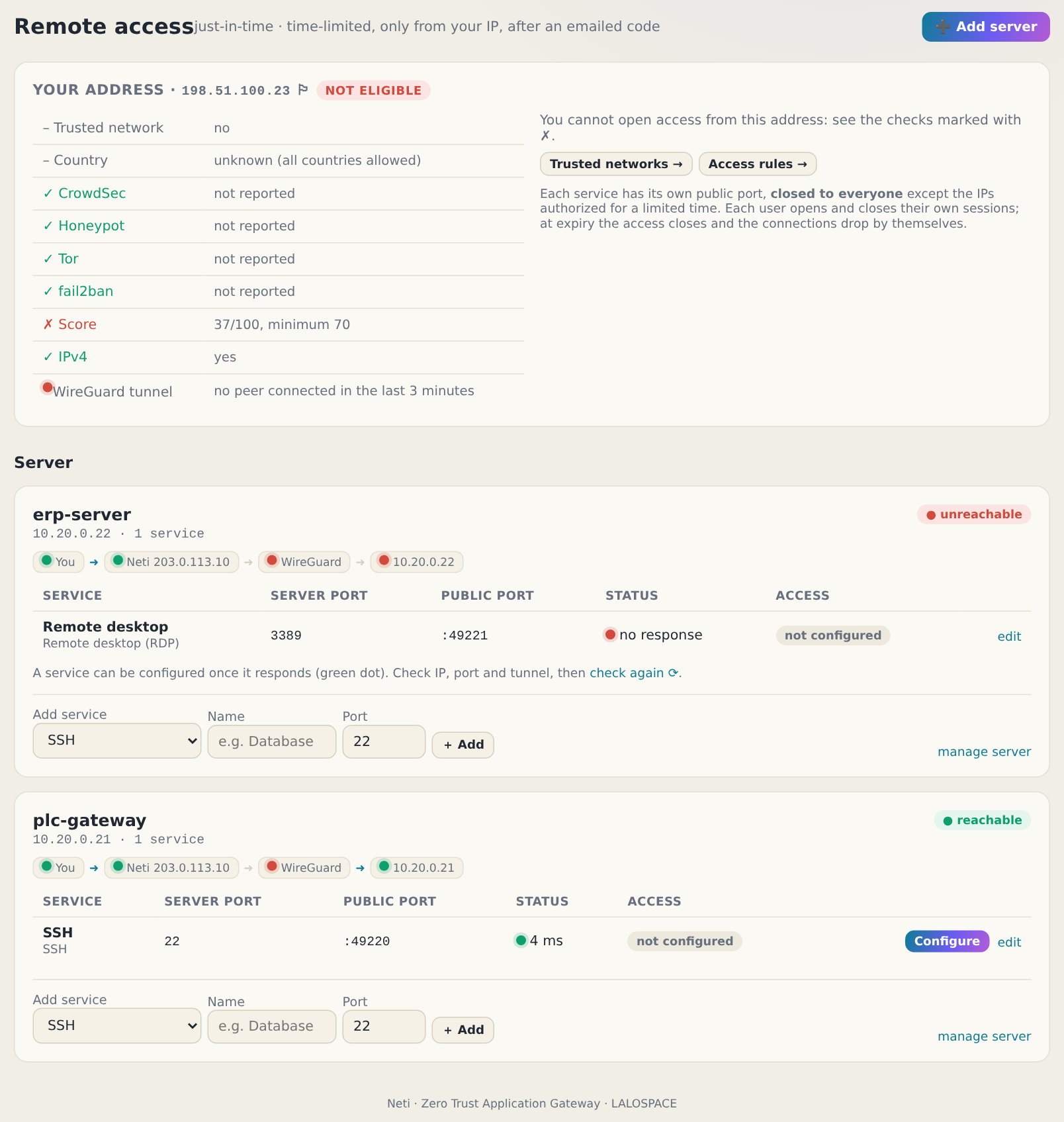
The first box shows the IP address from which you are using the console, its country and whether from that address you may open access: eligible (green) or not eligible (red). Below, one line per check, with ✓ (passed), ✗ (failed) or – (not applied):
- Trusted network
- Whether your address is in the trusted networks, and what that means with the current rules.
- Country
- The country of the address and whether the rules admit it.
- CrowdSec, Honeypot, Tor, fail2ban, VPN, Datacenter / hosting
- One line for each block that is enabled in the rules: not reported or reported: blocked.
- Score
- The score of the address out of 100 and the minimum required (only if the rules require a score).
- IPv4
- Access can be opened only for an IPv4 address. If you are using the console over IPv6 the line is red: open the console over IPv4.
- WireGuard tunnel
- Informative: active when at least one WireGuard peer had a handshake in the last 3 minutes. It does not change your eligibility, but with no tunnel the servers behind it do not answer.
The checks are those of the access rules. To be eligible every applied check must pass and the address must be IPv4. On the right: how long access can last at most, and the buttons Trusted networks → (opens Trusted networks) and Access rules → (opens Settings → Remote access, only with the permission to configure the rules).
Server cards
Under the title Server there is one card per server, in alphabetical order. If there is none the page shows No server configured.
- Header
- Name of the server, its IP address and the number of services.
- ● N active sessions of yours
- Appears when you have sessions open on that server.
- ● reachable / ● unreachable
- Green when at least one service of the server answers, red when none does.
- You ➜ Neti ➜ WireGuard ➜ server
- The path of the connection: you, the public address of Neti, the tunnel, the address of the server. The dots and arrows are green where that part works (tunnel with a recent handshake, server reachable).
Services table
- Service
- Name and type of the service. A suspended service is shown dimmed.
- Server port
- The port on which the service listens on the server.
- Public port
- The port on the public address of Neti to which you connect once access is open.
- Status
- Whether the service answers right now: a green dot with the response time in milliseconds, or no response. Neti tries a TCP connection to the server and port each time the page is loaded, and waits at most 3 seconds.
- Access
-
- not configured: the service is only registered; its public port is not listening.
- configured: forwarder running, port closed to everyone except the addresses with an open session.
- disabled: the service is configured but suspended: the port drops everyone.
- forwarder down: the service is configured but its forwarder is not running. Use Disable and then Configure again.
With the permission to configure servers, each row also has:
- Configure
- Shown for a service that is not configured and answers (green dot). Neti checks again that the service is reachable, adds the firewall rule that closes the public port, then starts the forwarder and allows the port in the system firewall. If the forwarder does not start, everything goes back to not configured. A service that does not answer cannot be configured: check IP, port and tunnel, then check again ⟳.
- Disable
- Shown for a configured service. After confirmation the forwarder is stopped, the public port is closed and the open sessions on that service are closed. The service stays in the list as not configured and keeps its public port number.
- Suspend / Resume
- Suspend closes the port to everyone without removing the configuration: open sessions are closed and their connections dropped, and nobody can open access to the service until Resume.
- edit
- Opens a small form with the name, the type and the server port of the service, and Save. The same server cannot have two services on the same port. Changing the port of a configured service restarts its forwarder towards the new port. Delete service removes the service after confirmation: forwarder, firewall rule and sessions; its public port goes back to the pool.
Open access
Shown when the server has at least one configured, not suspended service.
- Services
- One checkbox per service that can be opened; all are ticked at first. Tick those you need.
- Duration
- 1, 2, 6 or 12 hours, up to the maximum set in the rules. The proposed value is 6 hours, or the maximum if it is lower.
- 1) Send code
- Sends a verification code to the email address of your user. The services and the duration you chose are kept while you wait for the code. The sending limits of the access codes apply: if you ask for too many codes in a short time, the console asks you to wait.
- 2) Emailed code
- Type here the code you received. A code is valid once and only for remote access; after 5 wrong codes the codes still pending are void and you must ask for a new one.
- 3) Open 🔓
- Checks, in this order: at least one service chosen, your address eligible, IPv4, duration within the maximum, code correct. Then it opens all the chosen services with that single code, only for the IP address from which you are using the console. The opening is recorded in Activity.
In place of the form you may see: Open the console over IPv4 to open access (you are on IPv6); Your IP is not eligible (see the checks in Your address); You do not have permission to open access.
Active sessions
All the open sessions on the services of the server, of every user.
- User
- Who opened the session; yours are marked you.
- Service
- The service the session is for.
- IP
- The authorized address.
- Expires in
- Countdown to the end of the session.
- How to connect
- For your own sessions, the address or command ready to copy, with the public address of Neti and the public
port of the service:
ReplaceType Shown SSH ssh -p 49220 user@203.0.113.10Remote desktop (RDP) mstsc /v:203.0.113.10:49220(or, in the Remote Desktop client:203.0.113.10:49220)VNC 203.0.113.10::49220MySQL / MariaDB mysql -h 203.0.113.10 -P 49220 -u user -pPostgreSQL psql -h 203.0.113.10 -p 49220 -U userWeb panel (HTTPS) https://203.0.113.10:49220/Other TCP service 203.0.113.10:49220userwith your account on the server. - close
- Closes the session after confirmation: the address is removed from the firewall and its connections drop. You can close your own sessions; with the permission to configure servers you can close those of other users too.
- not recorded / revoke
- An address that is authorized in the firewall but has no recorded session (for example one opened before an update of Neti). Who has the permission to configure servers can remove it with revoke.
Add service
At the bottom of the card, with the permission to configure servers: type, Name (optional, at most 60 characters), Port (1–65535) and + Add. The types and proposed ports are the same as in Add server. The new service gets the first free public port of the pool and is not configured until you press Configure. If the pool is full the console says that no public port is free.
manage server
- Rename
- Changes the name of the server (at most 80 characters). The address of a server cannot be changed: delete the server and add it again.
- Delete server
- After confirmation removes the server with all its services: forwarders, firewall rules and open sessions.
Access rules (Settings → Remote access)
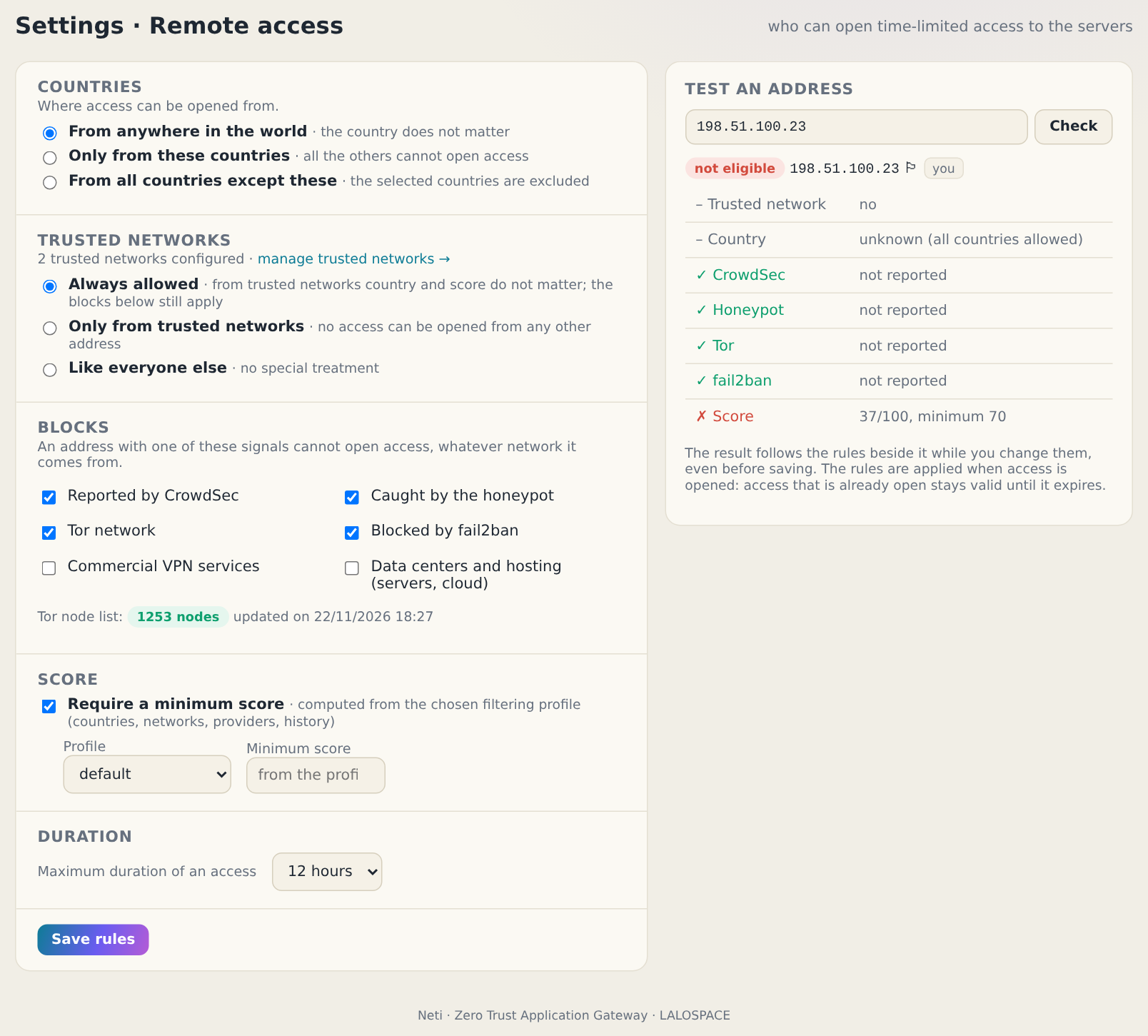
The page Settings → Remote access decides who may open time-limited access. Neti is used from anywhere in the world: no country is imposed, you decide. An address is eligible only if it passes all the active checks. The rules are checked when access is opened: access that is already open stays valid until it expires. The rules are in one card, a section each; Save rules at the bottom saves all the sections together; the change is recorded in Activity.
The initial rules: from any country; trusted networks always allowed; blocked if reported by CrowdSec, caught by the honeypot, on the Tor network or blocked by fail2ban; VPN and data center addresses not blocked; minimum score required, computed by the default filtering profile with its own threshold; at most 12 hours. In short: a trusted network, or a clean address with a good score.
Countries
- From anywhere in the world
- The country does not matter. Initial value.
- Only from these countries
- All the others cannot open access. At least one country must be chosen, otherwise the rules are not saved. An address whose country cannot be determined is not admitted.
- From all countries except these
- The selected countries are excluded. An address whose country cannot be determined is admitted.
With the last two choices the list of countries appears, grouped by continent (each group shows how many are selected). The + buttons add a whole group of countries at once; clear removes every tick.
Trusted networks
- Always allowed
- From the trusted networks country and score do not matter; the blocks still apply. Initial value.
- Only from trusted networks
- No access can be opened from any other address. Needs at least one trusted network, otherwise the rules are not saved. Country, score and blocks are still checked.
- Like everyone else
- No special treatment: a trusted network is checked like any other address.
Below: how many trusted networks are configured and the link manage trusted networks →.
Blocks
An address with one of these signals cannot open access, whatever network it comes from, trusted networks included.
- Reported by CrowdSec
- On by default. The address has a CrowdSec decision. See Security.
- Caught by the honeypot
- On by default. The address ended up on the decoy page. See Honeypot.
- Tor network
- On by default. The address is in the list of nodes of the Tor network.
- Blocked by fail2ban
- On by default. The address is banned by fail2ban.
- Commercial VPN services
- Off by default. The address belongs to a provider classified as a VPN service.
- Data centers and hosting (servers, cloud)
- Off by default. The address belongs to a hosting or cloud provider. Turn it on if nobody should open access from a server; leave it off if administrators work through a company VPN hosted in a data center.
Tor node list: Tor nodes are recognized from the public list of the Tor Project, which Neti downloads every 6 hours. Under the blocks you see how many nodes the list contains and when it was updated. A yellow pill and the note not updated for more than two days mean the download is failing; a red missing pill means the list has never been downloaded and the Tor check recognizes no node. In both cases look at the log of the Tor node list update in Logs → Background jobs.
Score
- Require a minimum score
- On by default. The address must reach a minimum score, computed by a filtering profile (countries, networks, providers, history). See score and bands.
- Profile
- The profile that computes the score: default or one of the profiles of Filtering.
- Minimum score
- From 0 to 100. Empty (or 0) means the threshold of the profile itself: the score from which the profile lets a visitor in directly.
Duration
- Maximum duration of an access
- 1, 2, 6 or 12 hours (initially 12). Users can choose a shorter duration when they open access, never a longer one.
Test an address
The box on the right shows whether an address would be eligible and why. It starts with your own address; type any IPv4 or IPv6 address and press Check. The result is the pill eligible or not eligible and the same list of checks as in Your address. The result follows the rules of the page while you change them, before saving: tick or untick a rule and the list of checks updates by itself, so you see the effect on that address first. While something differs from the saved rules the pill unsaved changes appears next to Save rules; nothing takes effect until you save. If the rules as they are could not be saved (for example Only from these countries with no country chosen), the box says so under the checks.
Several users at the same time
Each user opens their own sessions with their own code: two administrators can work at the same time on the same server or on different ones. All the active sessions of a server are visible, with the name of who opened them. Each user closes their own; who has the permission to configure servers can close those of the others too.
The firewall authorizes IP addresses, not people. If two users come from the same address (for example the same office), the port stays open until the latest expiry among their sessions, and closing your own session does not take access away from the other user.
Expiry of the sessions
The authorization of an address has a timer in the firewall itself: at expiry it disappears without any action of
the console. A job that runs every minute then closes the connections still open from addresses that are no longer
authorized (expired or closed sessions). Each closed connection is written in
/var/log/neti/ssh-reap.log, readable in Logs → Background jobs →
Closing of expired remote access. To keep working, open access again: if you do it before the
expiry, the connections in progress are not interrupted.
SSH access to the Neti server
This is about SSH of the Neti machine itself, not about the temporary access to the servers behind the tunnel. It is set in Settings → General, box SSH access to the server, visible only to users with the Admin role. See also Settings and How Neti protects itself.
- filter off
- The state after installation: SSH answers everyone, as on a freshly installed Debian.
- filter on
- SSH answers only the addresses in the list and the WireGuard network; the others are dropped by the firewall before they reach SSH. The filter covers every port on which SSH listens, over IPv4 and IPv6. SSH itself keeps running and whoever is already connected is not disconnected.
- Your IP
- The address from which you are using the console, with allowed (and by which entry, until when) or not listed. Always allow adds it without expiry; Allow for a limited time adds it for the number of hours or days you type (1–366; proposed: 8 hours).
- Add an address or a network
- An IPv4 address or network from /8 to /32 (for example
203.0.113.7or203.0.113.6/31), or an IPv6 address or network from /16 to /128 (for example2001:db8::/48); an optional note (at most 80 characters, for example "office"); the duration: always, or a number of hours or days (1–366); then Add. Adding an address that is already in the list renews it with the new duration. - The list
- Columns Address, Note, Expiry (always, or the date and the time left) and Added by. Remove deletes the entry after confirmation; if it was the one that admitted your own address, the console warns you. Expired entries are removed by themselves within a minute. With the filter on and an empty list, SSH is reachable only from the WireGuard network.
- Enable the filter
- Turns the filter on. If your address is not in the list the console stops and warns that from there you could not get in over SSH, and offers Add my IP (always) and enable or Enable anyway. The console stays reachable in any case, so the filter can always be turned off from it.
- Turn the filter off (SSH open to everyone)
- After confirmation SSH answers everyone again. The list is kept.
Good to know about the filter:
- The filter is rebuilt at every change, at boot and every minute; if the system does not follow a change, the setting goes back as it was and the box shows a warning (The firewall does not match the setting: save again).
- The desired state is written in
/var/lib/neti/sshd-filter.conf. - Email: an Admin who ticks Emails about SSH access to the server in their own card in Users receives a message every time the filter is turned on or off and every time an address is added or removed, with the full list.
- Every change is recorded in Activity.
- The Firewall section has a separate choice about who can reach the SSH port (everyone or the trusted networks only).
How to give access to a new server
- Make sure Neti reaches the server: normally the server is a WireGuard client of Neti (see Network & Tunnels).
- Press ➕ Add server: name, IP and first service.
- In the card of the server wait for the green dot in the Status column, then press Configure.
- Add the other services with Add service and configure each of them.
- If needed, review who may open access in Settings → Remote access.
How to open access
- Check in Your address that you are eligible.
- In the card of the server tick the services you need and choose the duration.
- Press 1) Send code and read the code in your mailbox.
- Type the code and press 3) Open 🔓.
- In Active sessions copy the command of each service and connect.
- When you have finished, press close; otherwise the session closes by itself at expiry.
Limits
- Only TCP services on a fixed port. UDP does not work (VoIP, games, VPNs over UDP), nor do protocols that use dynamic ports (passive FTP, SIP with audio). Remote desktop works: it uses TCP.
- Only IPv4, both for the server and for who connects.
- The service sees the connections coming from the address of Neti. Who connected and when is in this section and in Activity.
- For web panels the browser shows a certificate warning, because you connect to an IP address and to a port different from those of the panel.
- At most 12 hours per session and 80 services in total (the size of the pool of public ports).
Troubleshooting
- The service shows "no response" and there is no Configure button
- Neti cannot open a TCP connection to that IP and port. Check that the tunnel is up (line WireGuard tunnel in Your address), that the IP is the one of the server inside the tunnel, that the service listens on that port and on that interface, and that the firewall of the server accepts connections from Neti. Then press check again ⟳.
- "not eligible"
- Read the line with ✗ in Your address. Typical causes: you are on a VPN or on a data center address and the matching block is on; your country is not admitted; the score is below the minimum; you are on IPv6. The simplest fix for an office is to add its address to the trusted networks. A block (CrowdSec, honeypot, Tor, fail2ban) is not overridden by a trusted network: remove the cause in Security or Honeypot.
- "Wrong or expired verification code"
- Ask for a new code with 1) Send code and use the latest one. If the email does not arrive, check Logs → Email and the SMTP settings in Settings.
- Access is open but the connection is refused or times out
- Check that you connect to the public port (not the port of the server) and to the address shown in How to connect, and that your public address has not changed since you opened access (mobile networks and some VPNs change it): the session is valid only for the address shown in the IP column. Also check that the Access column says configured and not forwarder down.
- The connection dropped by itself
- The session expired, or someone closed or suspended it. Open access again.
- After enabling the SSH filter you cannot reach SSH of Neti
- Your address is not in the list. Open the console, go to Settings → General → SSH access to the server and add your address, or turn the filter off.